• • • • • • • • • • • • • • • • • • • • • • • • • • • • • • • • • • • • • • • • • • • • • • • • • • • • • • • • • 3 – 1
3
Section 3 – Using The Scan Tool
The Scan Tool
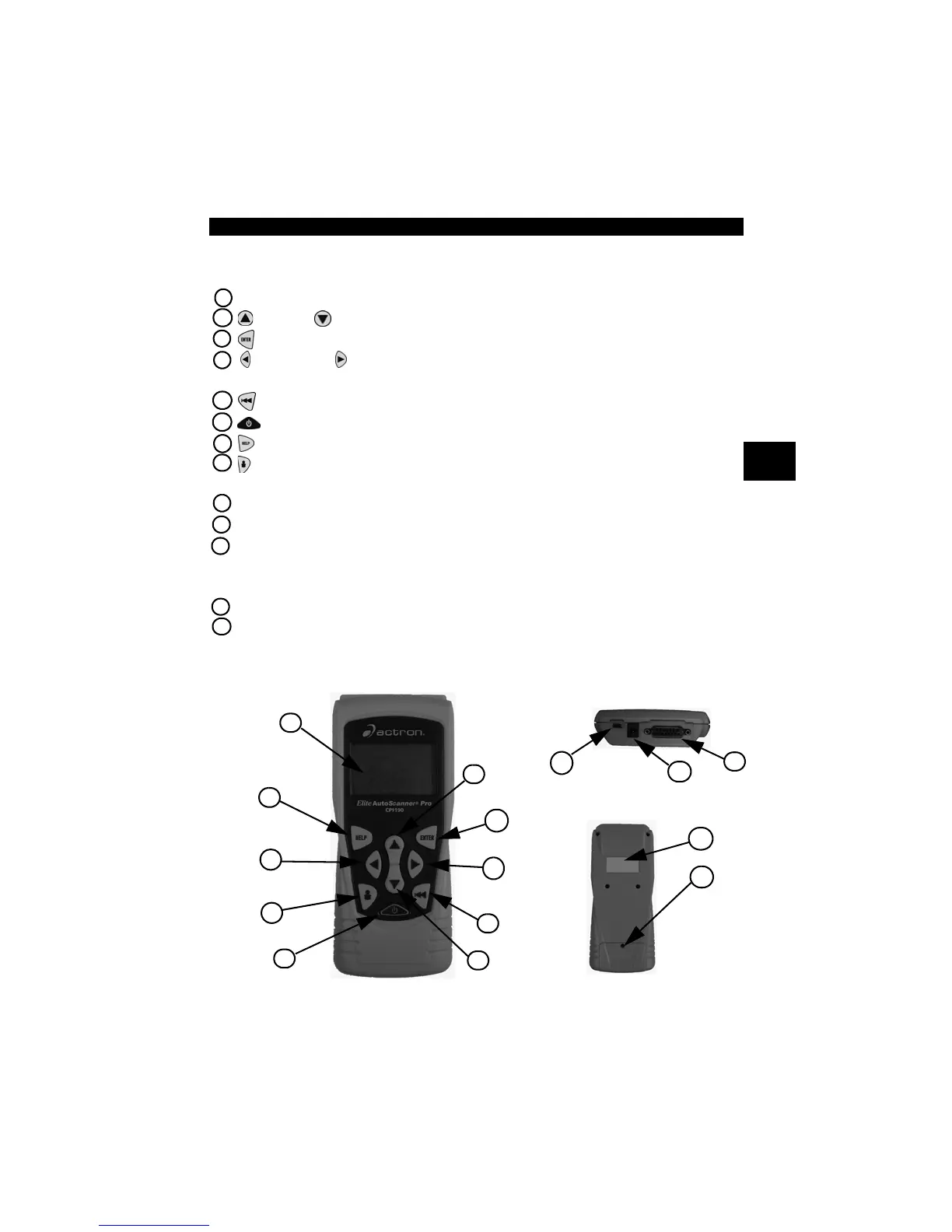
1 LCD Display – backlit, 128 x 64 pixel display with contrast adjustment.
2
UP
and
DOWN
arrow keys – moves selection UP or DOWN.
3
ENTER
key – selects displayed items.
4 LEFT and RIGHT arrow keys – selects YES or NO, and selects data
parameters for custom data list.
5
BACK
key – goes to the previous screen or level.
6
ON/OFF
key – turns power ON or OFF.
7
HELP
key – accesses the Help Function.
8 USER key - allows the operator to access a feature from the Diagnostic
Menu with a touch of a key.
9 DLC Cable – provides connection for vehicle interface.
10
USB Port – provides a USB connection for the computer.
11
12V Power Jack– provides power to the Scan Tool when reprogramming
from a personal computer, communicating with Ford, GM and Chrysler
Historic vehicles, or off-vehicle reviewing of codes and printing.
12
Serial Number Plate – provides serial number of Scan Tool.
13
Battery Compartment – provides power to the Scan Tool when
reprogramming from a personal computer or off-vehicle reviewing of codes
and printing.
1
3
4
5
6
7
4
8
2
2
9
10
11
Top of Scan Tool
Back of Scan Tool
13
12



 To Next Page