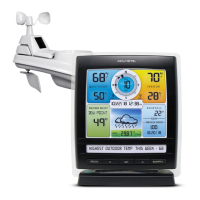
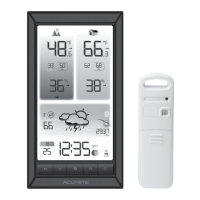
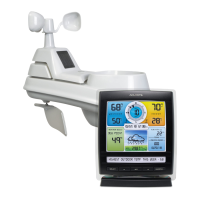
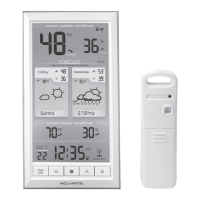
11
Set the Time, Date & Units
The display will automatically enter SET MODE after the unit has powered on.
Once in set mode, the preference you are currently setting will blink on the display.
To adjust the currently selected item, press and release the “
SELECT
” or “
SELECT
“
buttons (press and HOLD to fast adjust).
To save your adjustments, press and release the “
ENTER
SET
” button again to adjust
the next preference.
The preference set order is as follows:
TIME ZONE (PST MST CST EST AST HAT AKT NAT)
AUTO DST (YES, NO)*
CLOCK HOUR
CLOCK MINUTE
CALENDAR MONTH
CALENDAR DATE
CALENDAR YEAR
TEMPERATURE UNITS (°F or °C)
PRESSURE UNITS (inHg or hPa)
DISTANCE UNITS (mi or km)
RAINFALL UNITS (in. or mm)
*If you live in an area that observes Daylight Saving Time, DST should be set
to YES, even if it is not currently Daylight Saving Time.
You will automatically exit SET MODE if no buttons are pressed for 10 seconds.
Enter SET MODE at any time by pressing the “
ENTER
SET
” button.
Display Backlight Settings
This weather station’s color display features three different lighting settings:
High (100%) brightness, Medium (60%) brightness and Low (15%) brightness.
Using battery power alone, the backlight is available momentarily for 10
seconds by pressing the backlight button.
When the display is powered with the power adapter, the backlight remains on
at 100% brightness. Press the backlight button once to dim to 60% brightness;
press again to dim to 15%, press a 3rd time to enter “AUTO DIM” mode.
“ ” appears to the left of the clock to indicate that auto-dim mode is ON.
NOTE: Pressing and holding the backlight button for 5 seconds will disable
the backlight. Once any button is pressed, the backlight will return to your
selected setting.
AUTO DIM MODE: Automatically adjusts display brightness based on time of day.
6:00 a.m. - 9:00 p.m. = 100% brightness
9:01 p.m. - 5:59 a.m.= 15% brightness


 To Next Page