22
Chatper 2 - Connections
GFR-700HD Owner’s Manual
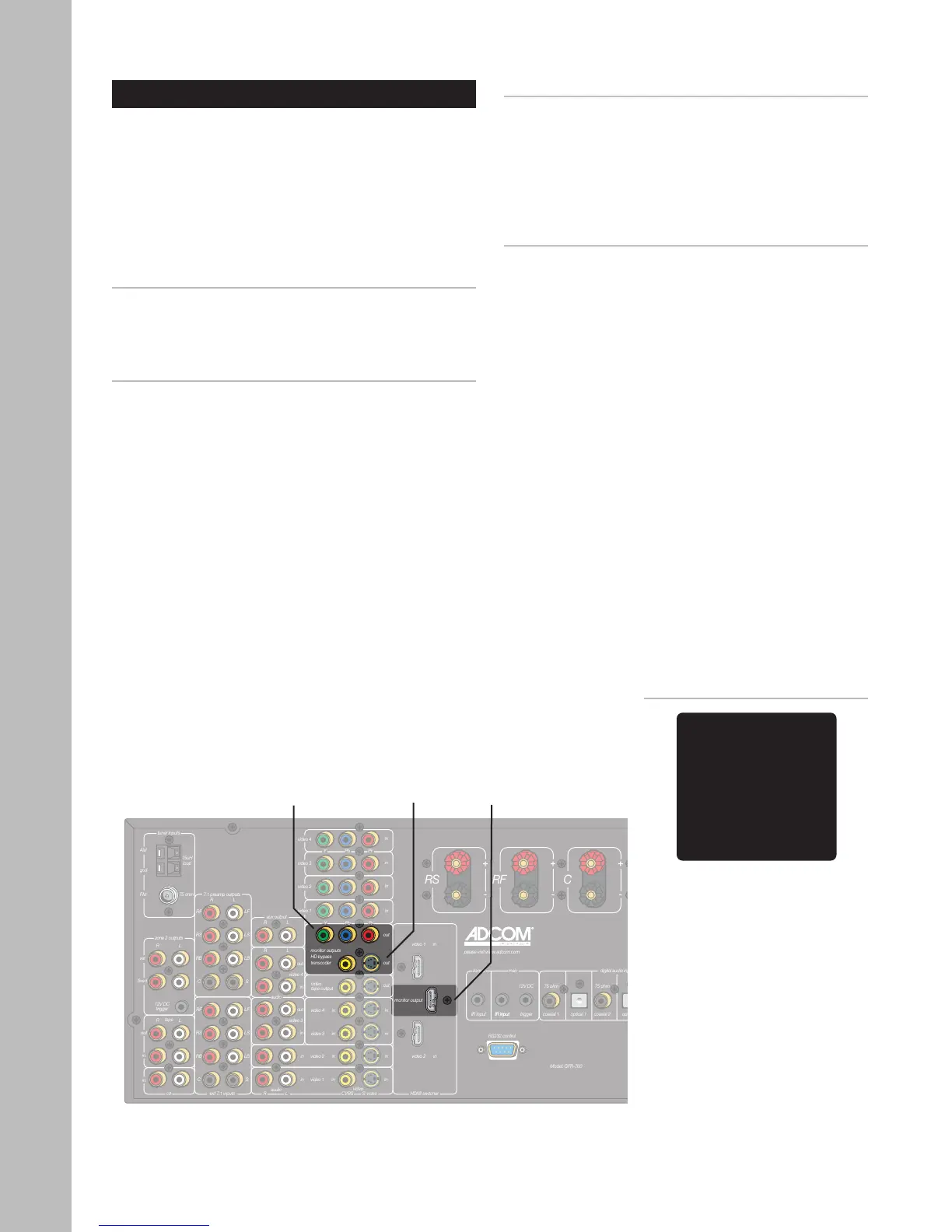
TV/Monitor Connections
There are four ways to connect the GFR-700HD to a
TV, monitor, or other display device:
• Composite Video
• S-Video
• Component/Progressive Scan Video
• HDMI
Composite Video Connections
1 Using a video cable, connect the Monitor output
on the GFR-700HD to the video input on your dis
-
play device.
S-Video Connections
1 For higher quality video, use an S-video cable to
connect the Monitor output on the GFR-700HD to
the S-video input on your display device.
Component Video Connections
1 Using a Component video cable, connect the Y/
Pb/Pr outputs on the GFR-700HD to the corre-
sponding Y/Pb/Pr inputs on your digital display
device.
2 Be sure to match the red, green, and blue con-
nectors accordingly.
HDMI Connections
1 Using an HDMI cable, connect the HDMI output
on the GFR-700HD to the corresponding HDMI in
-
put on your digital display device.
2 The built-in HDMI switcher/scaler allows you to
view both HDMI source components and upcon-
verted legacy sources (composite, S-video, and
Component video) on your digital display de-
vice.
• The OSD is always available
on the Composite and S-video
outputs.
• The OSD is always available on
the Component video out
-
puts, EXCEPT when the input
signal is higher than standard
(NTSC/PAL) resolution. If so,
the GFR-700HD switches from
standard to bypass mode and
the OSD will not appear. How
-
ever, you can still access the
Setup menus by pressing the
Setup button (which causes the
GFR-700HD to switch back to
standard mode).
Component
Video Out
Video/
S-Video Out
HDMI
Out
VIDEO 1 DOLBY D
COAXIAL 1 -40.0 dB
On-Screen Display (OSD) Notes:



 To Next Page