62
Chapter 4 - Operations
GFR-700HD Owner’s Manual
Room 2 Operations
The Room 2 feature makes the GFR-700HD a true
multi-tasking device. For example, you can watch a
movie in one room and play a CD in another at the
touch of a button.
To use the Room 2 feature, you must have:
• An amplifier or receiver connected to the Zone 2
Outputs; see page 28.
• A Room 2 input source specified in the Setup
menu; see page 41.
Activating the Room 2 Output
To activate the Room 2 output:
1 Power on the GFR-700HD.
2 Select the Room 2 output.
• Press the Rm 2 button on the remote con
-
trol.
or
• Press the Room 2 On/Off button on the front
panel.
3 Power on your Room 2 component.
• Note: The Room 2 component will power on
automatically if you connected it to the Zone
2 12V DC trigger.
4 Adjust the volume.
• If you used the Variable Zone 2 outputs, use
the Volume knob on the GFR-700HD.
• If you used the Fixed Zone 2 outputs, use the
volume control on your Room 2 component.
Notes:
• The GFR-700HD can be in Standby or On modes for
Room Two operation.
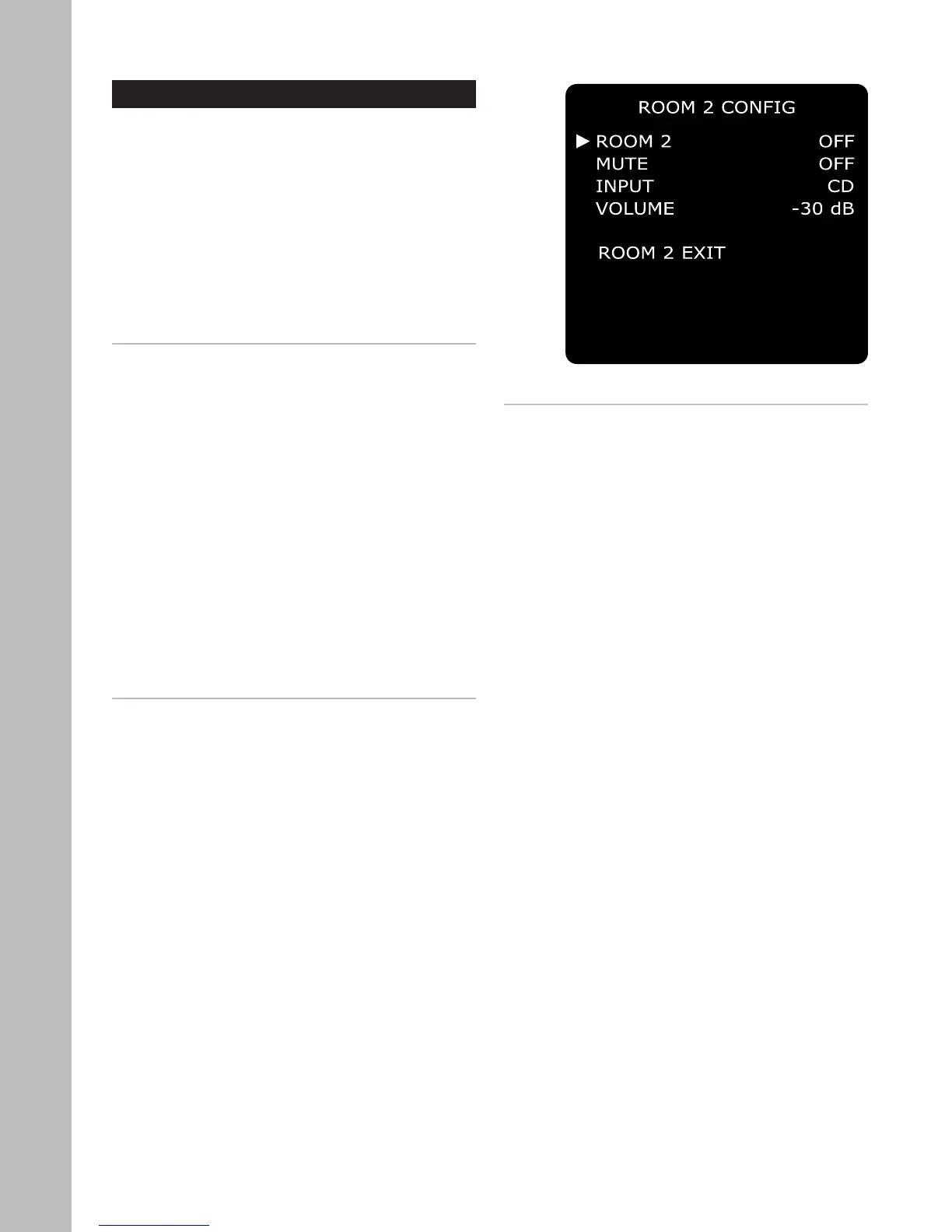
Overriding Default Room 2 Settings
You can change the Room 2 input, volume, and mute
settings from the front panel without going through
the main Setup menu:
1 Select the Room 2 Config menu.
• Press the Room 2 Setup button on the front
panel.
2 Make changes to Room 2 settings.
• Press the Room 2 Setup button repeatedly to
step through each menu item.
• Use the front panel Volume Knob or Up/Down
buttons to select menu options.
3 Menu options include:
• Room 2 (On/Off)
• Mute (On/Off)
• Input (Video 2~4, CD, Tuner AM/FM)
• Volume level (-65 dB to 0 dB)


 To Next Page
 Loading...