:ANAPURNA L/XL OPERATOR MANUAL
AB]]]]]]]]]]]]]]]]]]]]]]]]]]]]]]]]]]]]]]]]]]]]]]]]]]]]]]]]]]]]]]]]]]]]]]]]]]]]]]]]]]]]]]]]]]]]]]]]]]]]]]]]]]]]]]]]]]]]]]]]]]]]]]]]]]]]]]]]]]]]]]]]]]]]]]]]]]]]]]]]]]]]]]]]]]]]]]]]]]]]]]]]]]]]]]]]]]]]]]]]]]]]]]]]]]]]]]]]]]]]]]]]]]]]32] 8/09/2006]
11. :Anapurna Control Program.
11.1. Control Program Menu
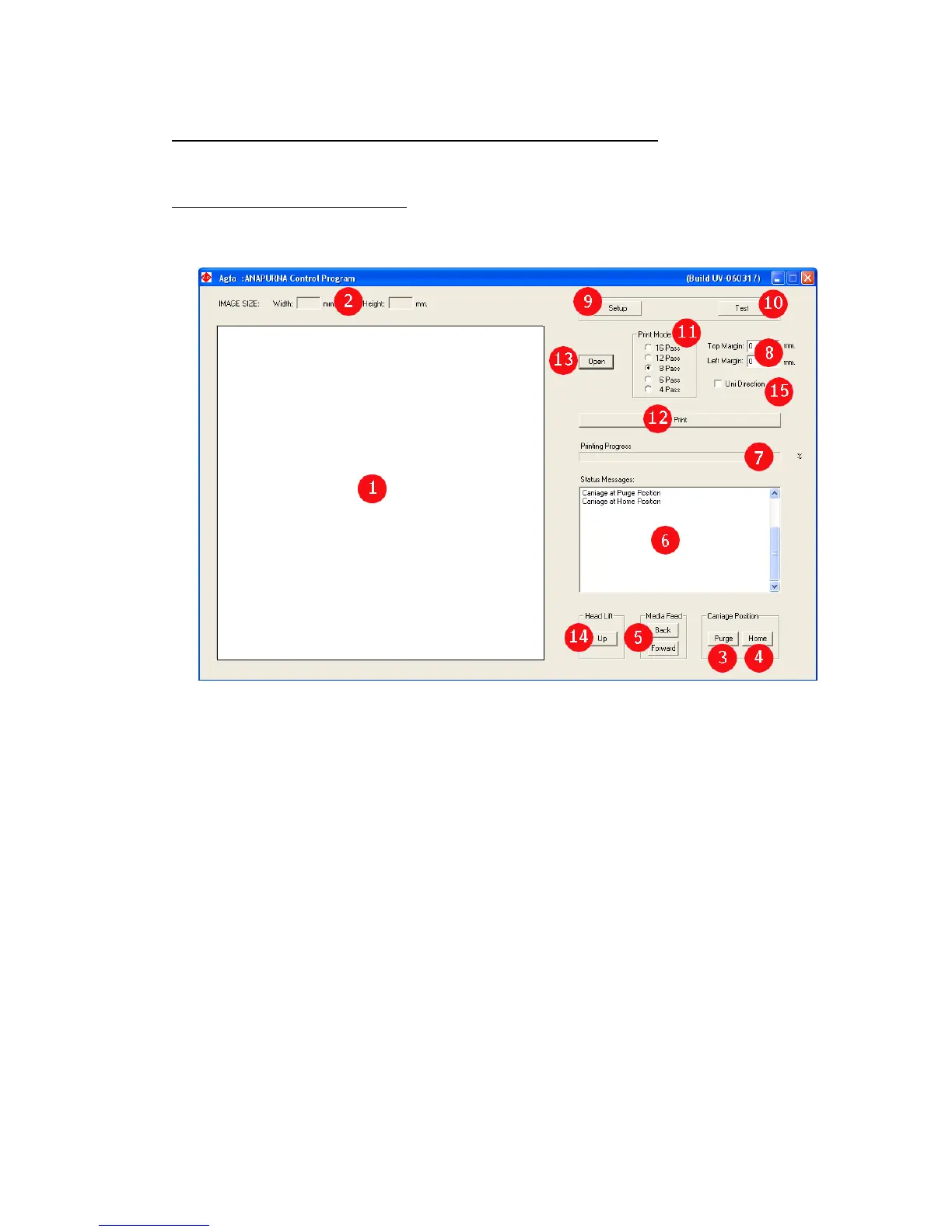
The :Anapurna Control program on the engine’s PC:
1 : IMAGE display window
2 : IMAGE SIZE display window
3 : Move Carriage to “Purge” position
4 : Move Carriage to ‘Home” position
5 : Move loaded media Fwd/Back
6 : STATUS Message display window
7 : Display Printing Progress
8 : Set Top (forward) and Left Margin
9 : Setup Menu, to Change Parameters
10 : Press to Open TEST menu
11 : Select PASS mode
12 : Push to start Printing
13 : Open image file(.rtl) to be printed (*)
14 : Lift head to highest position (>50mm)
15 : Select to Uni-Directional printing (**)
(*) When you open an image file (.rtl), which is sent from the Rip station, you’ll get
an on-screen preview and it will also show the image size and nr. of passes the
image is ripped for. (if an image is ripped for 6 pass, and you print it at 8 pass, it
will result in an un-proportionally scaled printout)
(**) Regardless the image file, you can always choose between printing
Uni- or Bi-directional.






 To Next Page