EasyManua.ls Logo

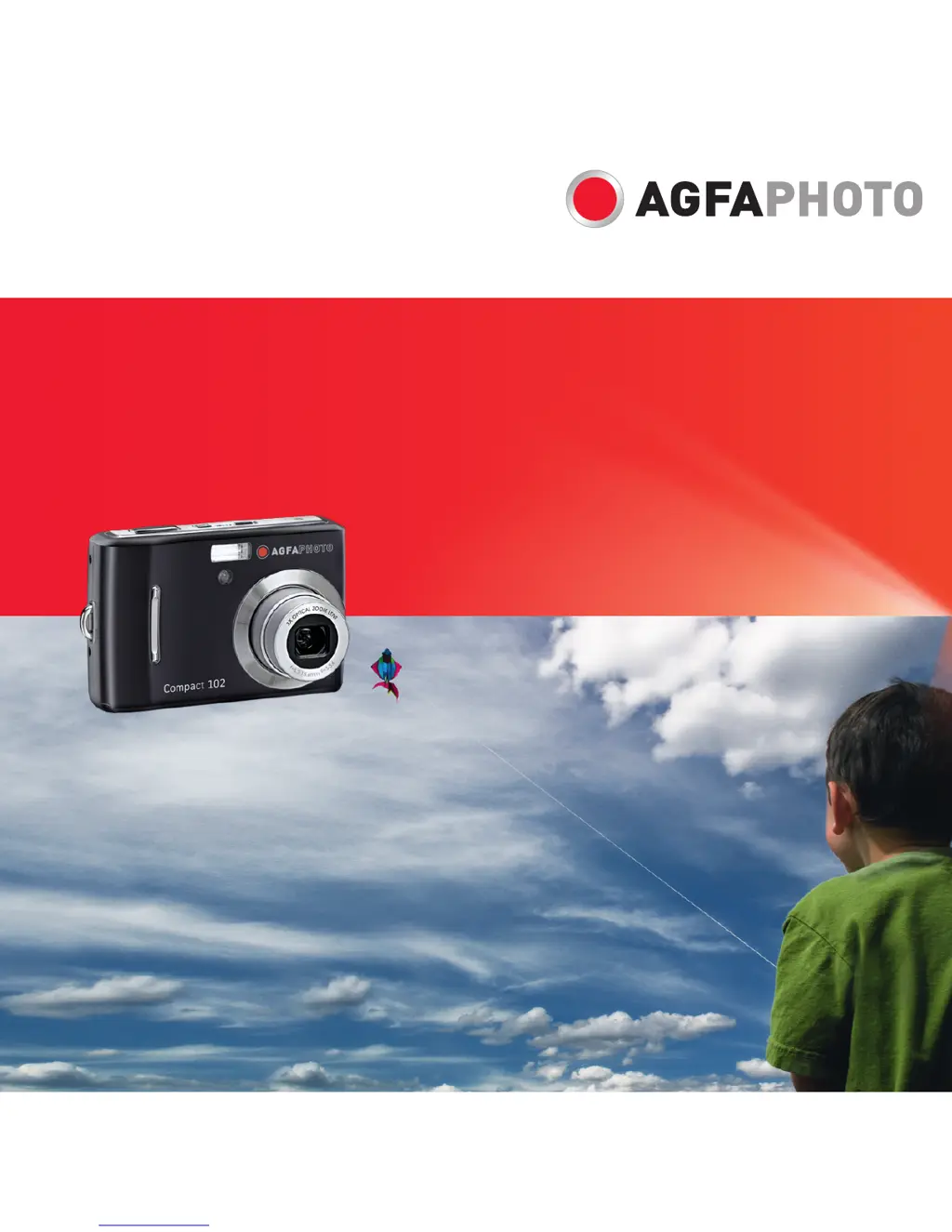
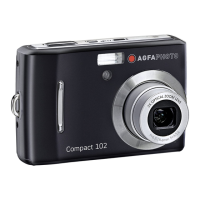
AgfaPhoto Compact 102 - User Manual

AgfaPhoto Compact 102
96 pages
Print Icon
To Next Page IconTo Next Page
Loading...
Compact 102
User Manual

Table of Contents

Questions and Answers

  • S
    Sean EstradaAug 16, 2025
    Why no image displays on the TV screen when using my AgfaPhoto Digital Camera?
    • N
      nathan75Aug 17, 2025
      If no image displays on the TV screen when using your AgfaPhoto Digital Camera, it might be due to an incorrect TV-out type being selected. Set the correct TV-out type to match your TV system.
  • W
    Whitney JamesAug 19, 2025
    What to do if my AgfaPhoto Digital Camera LCD screen displays ‘Memory full’?
    • J
      Jessica LucasAug 19, 2025
      If your AgfaPhoto Digital Camera displays 'Memory full' on the LCD screen, it means the memory card is full. You should replace the memory card with a new one or delete unnecessary images to free up space.
  • J
    Jennifer GonzalesAug 22, 2025
    How to fix a stuck lens on my AgfaPhoto Compact 102 Digital Camera?
    • D
      Daniel LambAug 22, 2025
      If the lens on your AgfaPhoto Digital Camera gets stuck, it could be due to an incorrect battery type or a low battery power level. Try changing the battery or charging it before using the camera.
  • B
    Brian GarciaAug 25, 2025
    What does it mean when my AgfaPhoto Compact 102 Digital Camera LCD screen displays ‘Card locked’?
    • P
      Patrick StephensAug 25, 2025
      If the LCD screen of your AgfaPhoto Digital Camera displays 'Card locked', it means the memory card is protected. Remove the card and slide the write-protect switch to its unlock position.
  • M
    myersemilyAug 27, 2025
    How to fix AgfaPhoto Compact 102 if it does not turn on?
    • N
      nleeAug 28, 2025
      If your AgfaPhoto Digital Camera does not turn on, the batteries may be exhausted. Charge or replace the batteries.
  • J
    Jonathan CrawfordAug 30, 2025
    Why does my AgfaPhoto Compact 102 Digital Camera LCD screen display ‘Copy error’?
    • H
      Heidi JohnstonAug 30, 2025
      If the LCD screen on your AgfaPhoto Digital Camera displays 'Copy error', it indicates that the memory card is protected or full. Remove the card and slide the write-protect switch to its unlock position. You may also need to replace the card or delete unnecessary files.
  • A
    Adam VelasquezSep 2, 2025
    What does it mean when my AgfaPhoto Compact 102 LCD screen displays ‘File locked’?
    • B
      Brian CookSep 2, 2025
      If your AgfaPhoto Digital Camera displays ‘File locked’ on the LCD screen, it means the file is locked. Unlock the file.
  • K
    Kayla CrawfordSep 5, 2025
    Why does my AgfaPhoto Compact 102 Digital Camera show an empty battery icon and turn off?
    • K
      Kelly Taylor PhDSep 5, 2025
      If the empty battery icon is displayed on the LCD of your AgfaPhoto Digital Camera, and then the camera turns off, the batteries are exhausted. Please replace or recharge them.
  • A
    Ashley MullinsSep 7, 2025
    What to do if the LCD turns blank on my AgfaPhoto Digital Camera?
    • J
      Jennifer HughesSep 8, 2025
      If the LCD turns blank on your AgfaPhoto Digital Camera, press any button except the Power button to turn on the LCD.
  • B
    Brett HintonSep 10, 2025
    Why does my AgfaPhoto Digital Camera LCD screen display ‘Not available for this file’?
    • M
      morristamaraSep 12, 2025
      If the LCD screen of your AgfaPhoto Digital Camera displays ‘Not available for this file,’ the function is only available for specific file types, or the file format is not supported.

Summary

Preface

About this Manual

Overview of the manual's content, purpose, and accuracy.

Safety and Handling Precautions

Declaration of Conformity

Statement of compliance with FCC rules regarding interference.

Safety and Handling Precautions

Essential safety guidelines for camera and battery usage.

Introduction and Features

Main Features

Highlights the key capabilities and specifications of the camera.

Camera Views

Front and Back Views

Diagrams identifying camera components and controls on front and back.

Top, Bottom, and Side Views

Diagrams identifying controls and ports on top, bottom, and sides.

Camera Buttons and Navigation

Button Functions

Explains the purpose of each button on the camera.

Navigation Control

How to use the 4-way navigation and SET buttons for menus.

Getting Started

Inserting Battery and Memory Card

Step-by-step guides for inserting the battery and memory card.

Initial Setup and Operation

Powering On;Off and Settings

Procedures for starting, setting up, and configuring basic settings.

Camera Modes

Explanation of Record and Playback modes.

Using the LCD Monitor

LCD Monitor Layout

Understanding the icons and information displayed on the LCD screen.

Playback Mode Screen Layout

Icons and information displayed in Playback Mode for various file types.

Recording Photos

Taking Photos

Step-by-step instructions for capturing still images.

Zoom and Stabilizer Control

How to use zoom and activate image stabilization.

Using Flash

Activating and selecting flash modes for optimal lighting.

Using the Function Menu

Function Menu Overview

Accessing and adjusting camera settings via the function menu.

Setting Scene Mode

Using preset modes for specific shooting environments.

Priority and Manual Exposure Modes

Aperture Priority Mode

Manually set aperture; camera adjusts shutter speed.

Shutter Priority Mode

Manually set shutter speed; camera adjusts aperture.

Manual Exposure Mode

Manually control both shutter speed and aperture.

Recording Movies and Voices

Recording Movies

Instructions for capturing video clips with the camera.

Recording Voices

How to record audio clips using the camera.

Playback Functions

Viewing Files

Browsing, zooming, and playing back photos and videos.

Deleting and Protecting Files

Procedures for deleting and locking files.

Playback Menu Options

Photo Editing and Trimming

Applying effects, editing, and cropping images.

Slide Show and Voice Memo

Creating slide shows and recording voice memos.

Using the Setup Menu

General Settings

Configuring sound, power save, LCD brightness, and date/time.

System and Connectivity Settings

Setting language, file numbering, TV out, and battery type.

Reset All Settings

Restoring camera settings to their factory defaults.

Troubleshooting and Specifications

Troubleshooting

Solutions for common camera problems and error messages.

Camera Specifications

Detailed technical specifications of the camera's hardware and features.

Customer Care and Compliance

Customer Care and Support

Contact information for service, repair, and warranty inquiries.

Disposal and Compliance

Guidelines for product disposal and conformity declarations.

AgfaPhoto Compact 102 Specifications

General IconGeneral
TypeCompact
Optical Zoom3x
Digital Zoom4x
LCD Screen Size2.7 inches
Image Sensor TypeCCD
Image Sensor Size1/2.3 inch
Video Resolution640 x 480 (VGA)
Storage MediaSD/SDHC
Shutter Speed1/2000 - 8 sec
Battery TypeLi-ion
Megapixels10 MP

Related product manuals