24
6 – On track application
If you are going to use your bike on a track, for track days or competition and wish to take the maximum advantage from MXK10, you will
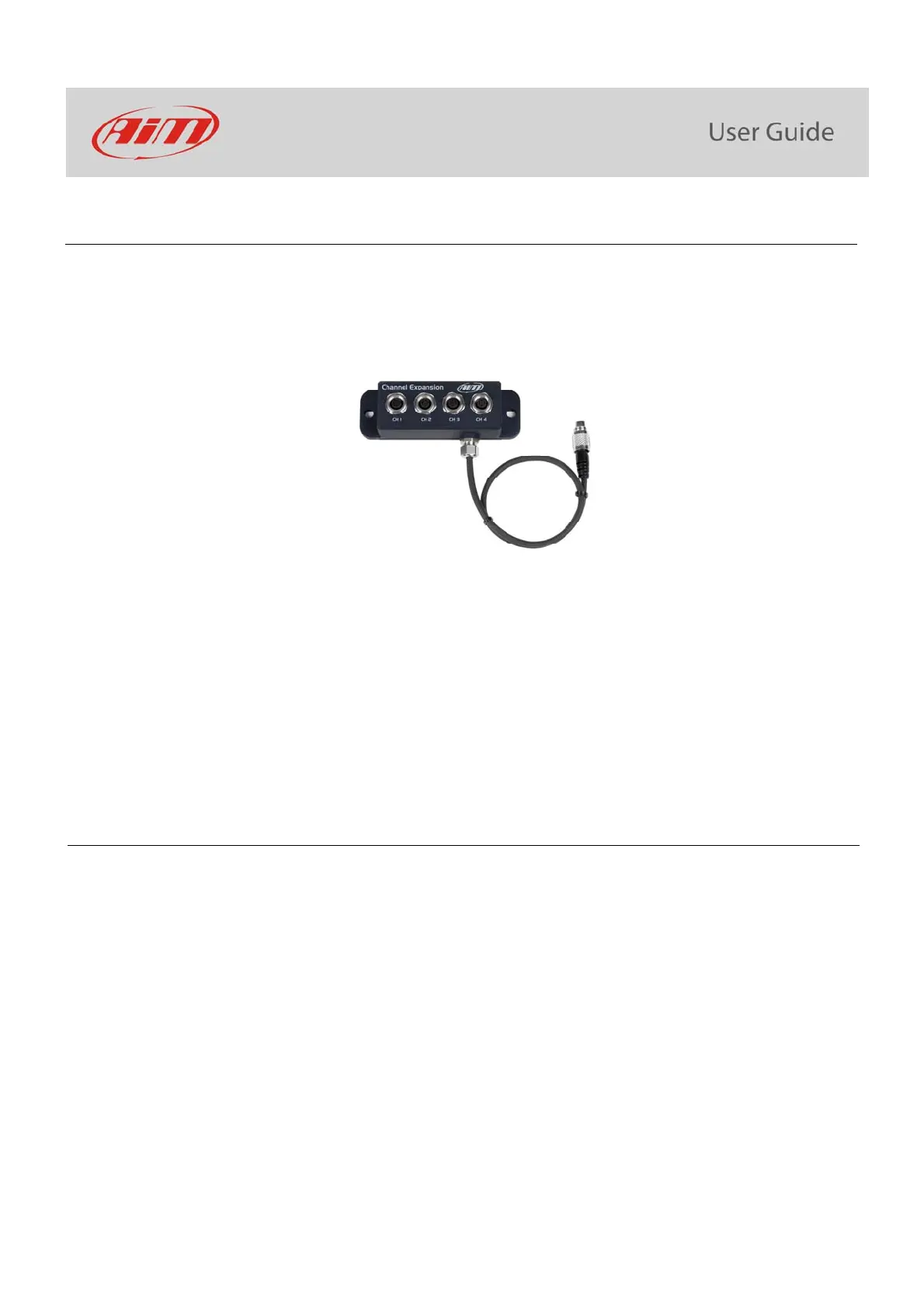
probably need to install a few sensors (suspension potentiometers, brake pressure..) and connect them to AiM Channel Expansion (shown
here below), a small module that you will connect to the EXP Port in the back of the device.
The steps to follow are:
install Channel Expansion
connect MXK10 to your PC via Wi-Fi or through the USB port placed on the back of MXK10 with an optional USB cable (part number
V02563030)
configure MXK10 according to the sensors you have installed
calibrate the sensors
run your test
download the data, in order to analyse them
You may in any case have a quick review of your data on the display, without downloading them (Data Recall)
6.1 – Connection to the PC
Using AiM Race Studio 3 software (from Race Studio 3.29.47) you can configure MXK10, manage its tracks database as well as check other
device functions through Race Studio 3 device window. You may connect it to the PC via Wi-Fi or using an optional USB cable (part
number V02563030):
using a Wi-Fi connection, please refer to chapter 9 where Wi-Fi configuration is explained
using an USB connection, plug the cable in the port labelled “USB” in the back of the dash logger.



 To Next Page