30
6.3 – Managing a track on MXK10 with Race Studio 3
With Track Manager function of Race Studio 3 tracks can be created, deleted and modified, transmitted and received to/from MXK10.
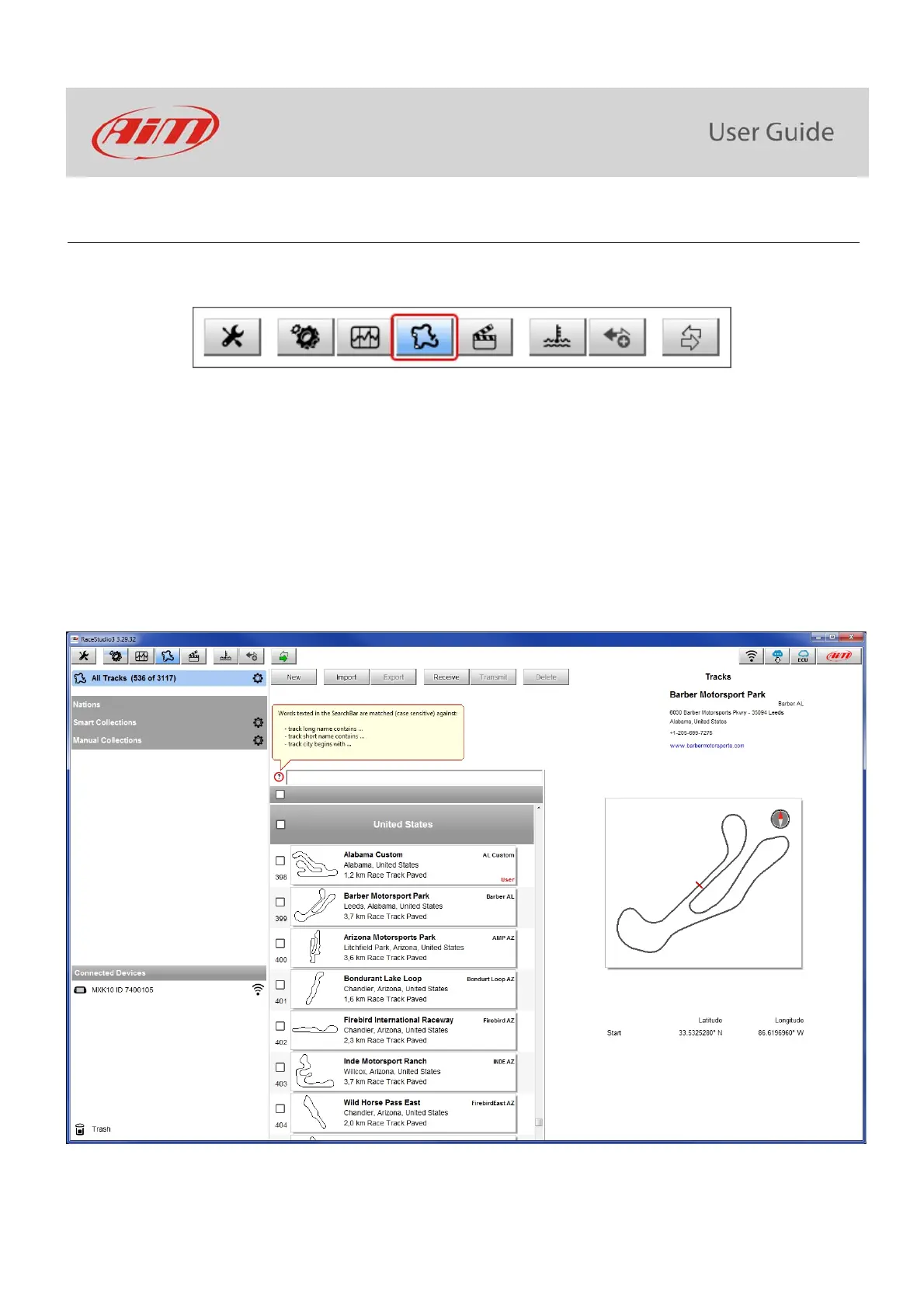
Press “Tracks” icon.
The main page is divided in three columns; on the left:
on top, the filters that allow to collect many tracks following customized criteria; by default, all tracks are shown (light blue “All
Tracks” filter in the image above).
bottom left, the connected devices (in the image, “MXK10 ID 7400107”)
The column in the middle shows:
on top a fast search bar that allows to select the tracks which satisfy personal research criteria; pressing “?” a pop-up window explains
research criteria (highlighted in red below), to say:
o long name is the name in bold in each track box
o short name is the track name shown on the display of your MXK10 and is the name shown top right of each track box
o track city is the name of the city the track is located in
all the tracks listed in Race Studio 3 database. It automatically updates at start up if a connection to the Internet is available.
The column on the Right shows:
the data sheet of the track you are mousing over.



 To Next Page