Install a USB accessory (Headset, Handsfree, Loudspeaker)
• Connect the accessory to the USB connector.
• When you plug the accessory in the USB port, the USB accessory is automatically detected. If an
another accessory is already connected with the same function (USB and jack), a pop-up will ask
you to select your preferred accessory to use for this function.
If necessary, you can also select the accessory type in the audio settings:
• Using the left-right navigator keys, select the settings menu.
• Press the keys associated with: Phone Audio USB
• Select the type of device connected to the USB: Headset / Handset / Handsfree / Loudspeaker
•
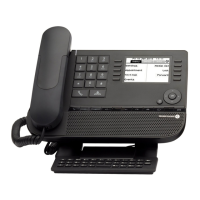
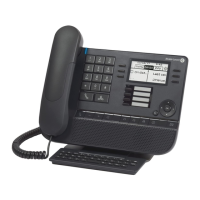
Manage connected devices (8028s Premium DeskPhone)
6.10.1 List of connected devices
• Using the left-right navigator keys, select the settings menu.
• Press the keys associated with: Phone Audio
• You can find information about which device is connected to the jack or USB connector.
o USB: Headset / Handset / Handsfree / Loudspeaker
o Jack: Headset / Handset / Handsfree / Loudspeaker
6.10.2 Set accessory type for each connector
• Using the left-right navigator keys, select the settings menu.
• Press the keys associated with: Phone Audio
• Use one of the following:
o USB:
Select the type of device connected to the USB: Headset / Handset / Handsfree /
Loudspeaker
o Jack:
Select the type of device plugged into the jack: Headset / Handset / Handsfree /
Loudspeaker
•
6.10.3 Default device
If you have connected the same type of accessory in the jack and the USB connectors, you can define
which device will be used by default.
• Using the left-right navigator keys, select the settings menu.
• Press the keys associated with: Phone Audio
• Accessory type
• Select the default connector (then the accessory) to be used.





 To Next Page