34
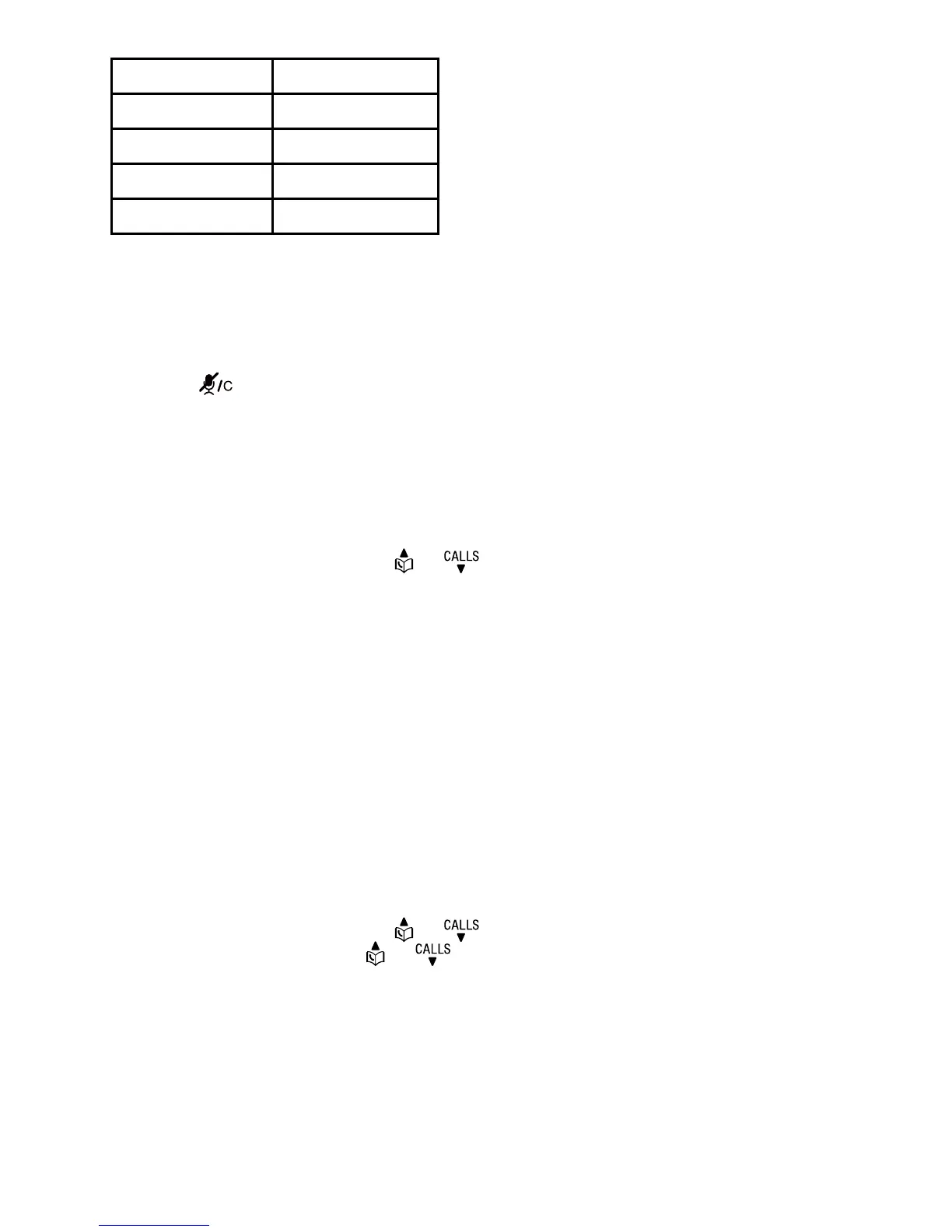
Type: Press:
Home 1
Mob. 2
Work 3
Other 4
OR
Press CLEAR to erase the assigned label.
5.7. Delete a phonebook entry
1. Search for the desired entry in the phonebook.
2. Press
. The screen displays Delete contact? and the name of the entry.
Press YES to confirm.
3. The screen displays Contact deleted and then the next alphabetical entry
in the phonebook. You hear a confirmation tone.
5.8. Remove a downloaded phonebook
1. Search for the desired downloaded phonebook in the phonebook menu.
2. Press OPTION, then press
or to select Del phonebook.
3. Press SELECT. The screen displays Phonebook Mobile Phone A will be
erased. Press YES to confirm.
4. The handset displays Erasing phonebook... and then Phonebook
removed. You hear a confirmation tone.
Note: You will be requested to enter the PIN code to access the PIN-protected
downloaded phonebook.
5.9. Security PIN for downloaded phonebook
This feature allows you to set your security PIN to protect your downloaded
phonebooks, if you set the Security On, you must enter the correct 4-digit PIN
when you want to access your downloaded phonebooks.
1. Search for the desired downloaded phonebook in the phonebook menu.
2. Press OPTION, then press
or to select Security.
3. Press SELECT and then
or to select On or Off.
4. Press SELECT and then use the keypad to enter a 4-digit PIN if you select
On.
5. Press SET and repeat the 4-digit PIN again.
6. Press SET to confirm the setting. You hear a confirmation tone.
Note: Each mobile downloaded phonebook can be protected by a separate PIN.


 To Next Page