46
1. Press the EDIT button (the EDIT button LED will go on to indicate
you are in Edit mode);
2. Press the AUTO-PUNCH button;
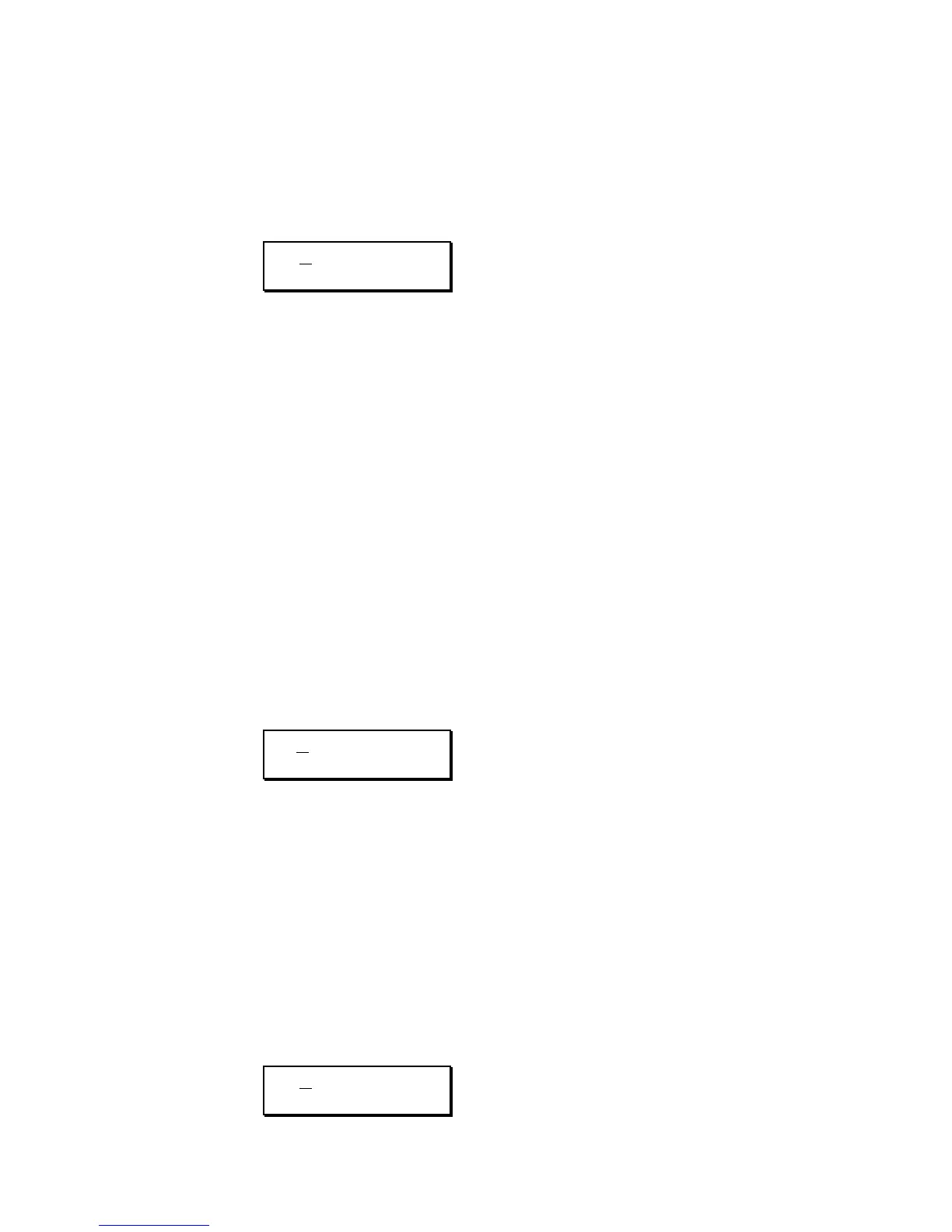
The display will show the Auto-Punch In point:
In
X
X "LocNamxx"
aa:bb:cc:dd
…where XX is one of the stored locate numbers (01–20; 21 is auto-
punch in, 22 is auto-punch out), LocNamxx is the locate point’s
name, and aa:bb:cc:dd is its address. The locate number and address
can be edited, but not the locate point’s name. The address is
displayed according to the type of Display Type you have selected. If in
NORMAL mode, the display will read 00:00:00
(minutes:seconds:frames). If in SMPTE mode, the display will read
00:00:00:00 (hours:minutes:seconds:frames); if in BARS mode, the
display will read 01–01/00 (bars:beats:sub-beats).
3. Use the UP/DOWN buttons to select a locate number between 1
and 22. The name and address will be updated as you scroll
through the stored locate points;
4. To display/edit the Punch-Out point, press the AUTO-PUNCH
button again;
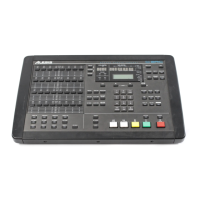
The display will show:
Ot
Y
Y "LocNamyy"
ww:xx:yy:zz
5. Use the UP/DOWN buttons to select a locate number between 1
and 22. The name and address will be updated as you scroll
through the 22 stored locate points. Just as when setting the
Punch-In point, the locate number or address can be edited, but
not the locate point’s name;
Note: You can disable the Punch-Out function entirely by assigning
the Punch-Out location to Locate 00. This is useful when you wish
to automatically begin recording at a specific point, but would
rather allow recording to continue indefinitely, until you press
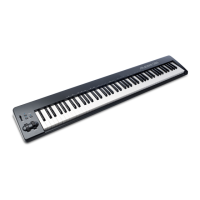
STOP. The display will look like this:
Ot
0
0 "DISABLED"


 To Next Page