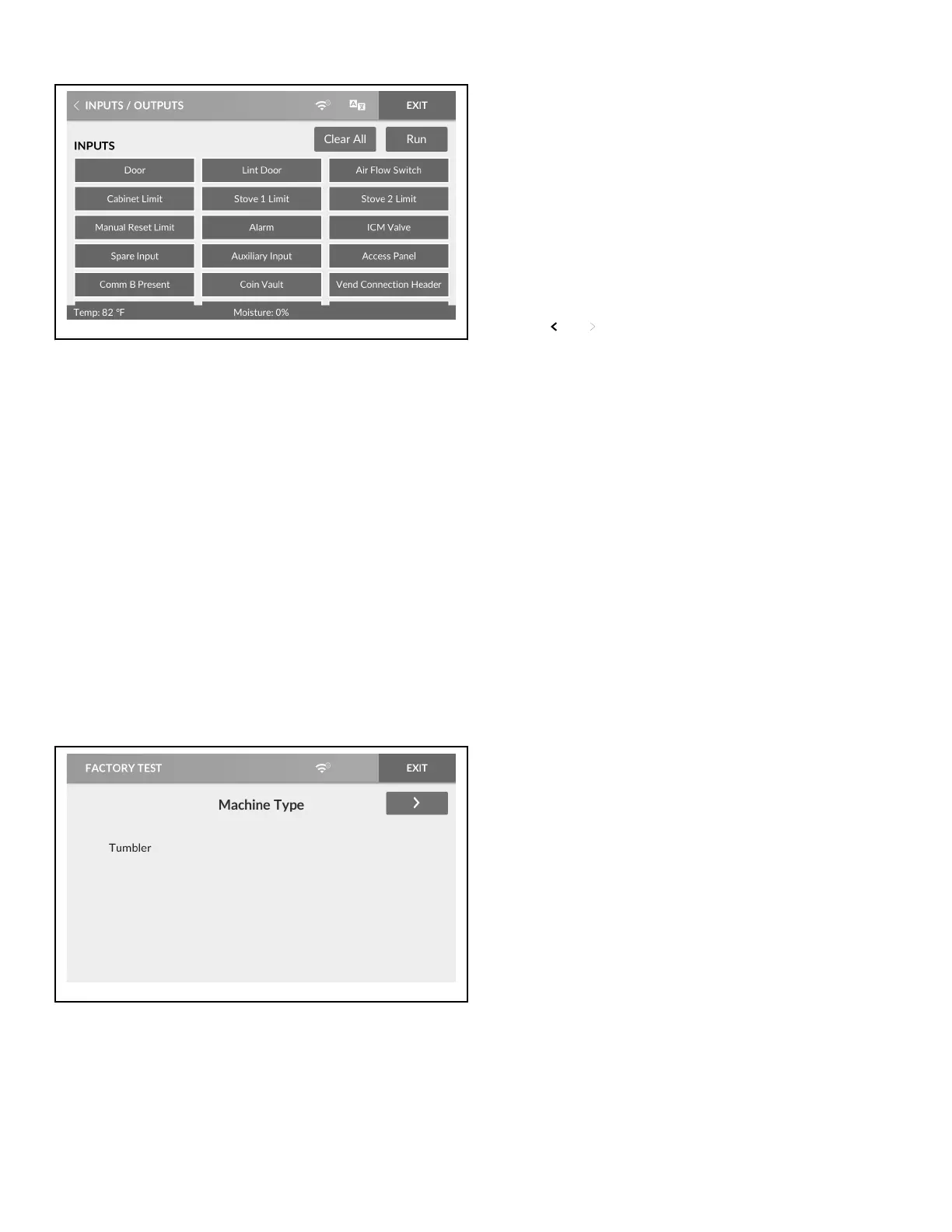
Figure 46
The Inputs/Outputs Menu gives a user the ability to manipulate
machine outputs for component testing and monitor the current
state of all control inputs.
Selected outputs appear in a white field box. Actived inputs and
outputs appear in a dark blue filled box.
1. To access, touch INPUTS/OUTPUTS from the Diagnostics
Menu.
2. Touch desired outputs to include in the test.
NOTE: Touch CLEAR ALL to deselect all outputs.
3. Touch RUN to begin the outputs test. The test results show in
the footer of the display.
4. Touch CANCEL to end the test.
5. When finished viewing or running diagnostics, touch IN-
PUTS/OUTPUTS to return to the System Menu or EXIT to
exit the System Menu.
Factory Test Menu
Figure 47
If enabled in programming, the Factory Test Menu allows the
user to run a diagnostic test cycle.
At the start of the factory test cycle, the control enters Factory
Test Mode. The command message at the bottom of the Factory
Test Menu display will show the remaining step time or prompt
the user for input throughout the test cycle. Refer to Table 6 for
test sequence.
1. To access, touch FACTORY TEST from the Diagnostics
Menu.
2. Touch START to begin the factory test cycle.
3. Touch EXIT to terminate the factory test cycle.
4. Touch and to navigate between factory test steps.
5. The display returns to System Menu once the last test step is
complete.
Diagnostics Menu
©
Copyright, Alliance Laundry Systems LLC -
DO NOT COPY or TRANSMIT
52 Part No. 70600001ENR6





 To Next Page