22 MaxCommunicator Manual
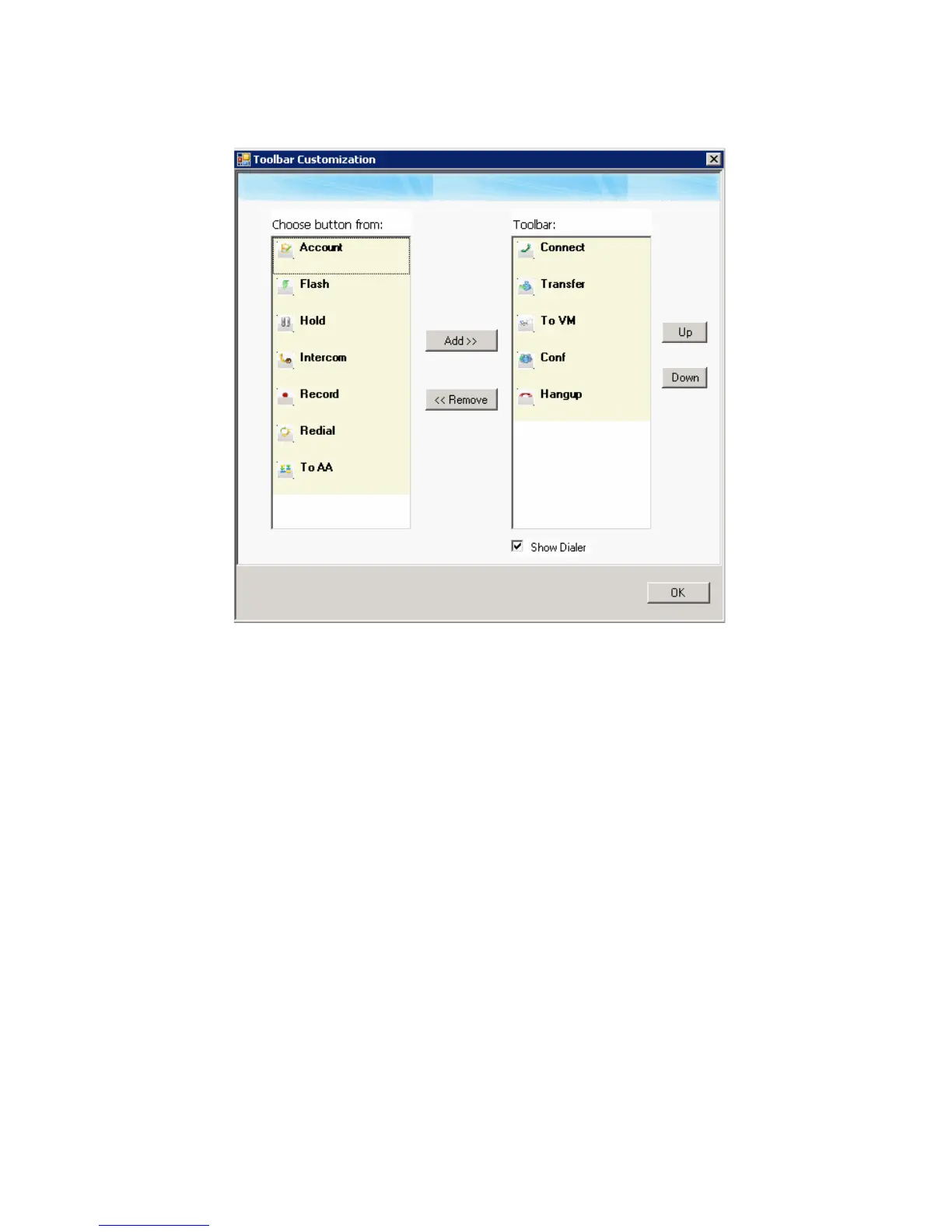
The buttons displayed in your MaxCommunicator are in the right-hand
list. To remove a toolbar button, select it and click Remove. To add a
toolbar button, select a button from the list on the left, and click Add.
To rearrange buttons, select a button from the list on the right, and
click the Up button or Down button, until the toolbar button is where
you want it. When finished, click OK.
Note: When MaxCommunicator is shrunk to a strip at the top or
bottom of your screen, six buttons are initially displayed by
default in the shrunken toolbar: Connect, Hold, Transfer, To
VM, Hangup, Redial. These are the only buttons available to
a shrunken toolbar. You can remove any of them in the way
just described and add them back again.
When MaxCommunicator is made normal size, the buttons you
originally selected are again displayed in the toolbar. In other
words, you configure the normal toolbar and the shrunken
toolbar separately, and MaxCommunicator keeps your
preferences for each.



 To Next Page