28 MaxCommunicator Manual
Dialing Speed Dial Numbers
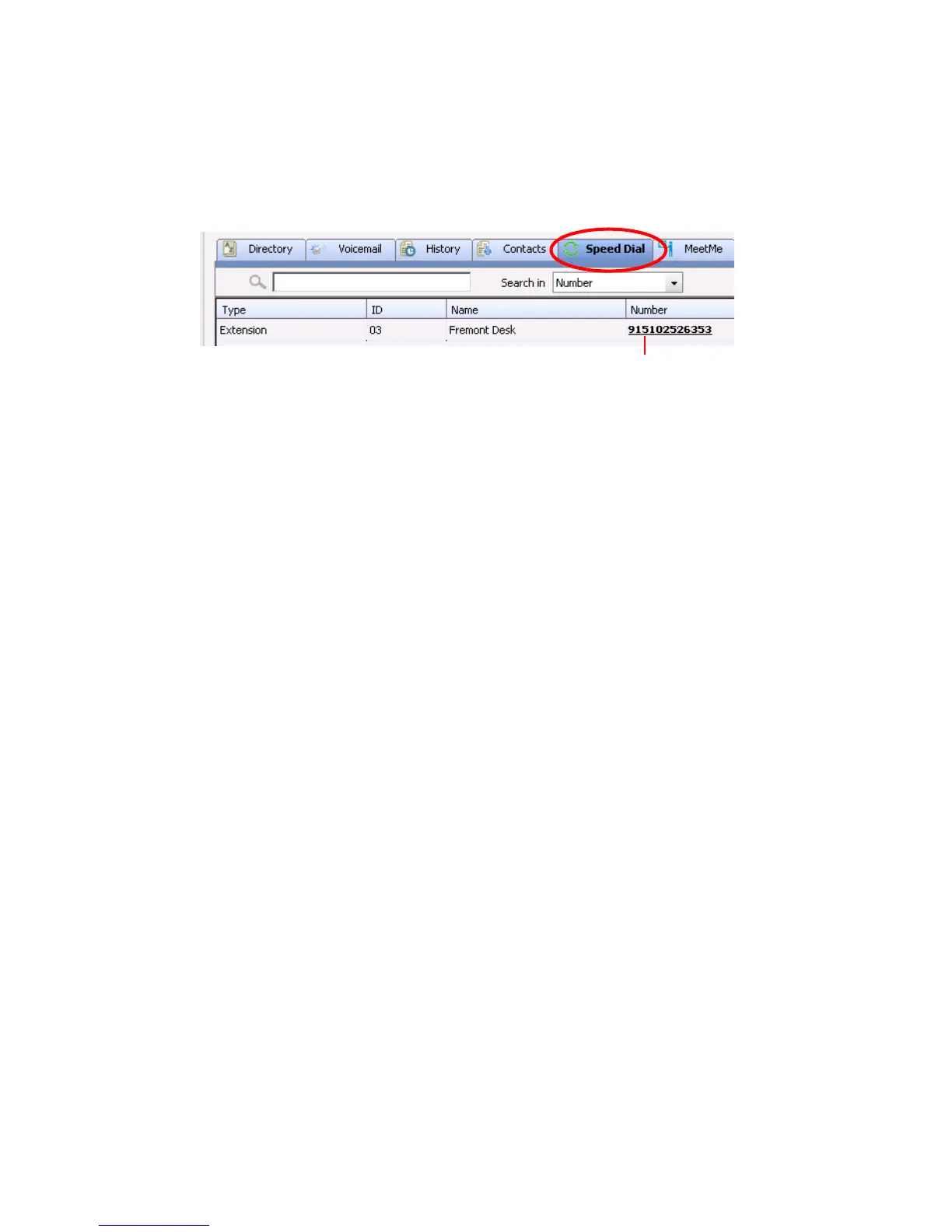
To dial speed dial numbers, click the Speed Dial tab:
This tab lists speed dial numbers that you have configured at your extension
(extension speed dial numbers), and it lists speed dial numbers, if any, that
have been set up for your extension by the system administrator (system
speed dial numbers). You can see in the Type column which numbers are
extension speed dial numbers and which are system speed dial numbers.
To call a speed dial number, click the number in its Number column.
Setting Up and Editing Extension Speed Dial Numbers
To set up an extension speed dial number:
1. Click the Speed Dial tab and double-click an empty Extention type
row. The Extension Speed dialog box pops up.
2. Enter a name, number, and note if desired.
When you add an outside number, all relevant prefix digits such as
trunk or route access number, the long distance prefix 1 and area codes
must precede the phone number.
3. Click OK.
You can enter up to 20 speed dial numbers.
Note: Extension-type speed dial numbers are also set up by using the #25
feature code on your phone set.
To edit a speed dial number in MaxCommunicator, double-click in its
Type, ID, or Name columns. The Extension Speed dialog box pops up.
Make your edits, and click OK. To delete the information, clear the fields
and click OK. If you just want to edit a note, you can double-click in the
Note field on the Speed Dial tab and edit the note right in the table.
For system-type speed dial numbers, you can edit the note, but only the
system administrator can edit the other fields.
Click the number to make the call



 To Next Page