EasyManua.ls Logo

Amazon Fire TV - User Manual

Amazon Fire TV
97 pages
Print Icon
To Next Page IconTo Next Page
Loading...
Amazon Fire TV User Guide

Table of Contents

Questions and Answers

  • R
    robertbryantAug 15, 2025
    What to do if Amazon Media Player remote is not connecting?
    • C
      Cameron CooperAug 16, 2025
      If your Amazon Media Player remote is not connecting, first ensure it has a fresh set of AAA batteries. Then, try unplugging the power cord from your Amazon Media Player and plugging it back in.
  • N
    Nancy WilsonAug 19, 2025
    How to fix specific app issues on Amazon Media Player?
    • W
      wendycruzAug 19, 2025
      To resolve specific app issues on your Amazon Media Player: From the Home screen, go to Settings, then Applications. Select the app you're having trouble with. Here, you can adjust settings, clear data or cache, force stop the app, or even uninstall it.
  • U
    usanfordAug 21, 2025
    What to do if movies, photos, or purchased content is not showing on Amazon Media Player?
    • T
      Traci CollierAug 22, 2025
      If movies, photos, or purchased content are not showing on your Amazon Media Player, verify that the device is registered to the correct Amazon account. To check, go to the Home screen, select Settings, and then My Account. If the wrong account is listed, deregister it and register the correct one.
  • K
    Kathleen AndersonAug 25, 2025
    Why I am having problems purchasing or accessing content on Amazon Fire TV?
    • D
      Debbie GarciaAug 26, 2025
      To resolve issues purchasing or accessing content on your Amazon Media Player: - First, ensure that your Amazon Media Player is connected to the internet, as it's required for buying, streaming, and syncing content. You can verify this by going to Home, selecting Settings > System > Wi-Fi. - Also, verify that your 1-Click payment method is set up correctly.
  • B
    Bernard FloresAug 27, 2025
    How to fix Amazon Fire TV when there is video but no sound?
    • A
      alan89Aug 28, 2025
      If you're getting video but no sound on your Amazon Media Player, first ensure that your TV's audio isn't muted. If your device is connected to an AV receiver, verify the receiver is powered on. Next, navigate to Settings > Display & Sounds > Dolby Digital Output from the Home screen and set Dolby Digital Plus to OFF. Finally, try unplugging and reconnecting the HDMI cable that connects your Amazon Media Player to your TV, and consider testing with a different HDMI cable.
  • V
    vegaginaAug 30, 2025
    What to do if my Amazon Fire TV shows a blank screen?
    • S
      Sheena RoseAug 30, 2025
      If you encounter a blank screen with your Amazon Media Player, start by ensuring your TV is on and set to the correct input channel. Then, unplug and reconnect the HDMI cable connecting your Amazon Media Player to the TV; try a different HDMI cable if possible. If you're using an AV receiver, make sure it's powered on. Temporarily disconnect other devices from your TV's HDMI ports. Try changing your TV to a different resolution (e.g. 1080p or 720p). As a last resort, press and hold the Up and Rewind buttons on your Amazon Media Player remote simultaneously for 5 seconds.
  • C
    Courtney GonzalezSep 3, 2025
    How to troubleshoot specific app issues on Amazon Fire TV?
    • L
      Leslie DuarteSep 3, 2025
      If you're experiencing issues with a specific app on your Amazon Media Player, go to Settings > Applications > Manage All Installed Applications from the Home screen. Select the problematic application. From there, you can change settings, move the app between internal and external storage (Amazon Fire TV only), clear data, clear the cache, force stop the application, or uninstall it.
  • A
    Ashley GraySep 6, 2025
    What to do if movies, photos, or purchased content are not showing on Amazon Fire TV?
    • R
      Rachel HarringtonSep 6, 2025
      If your movies, photos, or purchased content aren't showing on your Amazon Media Player, ensure that your device is registered to your preferred Amazon account. Verify this by going to the Home screen and selecting Settings > My Account. If you need to switch accounts, choose the Deregister option, then select Register and enter your correct account information.
  • M
    Megan SmithSep 8, 2025
    How to reset Amazon Video PIN if I forgot it?
    • D
      dmartinSep 8, 2025
      If you forgot your Amazon Video PIN, go to Amazon Instant Video Settings and Devices. Under Your Amazon Video PIN, enter a 5-digit number to set up your PIN, or click View/Edit Your PIN to change your current PIN.
  • O
    Olivia MccormickSep 12, 2025
    Why can't I access external storage on my Amazon Fire TV?
    • M
      Megan GreenSep 12, 2025
      External storage options are unavailable for Fire TV Stick. First, make sure you're using a supported storage device: For Amazon Fire TV (1st Generation) you can use a compatible USB flash drive for external storage. For Amazon Fire TV (2nd Generation) you can use a compatible microSD card for external storage.

Summary

Amazon Fire TV Device Basics

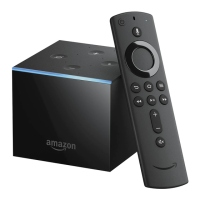
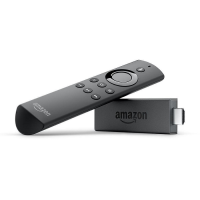
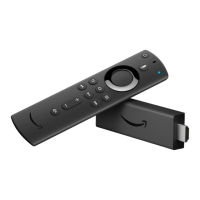
Fire TV Hardware Overview

Explains the hardware components of Fire TV Stick and Amazon Fire TV devices.

Navigating the Fire TV Interface

Guide on using the remote to navigate the device's main menu and screens.

System Settings and Account Management

Covers device settings, account registration, and parental controls.

Voice Search Functionality

How to use voice commands to search for content on your Fire TV.

Fire TV vs. Fire TV Stick Comparison

Details the hardware and software differences between Fire TV and Fire TV Stick.

Remote and Controller Operations

Remote Control Basics

Information on the included Fire TV remote, its buttons, and battery setup.

Game Controller Usage

Explains the features and operation of the Amazon Fire TV Game Controller.

Pairing Remotes and Controllers

Step-by-step instructions for pairing remotes and game controllers.

Fire TV Remote App Guide

How to use a smartphone as an alternate remote for your Fire TV.

Connectivity and Storage Options

Bluetooth Accessory Connection

Guide to connecting Bluetooth devices like keyboards, mice, and headphones.

USB and External Storage Management

How to use USB flash drives and manage external storage.

MicroSD Storage for Fire TV (2 nd Gen)

Details on using microSD cards for expanded storage on 2nd Gen Fire TV.

Using Keyboards and Mice

Instructions for using keyboard and mouse input devices with Fire TV.

Troubleshooting and Setup

Quick Fixes for Common Issues

Solutions for Wi-Fi, pairing, and video playback problems.

Basic Troubleshooting Procedures

General steps to resolve issues like blank screens or app errors.

Fire TV Stick Setup Guide

What's needed and how to set up your Fire TV Stick.

Network Connection Setup

Guide to establishing wireless or wired internet connections.

Content Consumption and Management

Watching Videos and Movies

Covers 4K streaming, buying/renting, display mirroring, and second screen.

Enhancing Video Playback

How to use Closed Captions and X-Ray for detailed information.

Gaming and App Management

Steps for buying, downloading, playing, and uninstalling games and apps.

Music Playback Features

Instructions for listening to music from Amazon Music and Prime Music.

Personal Content and Customization

Viewing Photos and Videos

How to view personal photos and videos from Cloud Drive or devices.

Setting Up Screen Savers

Customizing screen saver settings with personal photos.

Advanced Usage and Settings

Content Sharing and Household Features

Sharing content within an Amazon Household using Family Library.

Using Fire TV Internationally

How to change country settings for international use.

Device Power Consumption Details

Information on power consumption modes for Fire TV (2nd Gen).

Amazon Fire TV Specifications

General IconGeneral
Product colorBlack
Storage media typeNot available
Card reader integratedNo
Audio formats supportedHE-A, AAC, AC3, EAC3, MP3, PCM
Image formats supportedJPG, PNG
Video formats supportedMPEG4-SP, H.263, H.264, VC-1
USB 2.0 ports quantity1
HDCPYes
HDMI version1.4
Wi-Fi standards802.11a, 802.11b, 802.11g
Bluetooth version4.0
Ethernet LAN data rates10, 100 Mbit/s
Component video (YPbPr/YCbCr) out-
Internal memory2048 MB
Internal memory typeLPDDR2
Processor modelKrait 300
Processor frequency1.7 GHz
Processor manufacturerQualcomm
Weight and Dimensions IconWeight and Dimensions
Width115 mm
Height17.5 mm
Weight281 g

Videos

How To Set Up Amazon Fire TV Stick

How To Setup Amazon Fire TV Stick 4K

How to Connect Amazon Fire TV Stick to Samsung Smart TV

How to Connect Amazon Fire TV Stick Lite to any Mobile Phone

How to Install APK on Amazon Fire TV Stick

How to Find Missing Developer Options on Amazon FIRE TV

Related product manuals