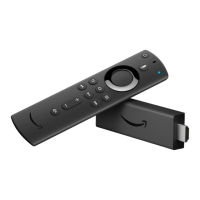
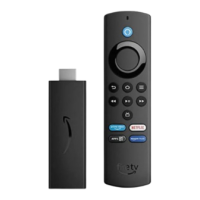
Turn On Closed Captions
You can turn on closed captions ("CC") to display the audio for movies and TV shows as text on-screen.
Videos with closed captions available feature a "CC" symbol in the video details.
Most videos that support closed captions include English text; however other languages may also be
available. You can view available languages under Captions and subtitles in the video details.
To watch a video with closed captions:
Start playing the video.
Press the Menu button on your Amazon Fire TV remote or the Fire TV Remote app.
Select Turn Captions On.
After you turn captions on, use the left or right arrows on your remote trackpad to set captions options, including
font size and colour scheme. Your selections apply to all videos you play until you change them. You can also
manage closed captions preferences from your Amazon Video Settings and Devices (Amazon.co.uk full site)
Press the Menu button again to return to video playback with captions on.
To turn captions off, press the Menu button and select Turn Captions Off.


 To Next Page