120
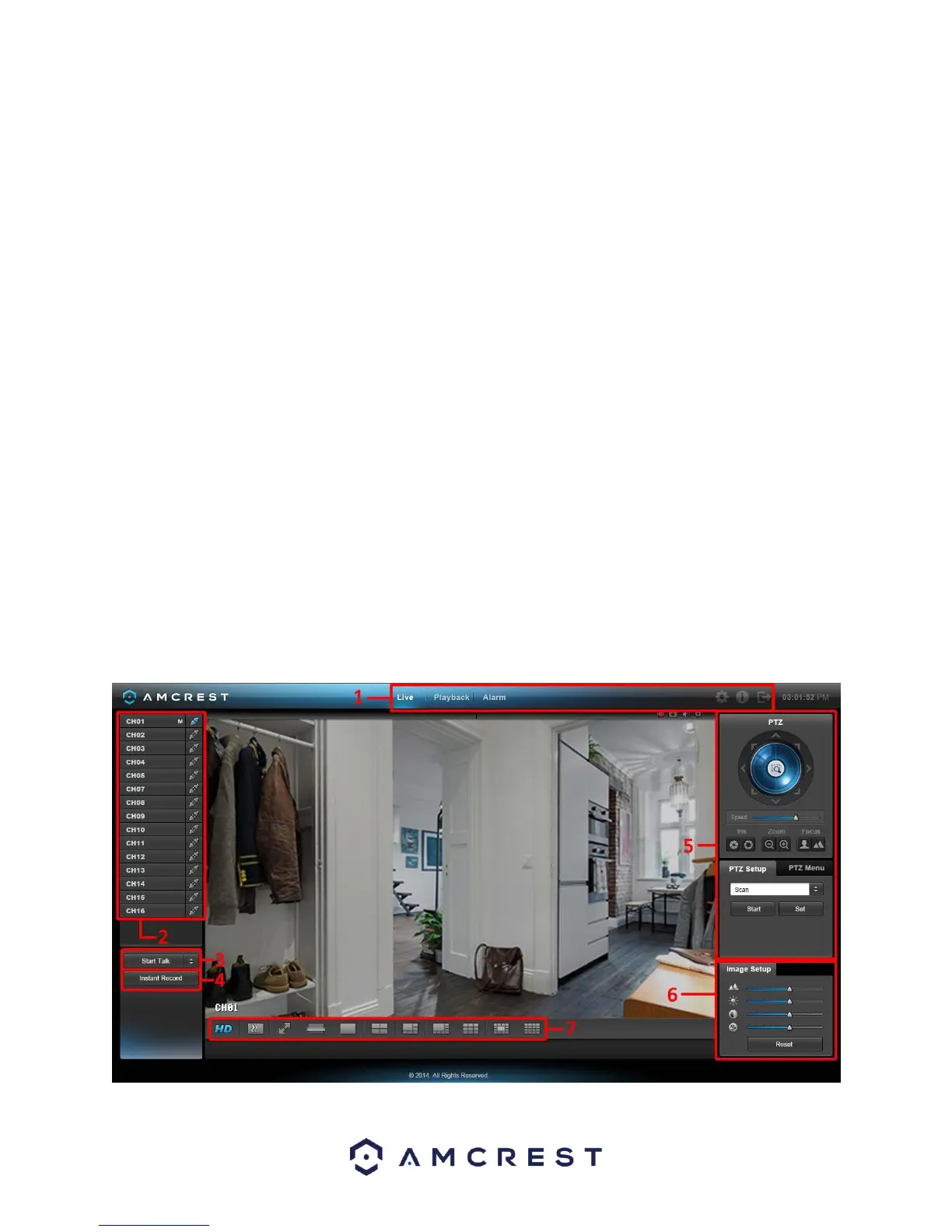
f. Logout: This button logs the user out of the system. See section 5.6.
2. Channel List: On this side bar, there is a list of all the channels available, as well as an Open All button. The
Open All button enables/disables real-time channel monitoring for all of the channels.
a. To switch between the main stream and the sub stream, click the channel name and select which
stream to use. For more information on main stream vs sub stream, see section 4.10.5.3.
3. Start Talk Button: This button allows the user to broadcast audio via their audio-enabled camera or audio
output device. Note: If the audio input port from the device to the client-end is using the first channel audio
input port, during the bidirectional talk process, the system will not encode the audio data from the 1-channel.
There are 4 bidirectional talk protocols available in the system:
a. Default
b. G711a
c. G711u
d. PCM
4. Instant Record Button: This button allows the user to begin manual recording. Click the button again to restore
the system to the previous recording mode.
5. Local Play Button: This button allows the user to playback saved files from their PC. Saved files have a .dav
extension. Click the local play button to open a file browser to select a playback file.
6. PTZ Operation Panel: This set of controls allows the user to remotely control PTZ enabled cameras. Please refer
to section 4.4.2 for more information on how to use the PTZ controls.
7. Image Setup and Alarm Output: These controls allow the user to modify the live-feed image settings, as well as
alarm output notifications.
8. Live Feed View Settings: This set of controls allows the user to change their view in the live view screen. From
left to right, the buttons do the following: Set video quality, set video fluency, enter full screen mode, scan,
enter 1-window mode, enter 4-window mode, enter 6-window mode, enter 8-window mode, enter 9-window
mode, enter 13-window mode, and enter 16-window mode.
5.3.2 WAN Live View Interface



 To Next Page