82
period. To copy time periods, click the checkboxes next to the days of the week that you’d like to
copy the settings to. Once finished on this screen, click Save to return to the time period settings
screen.
• Anti-Dither: This field allows the user to set the anti-dither time. The values in this field can range from 5 to
600 seconds. This time value controls how long the alarm signal lasts. Based on motion detection, a buzzer
can go off, a tour can begin, PTZ can be activated, a snapshot can be taken, or a channel can begin recording.
o For example, if the anti-dither time is set to 10 seconds, each alarm may last 10 seconds if the local
alarm is activated. During the process, if the system detects another local alarm signal at the fifth
second, the buzzer, tour, PTZ activation, snapshot, record channel functions will begin another 10
seconds while the screen prompt, alarm upload, email will not be activated again. After 10 seconds,
if system detects another alarm signal, it can generate a new alarm since the anti-dither time has
expired.
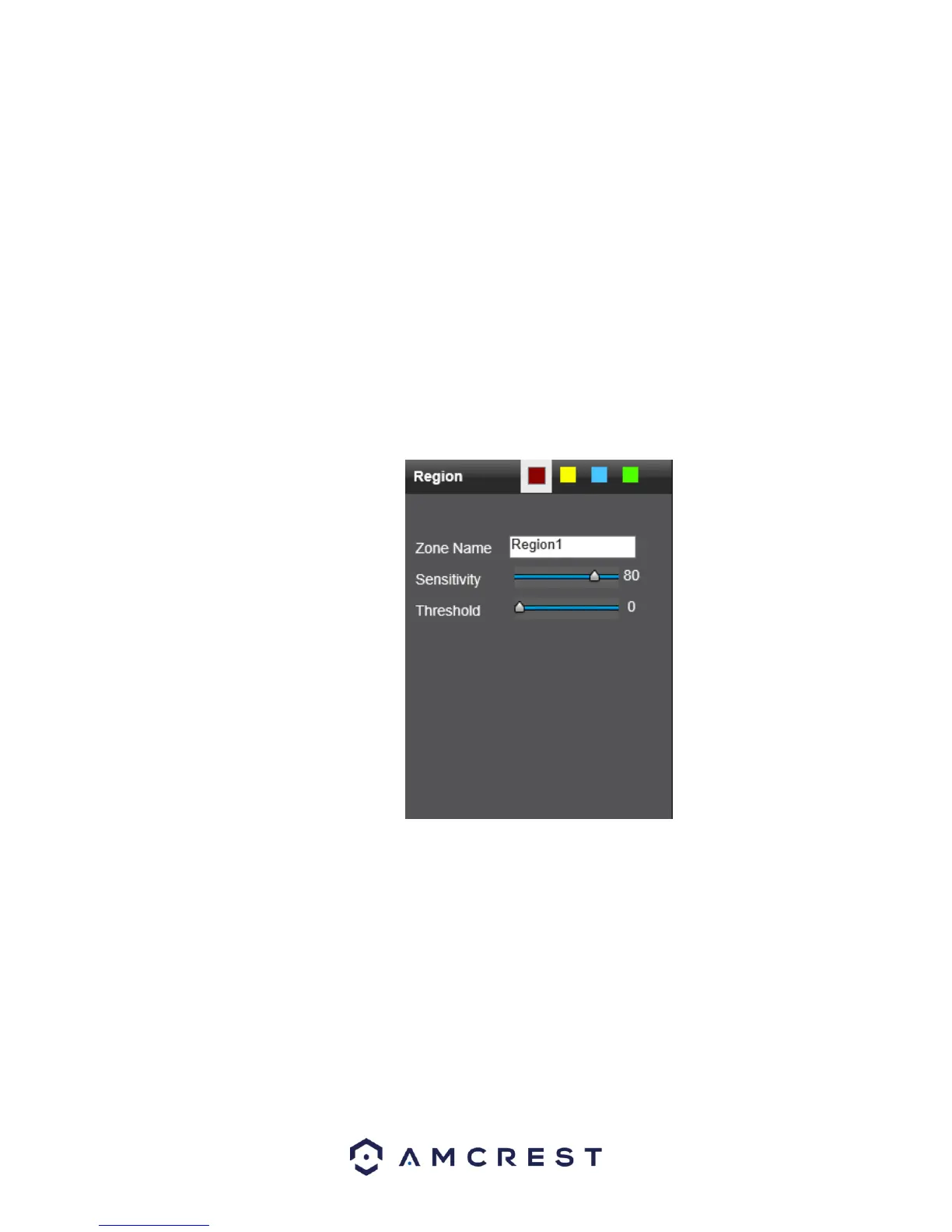
• Region: The setup button takes the user to the motion detection region setup screen for that specific
channel. On the next page is a screenshot of the motion detection region screen.
o When the setup button is clicked, the current channel’s interface comes into a full screen view. The user can
then set up to 4 regions, each with their own region name, sensitivity (1-100), and threshold (1-100). Each
region has a specific color, and the region selector tool is displayed when the mouse is moved to the top
of the screen.
▪ Sensitivity is the amount of change required to increase the motion detected by a percentage. The
lower the sensitivity, the more movement is required to trigger an alarm.
▪ Threshold is the level that the motion detection needs to reach to trigger an alarm.
The lower the threshold, the more likely that motion will trigger an alarm.
o To designate a zone, click and drag the mouse over the area desired. When a colored box is
displayed over the live feed, that area is now enabled for motion detection. Clicking the FN button
will switch the mode between armed and disarmed, so that clicking and dragging the mouse can
either designate a motion detection zone or remove any motion detection zone markers.
o After the motion detection zone is set, click the enter button to exit the motion detection screen.
Remember to click the save button on the motion detection settings screen, otherwise the motion



 To Next Page