3-10 PN: 10580-00277 Rev. E Spectrum Master UG
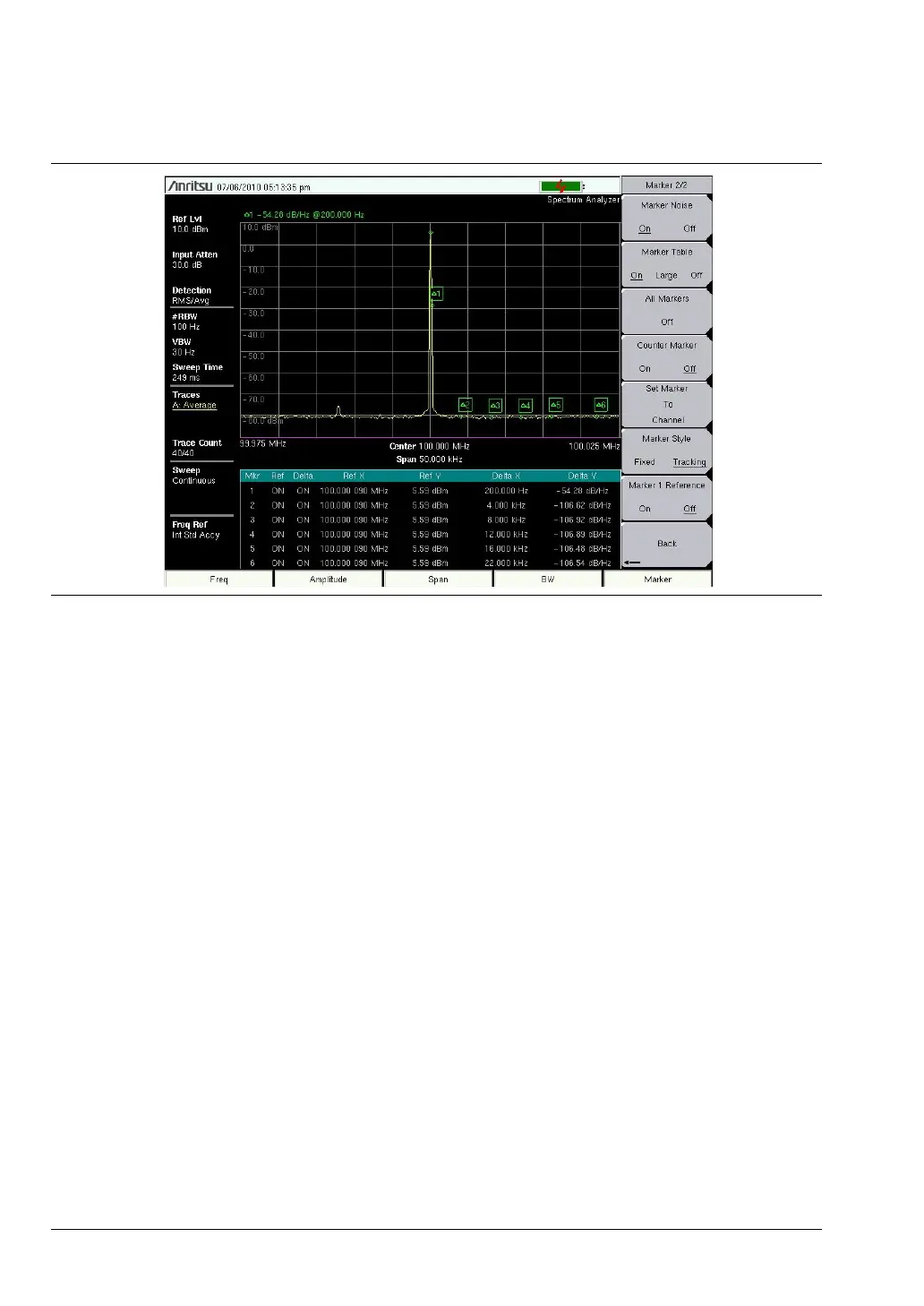
2. Press the Marker Table On Off submenu key so that On is underlined. All markers and
delta marker data are displayed in a table under the measurement graph.
3-8 Selecting a Measurement Type
1. Change the measurement mode (if required). Press Shift then Mode (#9).
2. Select the measurement type. Press Shift then Measure (#4). Select the appropriate
measurement type with the submenu key.
3-9 Saving Measurements
1. Press Shift then File (#7).
2. Press the Save Measurement submenu key.
3. Press the Change Save Location submenu key and set the current location to be the USB
flash drive or internal memory, and then press Set Location.
4. Press Change Type (Setup/JPG/…) and select Measurement.
5. Enter the file name using the letter key and press Enter.
Refer to Chapter 4, “File Management” for additional information.
3-10 Master Software Tools
Anritsu Master Software Tools is a Microsoft Windows compatible program for transferring
and editing saved measurements, markers, and limit lines to a PC. Refer to
Chapter 7, “Master Software Tools” for an overview of MST.
Figure 3-3. Six Noise Markers









 To Next Page