16
Soft keys
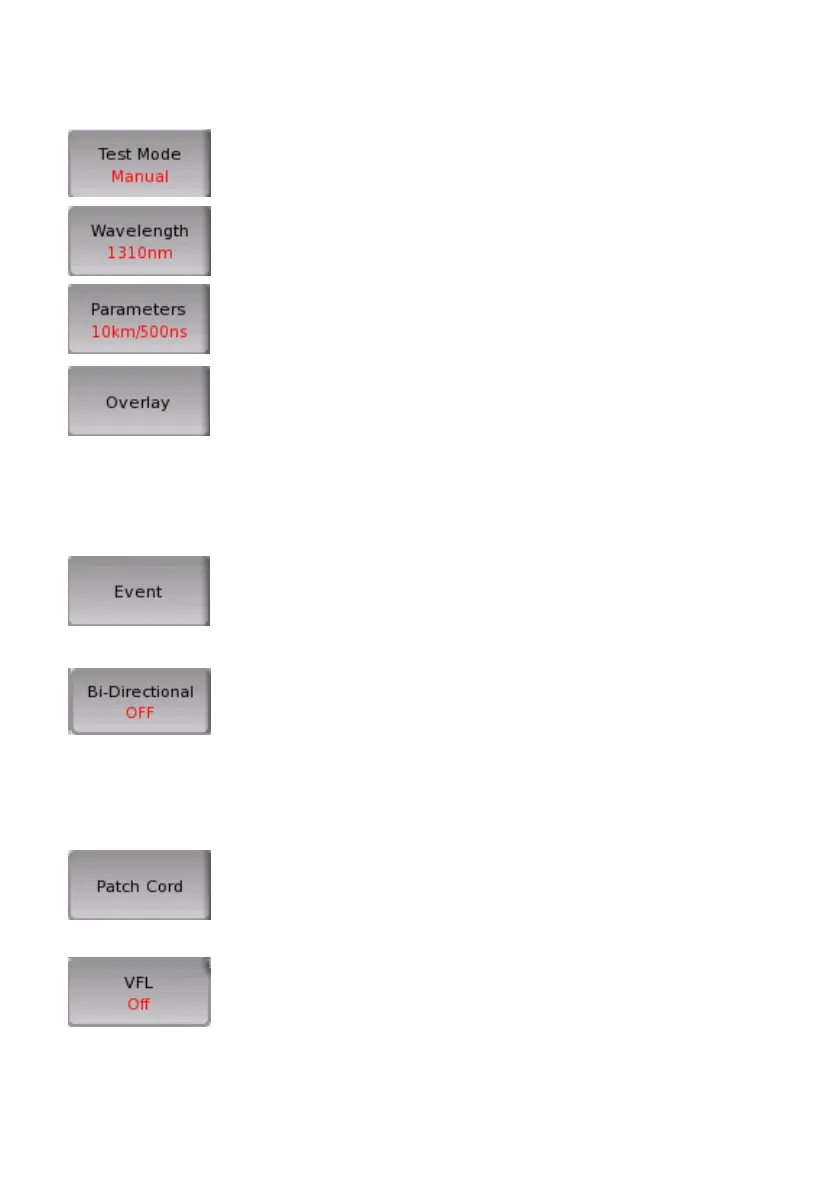
Switches between Auto and Manual. When Manual
is set, Parameter soft key is available.
Selects the wavelength using for the test.
When Test Mode is set to Manual, opens dialog box
to set Distance Range, Pulse Width, Sampling Mode,
and Average Time.
This key is available when the overlay traces are
loaded.
• Drop Overlay: Opens the dialog box for selecting the trace to drop.
• Swap Overlay: Opens the dialog box for selecting the trace to swap.
• Align Overlay: Switches how to align overlay traces.
• Show Overlay: Turns the overlay trace display on or off.
Analyze: Starts the event analysis.
Add Event: Opens the Add Event dialog box.
Edit Event: Opens the Edit Event dialog box.
Delete Event: Deletes the event.
Bi-Directional is the function to display the Overlay
trace in the reverse direction of distance and analyze
the losses from the two traces.
OFF: Does not display Overlay trace in the reverse
direction.
ON: Displays Overlay trace in the reverse direction
and analyzes the loss.
Active Cursor to Launch: Sets the active cursor
position to Launch Length of Patch-cord Setup.
Active Cursor to Receive: Sets the active cursor
position to Receive Length of Patch-cord Setup.
Switches the output of VFL.














 To Next Page