119
17-2-1 How to clone data
Ensure that the RS232 baud rate is set to the same speed for both
radios and that the address is set to 00 on both units (refer to
section 14-6
of this manual for information on the CONFIG menu
settings).
a) Pick the radio which you wish to copy TO (target)
First decide which unit will be used to receive (LOAD) the data.
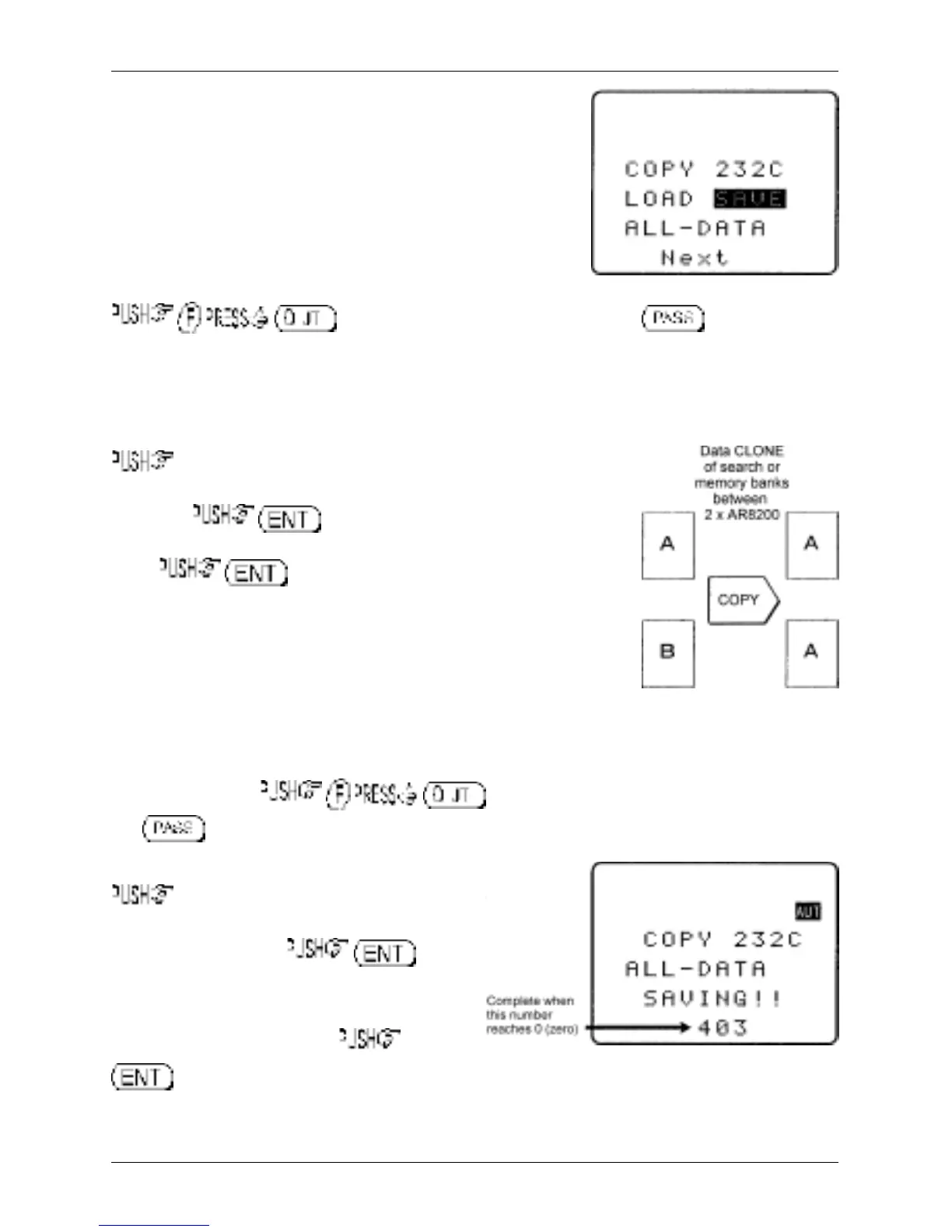
to access the “COPY RS232C” menu. The key acts as a
toggle between “LOAD” and “SAVE” (the default is LOAD), alternatively use the main dial or ï ð keys
to select LOAD.
b) Decide WHAT you want to copy
the ò key to move down the COPY RS232C menu, the cursor
will be flashing to the left of the item “ALL-DATA”. If you want to load
ALL DATA , alternatively use the main dial or ï ð
keys to select the type of data you wish to load (copy) from the other
radio. .
The bottom two rows of the LCD will display the legends “LOADING !!”
and a number. The number will start counting downward when the copy
process starts (when the other radio has been instructed to SAVE), the
more data you have selected, the higher the number… for ALL-DATA the
number will typically be 448.
c) Configure the radio used to SAVE
On the second radio, to access the “COPY RS232C” menu.
The key acts as a toggle between “LOAD” and “SAVE” (the default is LOAD), alternatively use
the main dial or ï ð keys to select SAVE.
the ò key to move down the COPY RS232C menu, the
cursor will be flashing to the left of the item “ALL-DATA”. If you
want to load ALL DATA , alternatively use
the main dial or ï ð keys to select the type of
data you wish to save (send) to the other radio. It
is most important that the type of data selected
is IDENTICAL on both radios.
.
The bottom two rows of the LCD will display the legends “SAVING !!” and a number which will start
Section 17-2-1


 To Next Page