129
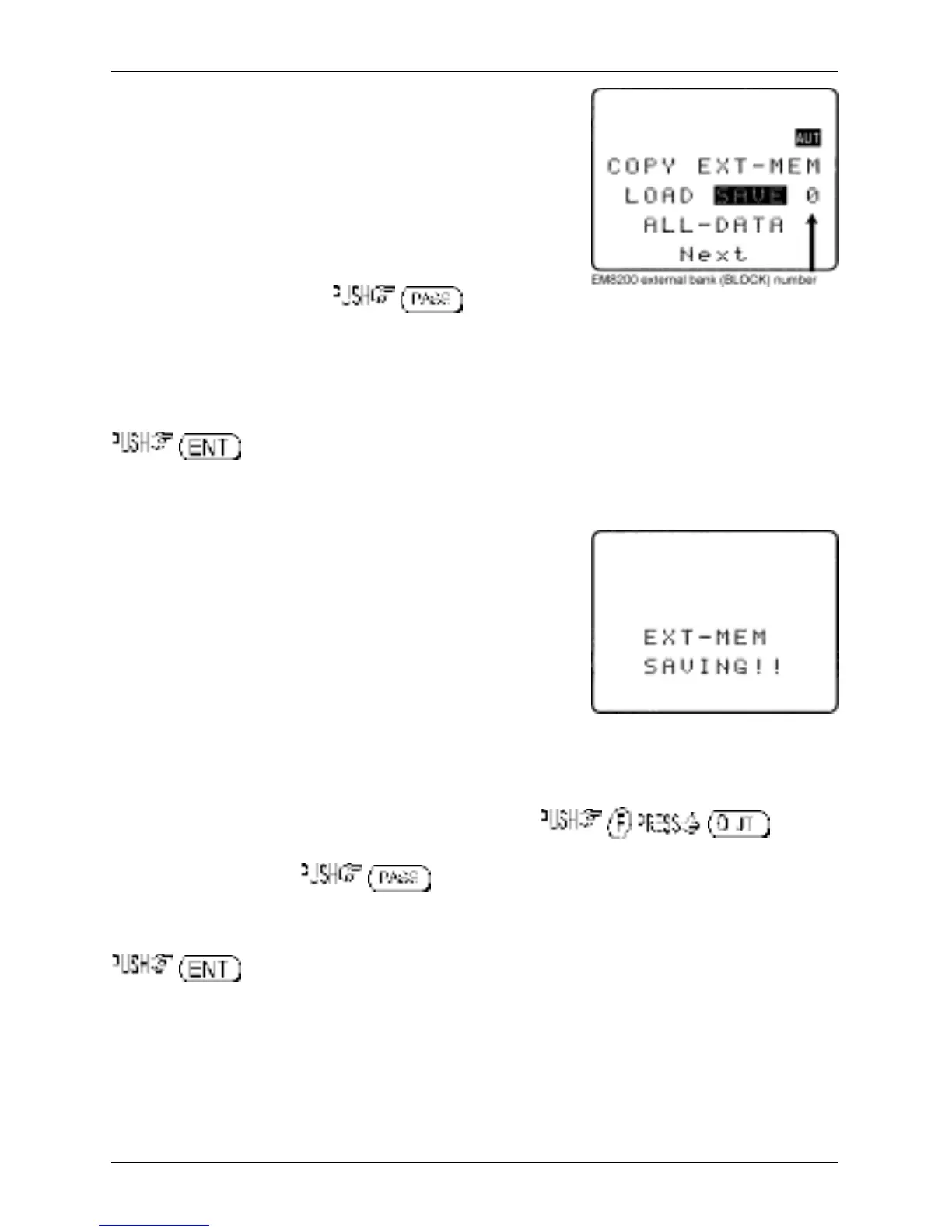
1 COPY EXT-MEM Indicates that the EM8200
COPY menu has been accessed
2 LOAD SAVE 0 Select save to or load from
the EM8200 and EM8200
bank number (0, 1, 2 & 3)
3 ALL-DATA Type of data to be saved /
loaded
4 Next Access to further menu items
First select the “SAVE” option, to toggle
between load and save.
Next select the EM8200 bank you wish to save, the first time select “0” using the ï ð keys (later you will
need to select 1, 2 & 3 to fully format the EM8200).
The type of data will already be default to “ALL-DATA” so no action is required.
to start the data save. The legend
“EXT-MEM SAVING !!” will be displayed with the exclamation marks flashing to indicate that saving
is in progress. The save process will take over 20 seconds to complete. Once the save is complete,
the LCD will revert to its previous display (VFO, scan or search etc).
Now repeat the ALL-DATA save to EM8200 locations 1, 2 and 3 to
complete the formatting process.
18-6-2 EM8200 ALL-DATA save and load
Before loading data from the EM8200 it is recommended that
ALL DATA save be used to make a copy of the AR8200 into
one of the EM8200 memory locations (i.e. keep one as a
temporary copy of your current AR8200 data).
Save ALL-DATA
Access the COPY EXT-MEM menu using the key sequence .
Select the “SAVE” option, to toggle between load and save. Next select the
EM8200 bank you wish to save using the ï ð keys (0, 1, 2 or 3). The type of data will already be
default to “ALL-DATA” so no action is required.
to start the data save. The legend “EXT-MEM SAVING !!” will be displayed with
the exclamation marks flashing to indicate that saving is in progress. The save process will take over
20 seconds to complete. Once the save is complete, the LCD will revert to its previous display
(VFO, scan or search etc).
Load ALL-DATA
It is presumed that you have already saved ALL DATA to one of the four EM8200 memory locations.
Section 18-6-1, 18-6-2


 To Next Page