13
© 2014 Dectro International. All rights reserved.
TURNING ON YOUR
APILUS XCELL
Turn on the unit
To turn on the unit, activate the switch at the back
of the unit and then press and hold the start ( )
button located at the rear right side of the foldaway
cover of your device. Give the device time to load
the operating system.
When first turned on, your device will ask you to
configure some information: the displayed lan-
guage, date and time, clinic information, your cli-
nic code to validate smartcards (xCell Pro version
only - the clinic code can be chosen by you), and
registering the admin user profile (xCell Pro version
only).
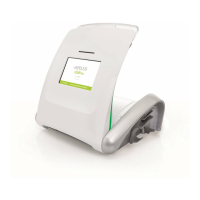
The next time you start your device, the home page
will automatically appear on the display screen as
illustrated on your left. However, if you have the
xCell Pro version, you will first need to select your
user name and enter your password.
The "i" icon will open a help page that can
explain the functions and features that are avai-
lable.
This device has a touch screen. Thus, to activate
the menus or enter data, press the desired field or
button with the stylus or your finger. The selection is
confirmed either by the illumination of the button or
the appearance of an alphanumeric keyboard for
entering the desired information.
Turn off the unit
To turn off your device, press the start ( ) icon at
the top left of the home screen or press the start
( ) button located on the rear right side of the fol-
daway cover for few seconds. A confirmation mes-
sage will then appear, asking if you would like to
turn the unit off. After entering your confirmation,
the device will shut down. Once the device is tur-
ned off it is possible to use the switch located at
the back of the unit to turn off the power.
WARNING: You must never turn the unit off by
using the power switch located at the back of the
unit. You may only use the power switch to turn off
the power to the device once the device has com-
pletely shut down using the steps indicated above.
A standby mode is automatically activated if the
unit is not in use for a while. To exit the standby
mode, tap the touch screen to activate the MP/XCL-
25 microprocessor and resume regular operations.


 To Next Page