35
© 2014 Dectro International. All rights reserved.
CHAPTER 4
Information Collection and Management!
(xCell Pro Version Only)
CLIENT FILES
Your Apilus xCell Pro device allows you to create up
to 1,000 client files and perform various manage-
ment options. To do this, press the Client Files ( )
button to the right as shown in the client files menu
screen on left.
Then press the desired option (in the middle of the
screen). Depending on the option chosen, enter
your preferences by selecting the information to fill.
If necessary, an alphabetic or numeric keyboard
will appear on the screen. Once the entry is com-
pleted for each section, press the OK button loca-
ted at the bottom right of the screen.
Creating a new client
Allows you to create a new client record. During
the creation of a client file, the Apilus xCell will ask
if you would like to complete a medical profile at
this time. To confirm a current medical condition
on the medical profile, press the X located next
to the condition(s) you wish to select and a green
checkmark will appear. Please note that there are
2 pages of medical conditions available to choose
from that can be viewed by using the buttons loca-
ted on the right side of the screen. Whenever you
make an entry, you should always validate your
entry by using the OK button at the end.
Existing Client files
This menu allows you to quickly view a list of all
your clients and to perform 5 different actions. It
is always important to select the desired client file
before choosing actions #2 to 5.
Print client files
Allows you to print off a list of all existing client files.
Appointment calendar
Allows you to view or print a list of future appoint-
ments. At the end of every treatment where a client
file was opened, the device will prompt you to enter
the date of the next appointment.
BILLING
Your Apilus xCell device allows you to charge your
customers for the care they have received and to
print an invoice using the internal printer. To do this,
make sure that you have first configurate your bil-
ling rates in the configuration menu (see chapter
1, section titled: configuration). Next, you will need
to open a Client file (see Chapter 2 and 4, section
titled: client file) so that the Apilus xCell device will
store the treatment data. At the end of the treat-
ment, you must close the client file. The device
will then prompt you to enter the date of the next
appointment (if necessary) and print an invoice.
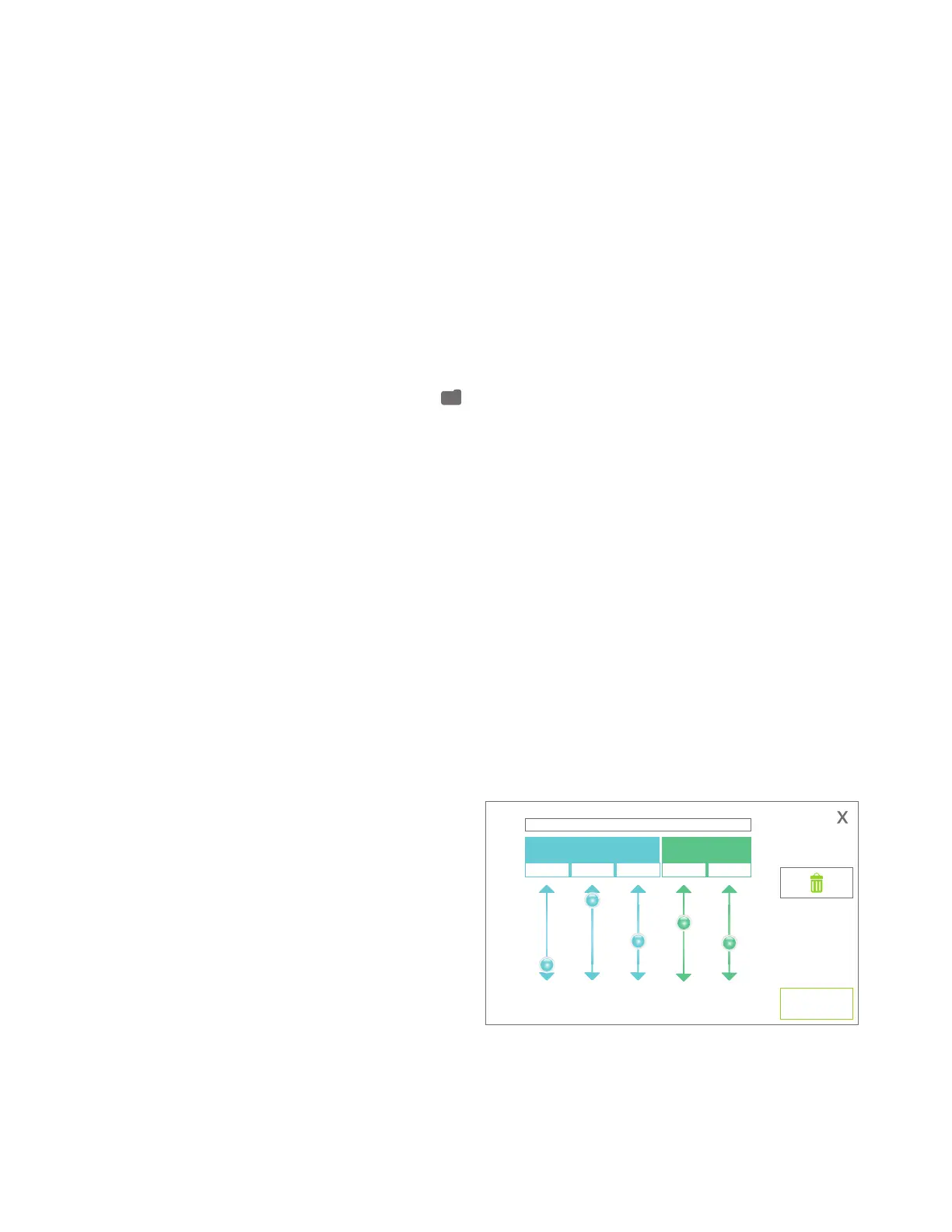
2013
12
12
15
20
ok
Year Month Day HourMinute
Next Appointment:


 To Next Page