25
© 2014 Dectro International. All rights reserved.
The Apilus xCell device also allows each of the
10 users to create 10 work programs in each
modes, which means you are able to save the
treatment settings used for a new region or a spe-
cific customer. To save a program, make sure that
the settings on the work screen are indeed the
ones you want to save.
Press the Region ( ) button on the work screen,
which will give you access to programs by region.
Then press the Users Programs ( ) button.
Select a number from 0 to 9 and press the
save ( ) button that has an arrow going to the
left. Enter the name you want to give to the pro-
gram using the alpha- numeric keypad and then
press OK.
To load a program that you have created, press
the Region ( ) button on the work screen, which
brings you to the programs by region menu. Then
press the Users Programs ( ) button. Select the
desired program using the digits 0 to 9 and press
the load ( ) button that has an arrow going to
the right. The device will then display the working
screen with the previously saved user program
settings. To cancel the selection, return to the pro-
grams by region screen, and press the Cancel ( )
button and then on OK.
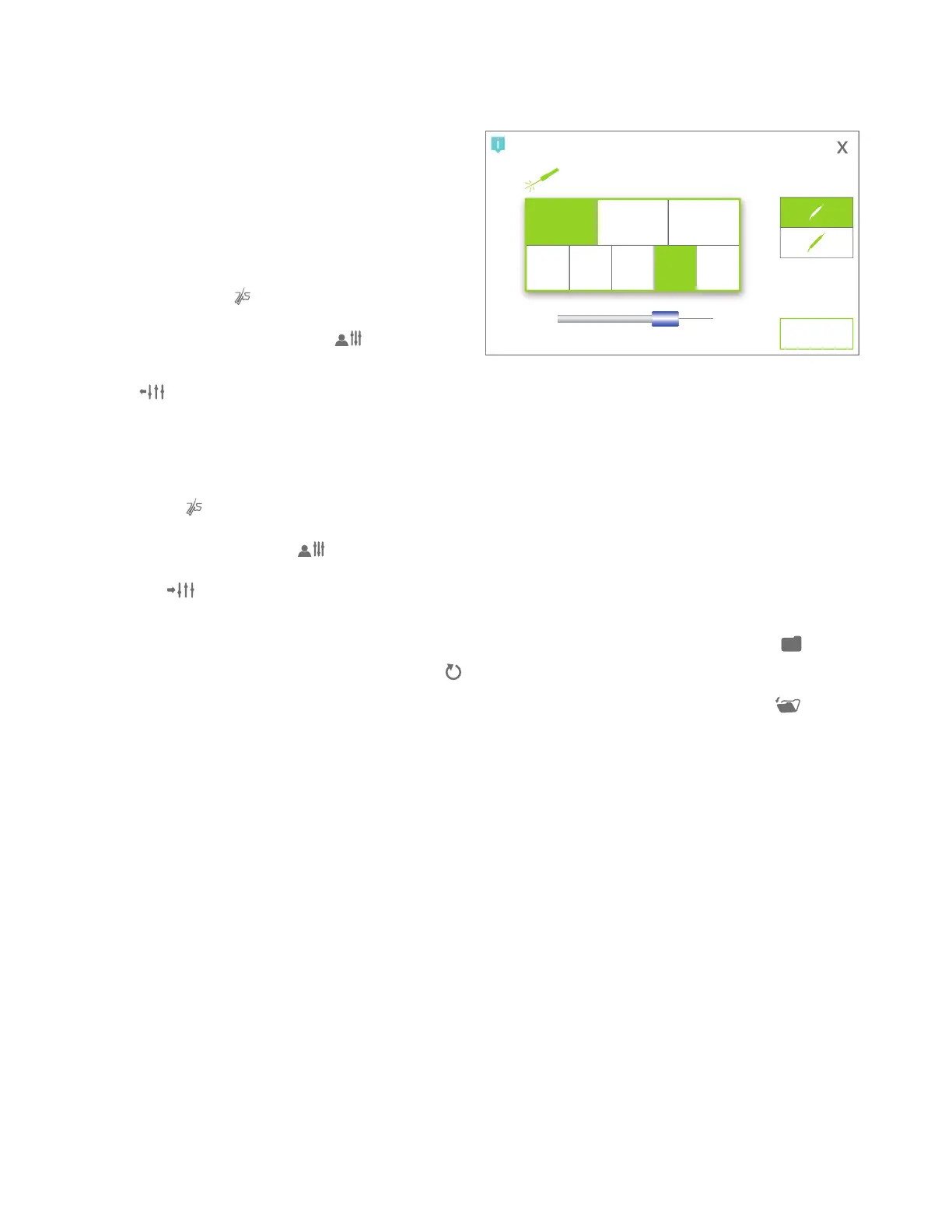
Output for the probeholder/Probe type
Allows two actions:
1) To determine the desired output of the probehol-
der, A (left) or B (right), a light will indicate which
probeholder is active
2) Specify the type and size of probe used, whether
stainless steel (INOX, IsoGard (ITH) or IsoBlend
(IBL) sized from 1 to 5)
It is important to understand this information, as
they affect the treatment programs which adjust
settings depending on the type of probe used.
ok
IsoBlend
1 INO 2 INO 3 INO 4 INO 5 INO
IsoGardInox
A
B
With/Without pedal
Selects the operating mode of the device, either
with or without the pedal and determines the
appropriate insertion delay before the current is
activated.
Client Files
Available only on the xCell Pro version. Allows you
to open and close a client file before and after every
treatment in order to save the treatment data in the
client’s file, to bill or debit time off the Apilus xCell
smartcard.
To open a file, first press the Client files ( ) button
(the screen "client files" on the left page will then
appear). Next, press the client’s name that you
desire and then the Open a client file ( ) button
on the bottom right. To scroll through the list of
clients, press the arrows keys.
When opening an existing customer file, your
device will ask you to choose a billing rate, or if a
smartcard is inserted, to debit time off the card. If
the customer is new and does not yet have a client
file, you must first create one by returning to the
main menu (see chapter 4, section client file). At
the end of the treatment, you must close the client
file (last button on the bottom right on the treatment
menu screen). The machine will print an invoice
detailing the treatment or print a statement with
treatment details when using a smartcard.


 To Next Page