Apogee ONE | User’s Guide for Windows
Getting Started
Connecting to your Windows PC
System Requirements
● OS : Windows 10 Enterprise, Pro or Home Editions (64-bit) Anniversary Update or greater
● Driver: Apogee USB Windows Driver
● Computer: Windows PC with Intel Core i3 processor or greater
● Memory: 8GB recommended (4GB minimum)
● Connection/power: USB port on computer; DC power supply optional
Install Apogee USB Windows Software
1. Connect Apogee ONE to a USB port on your Windows PC using the supplied USB 2 cable.
2. Go to www.apogeedigital.com/support/software-downloads
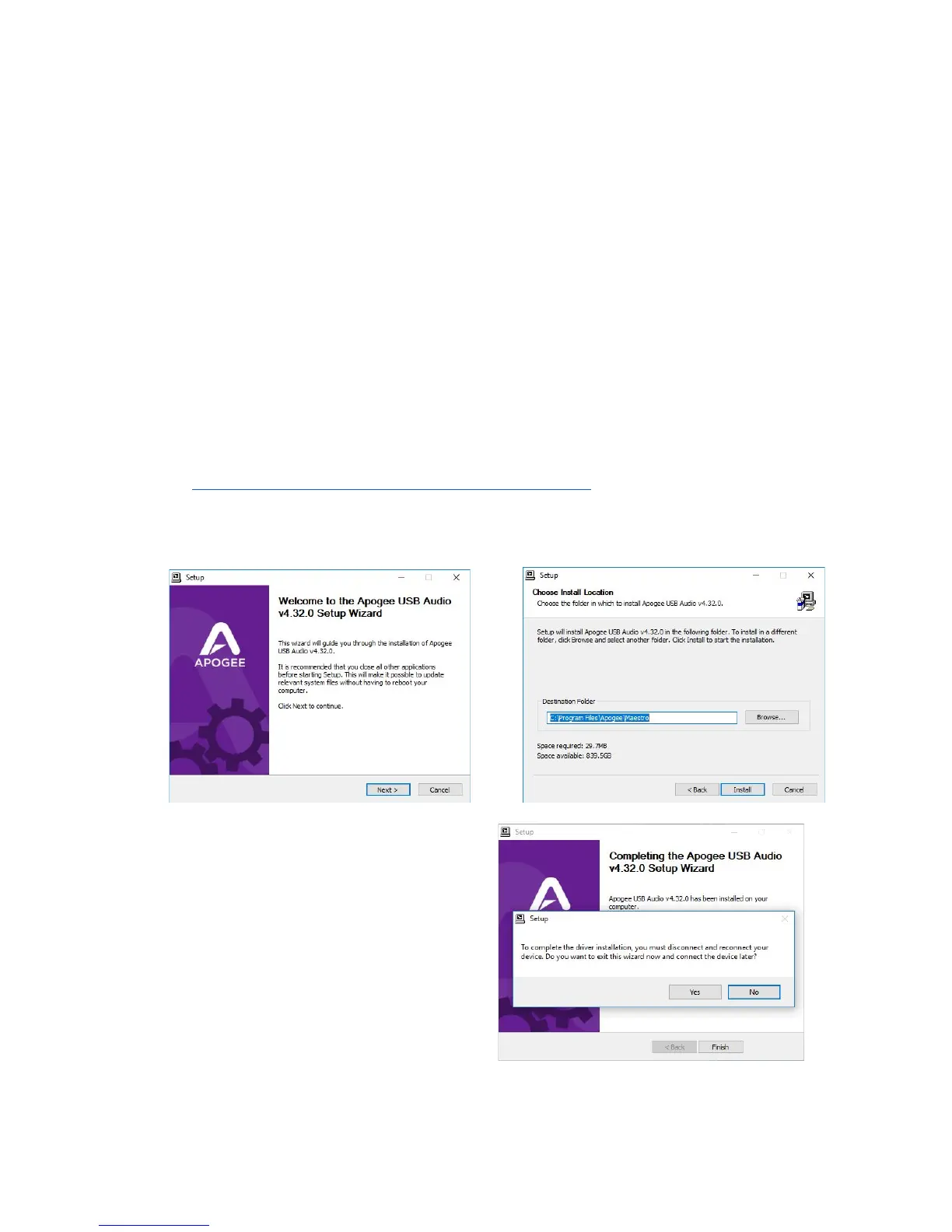
3. Download the latest Apogee USB Windows software installer, double-click the installer icon
and follow on-screen instructions. Some, but not all, steps are shown below
4. Click Finish to complete the installation.
*If your Apogee hardware interface isn’t
connected, connect it now, then click Finish.
Page 10



 To Next Page