options. For example, by holding your finger on an image, you can save the image file to your device. To fill in a
text field, tap in the field, then use the virtual keyboard to type the required information.
6.1. WEB BROWSER MENU ITEMS
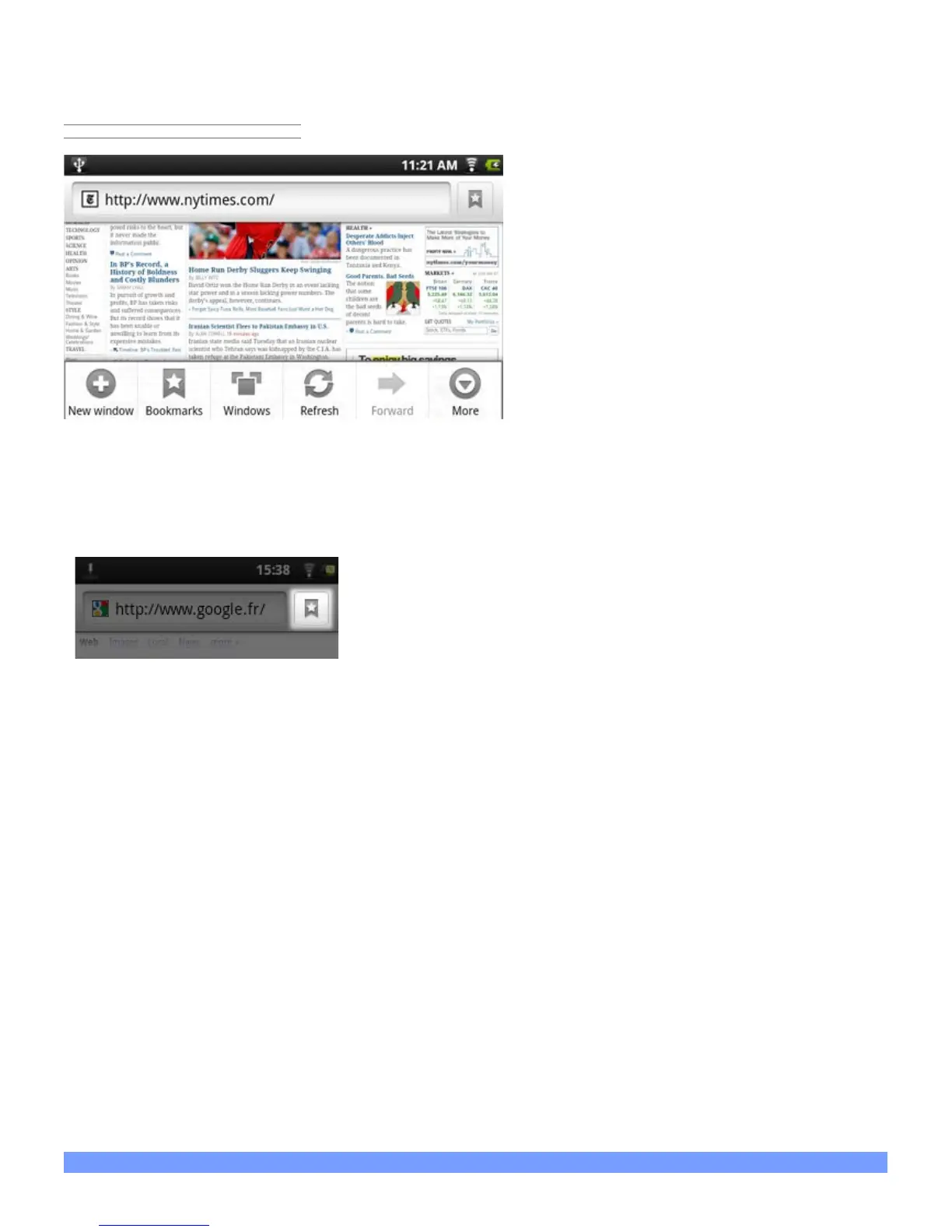
New Window: Opens a new browser window.
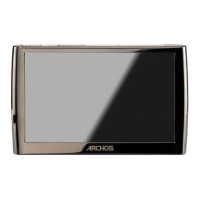
Bookmarks: You can also just tap on the bookmark icon on the top right of each page. Here you can see your
list of bookmarks. Just tap on one of them to open it in the current window. Holding down on a bookmark will
give you access to several options (you will be able to edit it, rename it,
delete it, etc.). To add a new bookmark, tap on the top left box that
shows * Add. The two other tabs allow you to access your Most visited
sites and your History. In the History tab, the Menu icon allows you to
clear the history.
Windows: When you have several windows currently opened, tap on Windows to display the list of currently
open windows. Tap on one to open it.
Refresh / Stop: Will stop loading the web page, if it is currently loading. Will refresh the current web page once
it has stopped loading.
Forward: Will go to the next page that you browsed.
More: Will give you access to other options (Find on page to search for a specific word on the current page,
Select text to select a section of text to put into the system clipboard -- which you can then paste into another
application such as an e-mail by holding down your finger in a text field), Page info to get information about the
current web page, Downloads to view the list of items you have downloaded from the Internet. Go to Home >
Files > Downloads to see the actual files that are saved on your device.
SETTINGS ALLOWS ADJUSTING how the navigator works.
Please note that some Web features requiring special plug-in software or Active X controls may not work in this
special version of the Web Browser.
7. APPSLIB AND APPLICATIONS
7.1. Downloading and installing applications


 To Next Page