> Search.
7. Volume: Allows you to adjust the volume regardless of the screen you are in.
8. Headphone / Video* out jack: For headphones or audio/video output (with an optional A/V cable) to connect
to a TV.
9. Microphone: for recording your voice (see the app named Sound Recorder).
10. Power / Charge indicator: Without the USB cable connected, it shows the
on/off status. While connected with a USB cable, blinking = fully charged, and Solid
= currently charging.
11. USB jack: To connect your ARCHOS to your computer using the supplied USB cable (to transfer files and
charge the battery). Or as USB host port to connect a camera or other device with the optional USB host cable.
*Only on the ARCHOS 32.
2.2. Using the ARCHOS interface
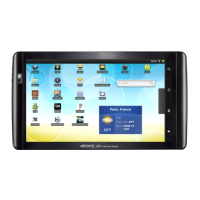
The Android™ interface is made up of five home screen panels (the home icon
brings you to the center one).
Slide your finger horizontally on the screen to go to the two left or the two right panels of the extended Home
screen. You can place shortcuts, bookmarks, and widgets on any of the five screens so long as there is free
space.
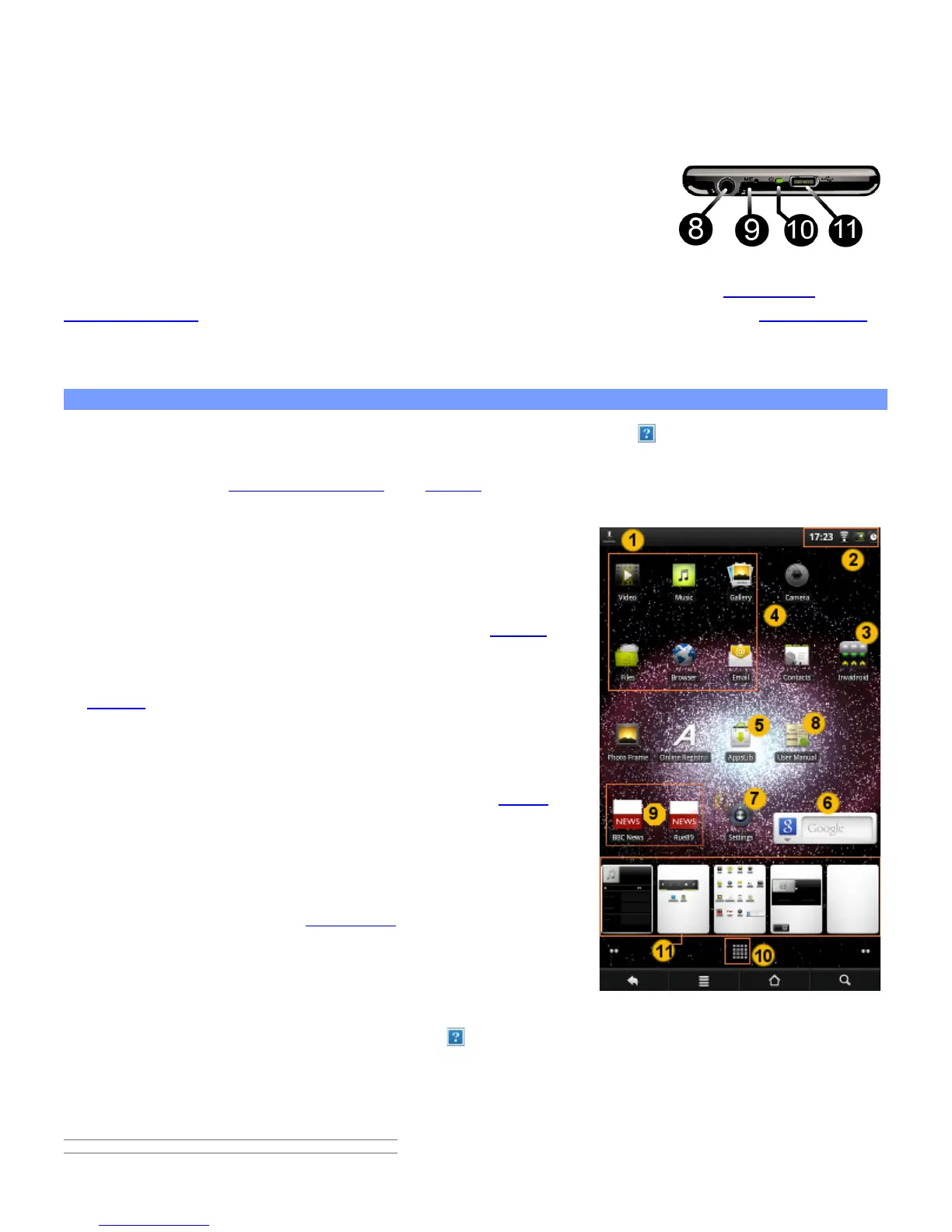
1. Notification messages: Drag the top bar downwards to reveal any
notification messages.
2. Status info: Time, Bluetooth® & WiFi status, battery level, alarm set.
3. Shortcut to a free game that was downloaded from the AppsLib store.
4. Shortcuts to the standard Android™ applications (can be moved or
deleted).
5. AppsLib store: An on-line library of hundreds of games & useful
apps to download to your device. Some are free and some must be
purchased (WiFi Internet connection needed).
6. Widgets: Small programs that run continuously and have a small
interface that stays on one of the home screen panels. This widget will
do a Google web search.
7. Settings shortcut: To access all the major settings of the device.
8. User Manuals: Special app to allow you to read the user manual on
your device.
9. Web site bookmarks: You can create these to open the web browser
and go directly to a particular web site.
10. Applications Tab: shows all the applications that are installed on
your device.
11. Thumbnail display of five homepages: to display homepages in thumbnails, hold down .
Switch between apps: Hold down on the home icon to display the recently used applications. You can then
tap on any one of them to go back into that app.
Keyboard: For the ARCHOS 28 and 32 devices, we highly recommended that you turn your device sideways in
order to display a horizontal orientation which makes the keyboard larger and easier to use.
2.2.1. CUSTOMIZING THE HOME SCREEN ITEMS


 To Next Page