4. Switch between video camera and still image camera.
5. Thumbnail of the last taken picture or the last recorded video.
Press on the thumbnail to display the photo or the video.
13. FILES
The file browser gives you the possibility to navigate the file system of your ARCHOS' internal
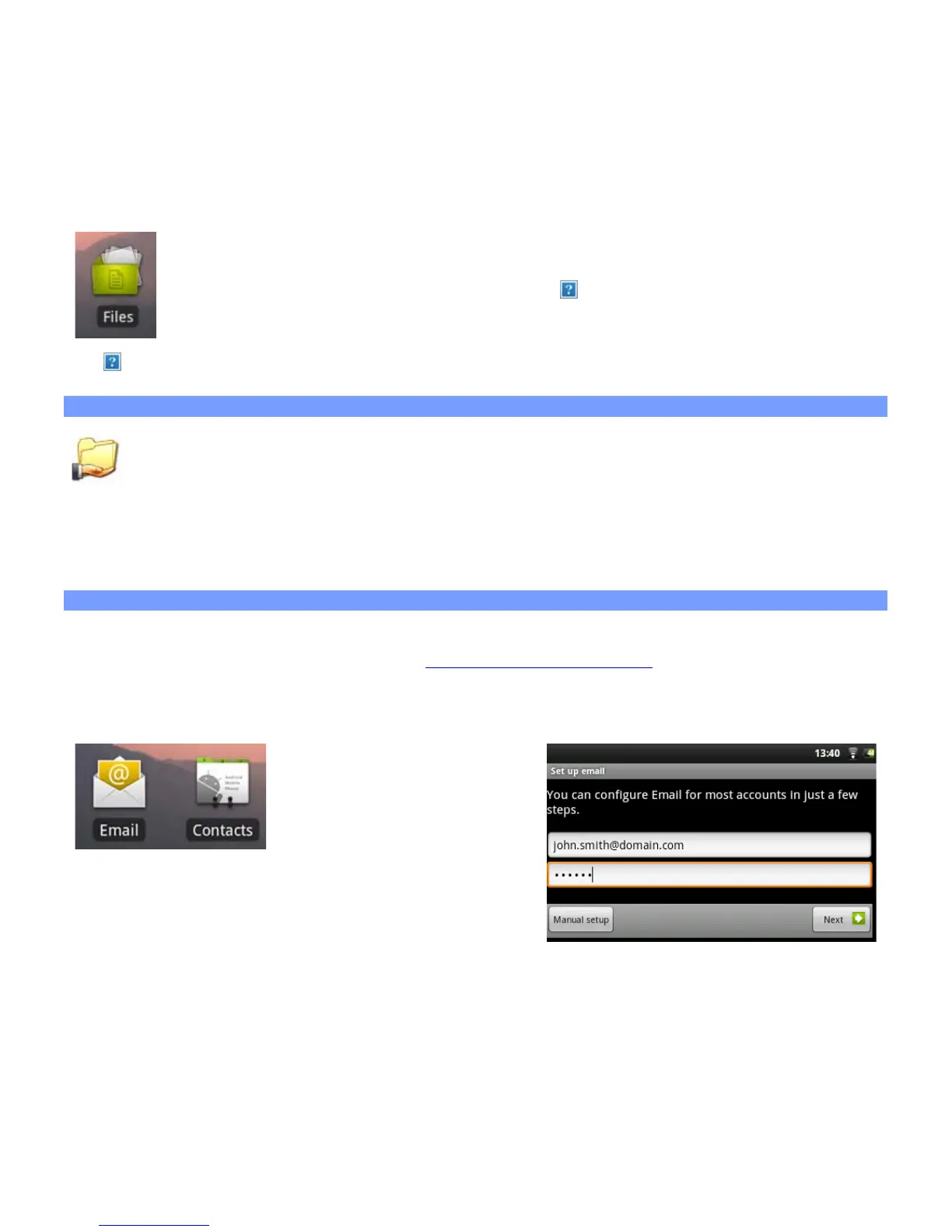
memory. In the Home screen, tap on the applications tab, and tap on Files to enter the file
browser. Tap on a folder to open it. Use the back icon to go back up one level in the file
hierarchy. By holding your finger down on a file or a folder, you can cut, copy, delete, rename, or
get details about that specific file or folder. To paste a copied or cut file or folder, use the menu
icon . For folders with many files, you can "flick" the list and it will scroll up or down quickly.
13.1. Browsing Other Computers on the Network
If there are Windows® computers on your WiFi network, you can browse their shared folders. Make
sure you have a WiFi connection and in the application Files, select Shared folders (SMB). If there are
computers on the same network that are sharing folders, then you will see the computer's name here,
and then the shared folders and files inside. You can copy files and folders from the computer sharing them and
then paste them locally into your device. If the computer with the shared folders normally has a Windows®
username and password, you will be asked to enter these before you can access the folder contents.
13.2. Accessing shared media files via UPnP
When you select Media servers (UPnP), you can only browse and play media files from media servers on the
local network, not transfer them. See the section
Playing your PC’s shared media for details on using this feature.
14. EMAIL & CONTACTS
The Email and Contacts applications work hand in hand. These
are standard email and contacts applications that you will need
to set up yourself. You will need to check with your Internet
service provider to find the parameters needed to set up both incoming and outgoing mail. Typically there are
"Help" pages on service provider's website for setting up email for various email programs. This will give you
the incoming and outgoing mail server names and other information that you will need to enter into the mail
setup. If you have a Google Mail™ account, the entire email setup only requires your user name and password.
15. CLOCK
This application is more than a simple clock. It displays a stylish digital clock on the screen, plays
a random slide show that floats on the screen, gives access to your music, and let's you set


 To Next Page