ARCHOS 32 USER GUIDE
http://www.archos.com/manuals/A32_EN_v1.1.htm[06.02.2013 12:28:03]
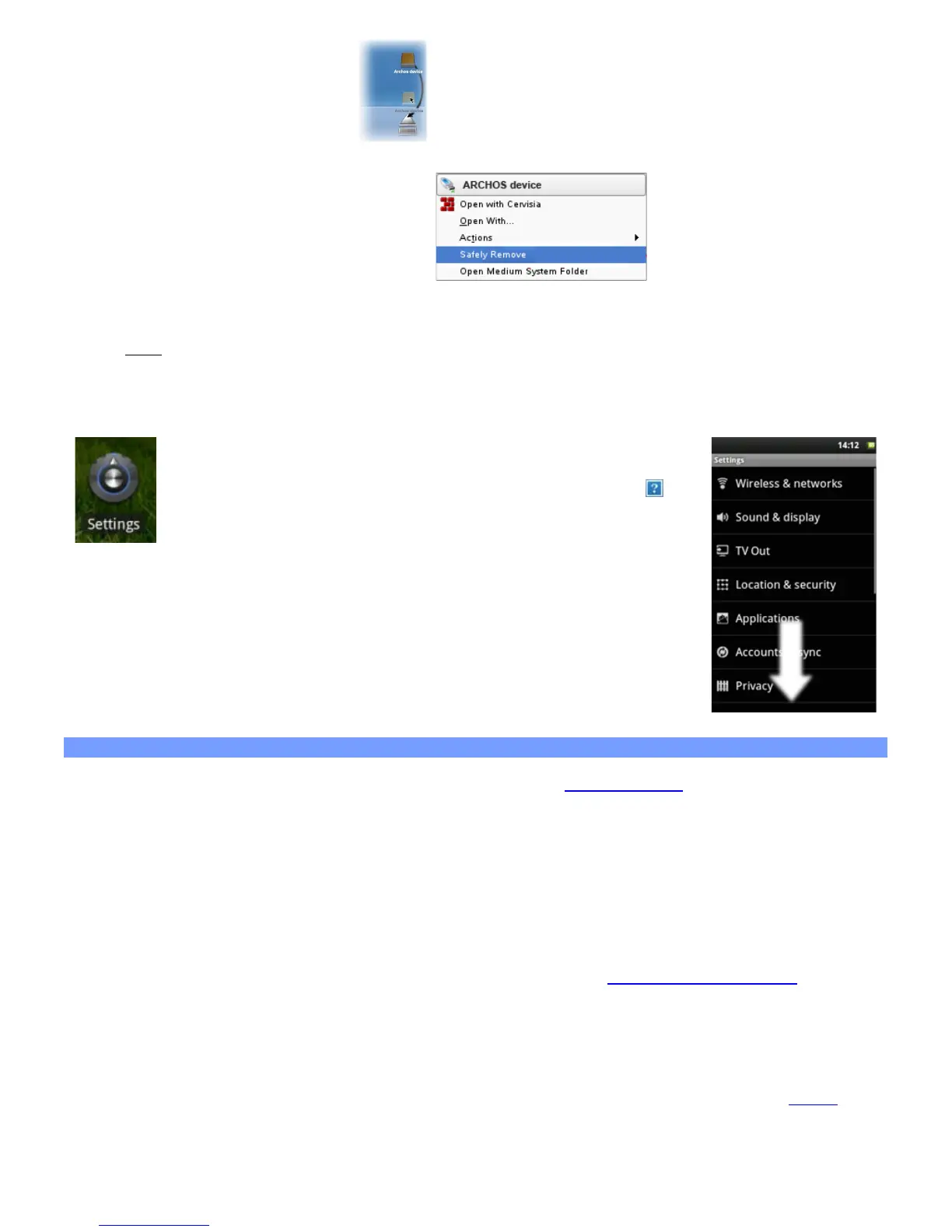
Mac: Drag the ARCHOS hard drive icon on the desktop toward the trash (which will change to an
"unmount" icon) and drop it in.
Linux: Right-click on the ARCHOS USB device icon and select "unmount" or "safely
remove."
You can
now unplug the USB cable.
5. SETTINGS
Use the settings to modify your ARCHOS to function for your particular
needs. You can scroll the screen up and down to reveal settings that you
don’t initially see. When it is possible, you can use the Menu icon to
access more options within one of the settings.
5.1. Wireless & network settings
When you do not need the WiFi or Bluetooth® connections, you can
deactivate them in order to save battery
power.
Airplane mode: This cuts the WiFi and Bluetooth® connections. This is typically required when onboard airplanes
in order not to interfere with the aircraft’s sensitive instruments.
Wi-Fi: Tap on this line to enable or disable the WiFi connection.
Wi-Fi settings: Allows you to set up and manage your WiFi networks. See: Making a WiFi Connection.
Bluetooth: tap on this line to enable or disable the Bluetooth® connection.
Bluetooth settings: Allows you to set up your device’s name (the name that will appear on your different
Bluetooth® devices), make it discoverable or hidden, scan for Bluetooth® devices in range, etc. See Pairing
below. The ARCHOS is compatible with the Bluetooth® standards A2DP, DUN, PAN, OBEX.


 To Next Page