ARCHOS 32 USER GUIDE
http://www.archos.com/manuals/A32_EN_v1.1.htm[06.02.2013 12:28:03]
10.1.2. THE FAVORITES LIST
The "Favorites" is where you keep the music you play the most often. To add a title, an
album, or an artist to your favorites list, just hold down on the item and a few options will
appear. Choose Add to favorites. The item will be marked with a star icon . To access your
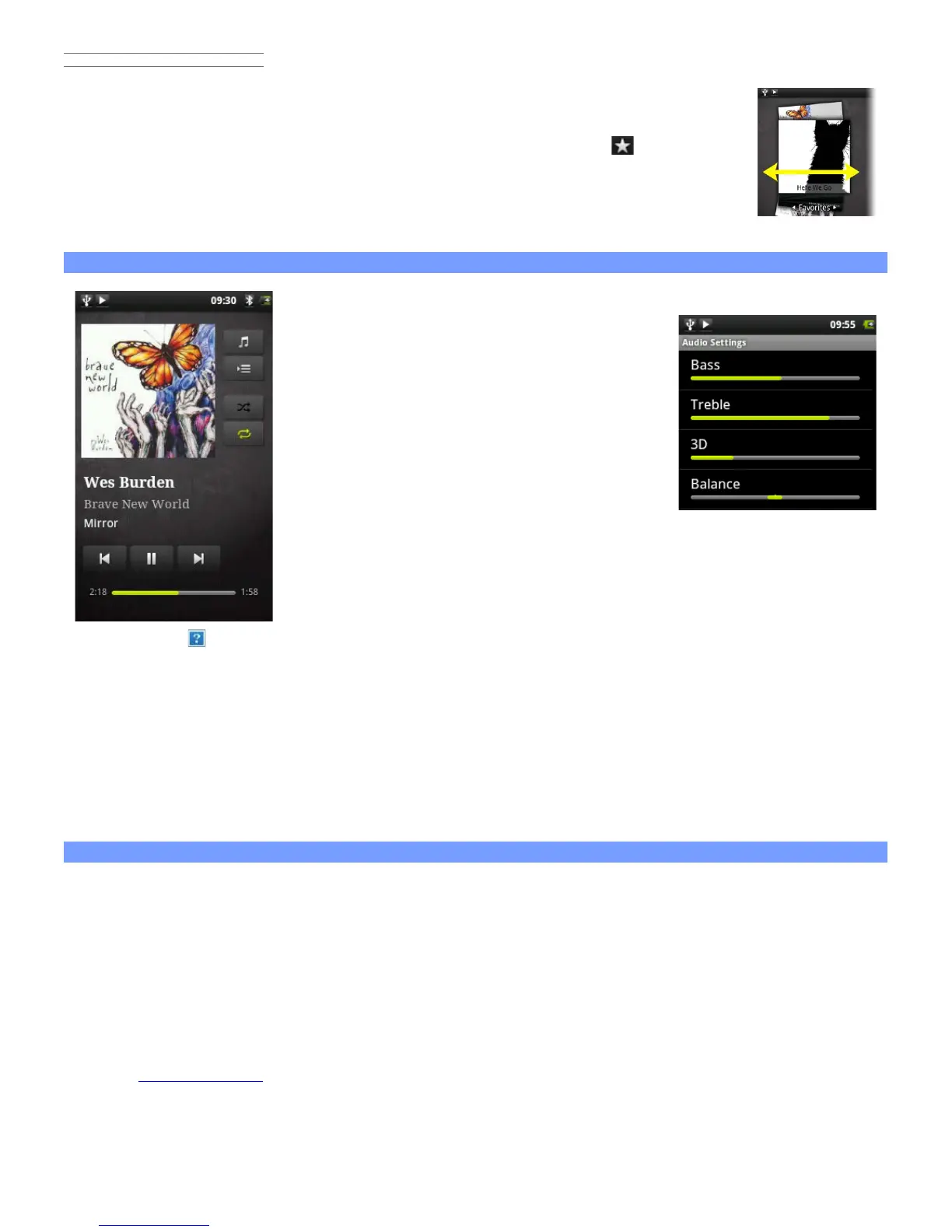
favorites list at any time, go to the cover-roll browsing screen and flick the albums left/right
until you see the music called Favorites. To remove an item from your favorites list, roll it
into view and then hold your finger down on it and choose Remove from favorites.
10.2. Music playback
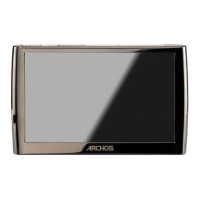
The music playback screen includes the standard playback controls. You can tap
on the progression bar to go directly to a different
location in the song. The previous and next buttons
can be tapped once to jump to the beginning of the
current song or jump to the next song, or held down
to reverse or advance rapidly through the current
song. The icons to the right of the album cover do the
following:
- Switch to the music selection screen
- View the current play list*
- Choose between repeating all songs in the current list, just one, and not
repeating.
Using the menu
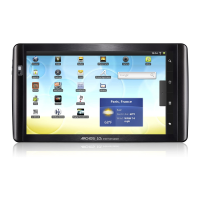
, you can choose additional items such as the Audio Settings (shown to the right) or Party
Shuffle. Selecting the party shuffle will create a playlist of several songs from the entire music library. The idea
is that while the list is playing, you can add more songs (find the desired song, long hold on the item, and then
select Add to playlist > Current playlist) and it will add it to the end of the current party shuffle. Or, if you do
nothing, the player will just add songs as needed to keep the party going.
* In the list, it is possible to change the position of the upcoming songs by holding down on the icon on the left of the song and dragging it
to the desired position.
10.3. Transferring your music to your ARCHOS
You can easily create music files with your computer by using Windows Media® Player 11 or higher to convert
your CDs to a playable format for your ARCHOS:
1. Place a music CD in your computer, and Windows® will ask you what action you would like to perform.
2. Choose Rip music from CD, and Windows Media® Player will start ripping the CD. The songs will be
automatically extracted from the CD and encoded into the MP3 or WMA format, according to what you
chose in Windows Media® Player’s ripping options. The default format is WMA.
3. Once this is done, the album will become part of your Music Library.
4. See
Transferring Files to learn how to transfer the ripped music files onto the ARCHOS.
See your Windows Media® Player help instructions for more information.
Check the laws and regulations in your country or jurisdiction to know if private copying of your CDs for your
own use is authorized. Some music CDs have a special copy protection system that will not allow Windows


 To Next Page