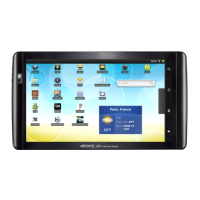
ARCHOS 32 USER GUIDE
http://www.archos.com/manuals/A32_EN_v1.1.htm[06.02.2013 12:28:03]
icon > Settings > Repair and Formatting). Then use the Touch screen calibration button, and follow the
instructions on the screen. If this does not work or if you cannot access the touch-screen settings, you can force
the touch-screen calibration (see: System Recovery).
20.3. System recovery
If your ARCHOS does not respond correctly or does not start properly, you can try to remedy this situation with
a system recovery. Be very careful with this as there are options to erase all the data on your device.
20.3.1. TO ENTER INTO THE RECOVERY SCREEN
ARCHOS 32 (with volume buttons on the side of the device)
- Turn off the device and wait 10 seconds.
- Press and hold the volume + button while powering on the device.
- Keep the volume + pressed until the Recovery mode starts (white screen).
- To move from one option to another, use the volume buttons. To select an option, press the ON/OFF button.
ARCHOS 32 (with SD card slot) and ARCHOS 28
- Press and hold the power button until the ARCHOS banner is displayed and then release it.
- Press the power button twice (like a mouse double-click) while the banner is still displaying.
- A white Recovery screen should appear within a couple of seconds.
- To move from one option to another, press the power button. To select the highlighted item, hold down on
the power button.
20.3.2. RECOVERY MODE OPTIONS
No: Cancels the system recovery.
Upgrade firmware: Allows you to connect your device to a computer in order to copy the latest .AOS file
(operating system) to your device and then install it.
Repair System: Attempts to repair the file structure on the internal memory. This does not erase any data.
No: Return to main recovery screen.
Force Touchscreen Calibration: Select this and then select no to leave the recovery screen. Upon restarting,
the ARCHOS will immediately srat the touch-screen calibration utility.
Check Disk: Check and repair the system partition if damaged.
Start USB MSC: Allows you to connect your device to a PC to access the internal memory.
Format System: Formats the internal memory. All data (music, photos, videos, etc.), applications and settings are
erased.
21. ACCESSORIES AND PLUG-INS
21.1. USB Host cable
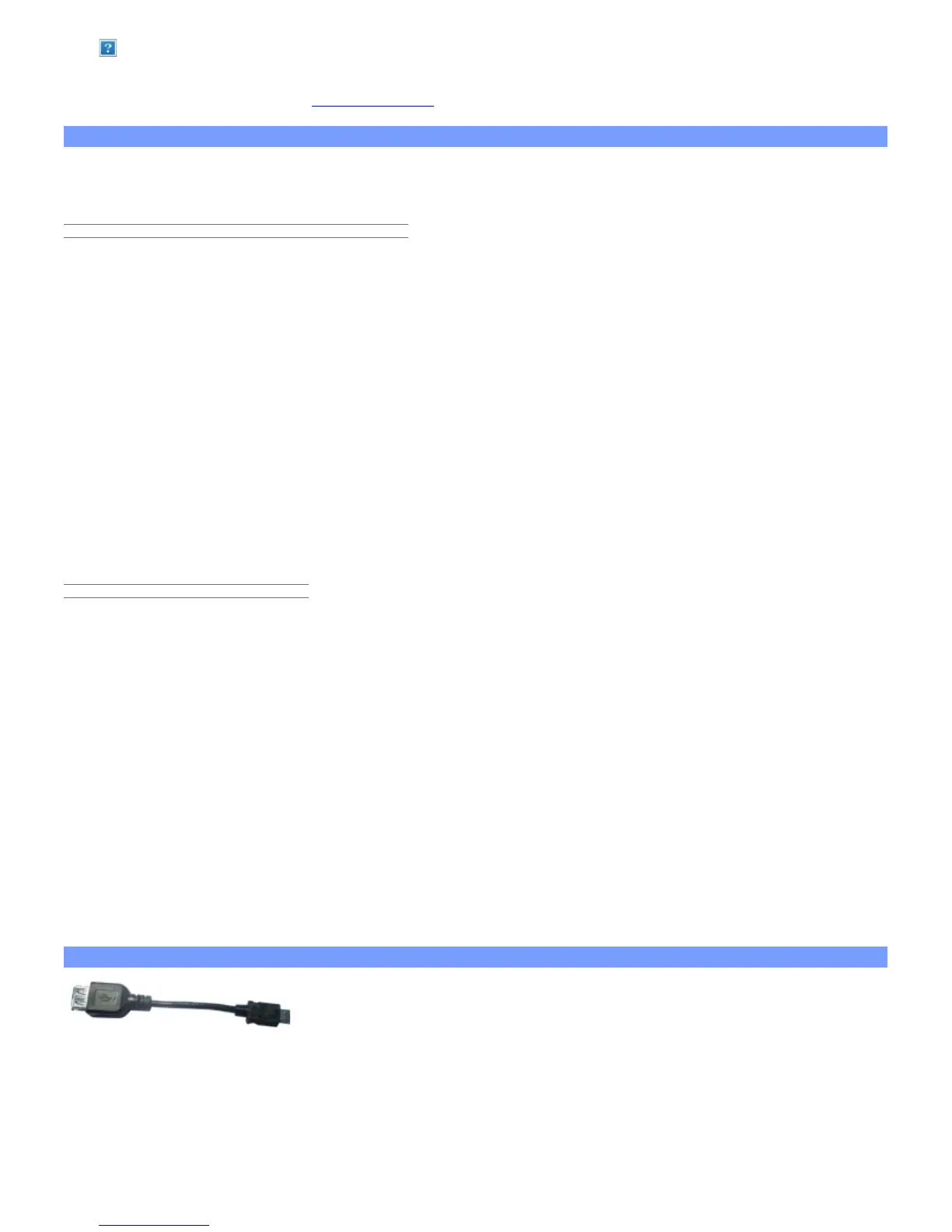
This cable will allow your ARCHOS to have a USB Host port. That is, you can
connect a camera, a USB stick, a USB memory card reader, a mouse, a keyboard,
a combination mouse/keyboard, or a powered hard drive to your ARCHOS*. By using this cable, your ARCHOS
can download all the photos from your camera directly, without having to transfer the photos to your computer
first. See the ARCHOS on-line store to purchase this micro USB-B to USB-A host cable.
* Some standard USB devices may not function if they consume too much power.


 To Next Page