EasyManua.ls Logo

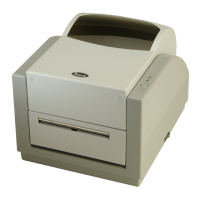
Argox A-2240 - User Manual

Argox A-2240
47 pages
Print Icon
To Next Page IconTo Next Page
Loading...
A SERIE PRINTERS
A-2240, A-2240E, A-2240Z,
A-2240ZE, A-3140, A-3140Z
A-2240M, A-2240ME
Users Manual
Website: http://www.argox.com
Ribbon & Media Installation video
A Series User’s Manual
2
Introduction
Proprietary Statement
This manual contains proprietary information of Argox Information Co., Ltd. It is
intended solely for the information and use of parties operating and maintaining
the equipment described herein. Such proprietary information may not be used,
reproduced, or disclosed to any other parties for any other purpose without the
expressed written permission of Argox Information Co., Ltd.
Product Improvements
Continuous improvement of products is a policy of Argox Information Co., Ltd. All
specifications and signs are subject to change without notice.
FCC Compliance Statement
This equipment has been tested and found to comply with the limits for a Class A
digital device, pursuant to Part 15 of the FCC Rules. These limits are designed
to provide reasonable protection against harmful interference in a residential
installation. This equipment generates, uses, and can radiate radio frequency
energy and, if not installed and used in accordance with the instructions, may
cause harmful interference to radio communications. However, there is no
guarantee that the interference will not occur in a particular installation. If this
equipment does cause harmful interference to radio or television reception,
which can be determined by turning the equipment off and on, the user is
encouraged to try to correct the interference by the following measures:
Reorient or relocate the receiving antenna.
Increase the separation between the equipment and the receiver.
Connect the equipment into a different outlet on a different circuit.
Consult the dealer or an experience Radio/TV technician for help.
This unit was tested with shielded cables on the peripheral devices. Shielded
cables must be used with the unit to insure compliance. The user is cautioned
that any changes or modifications not expressly approved by Argox Information
Co., Ltd. could void the user’s authority to operate the equipment.
Liability Disclaimer
Argox Information Co., Ltd. takes steps to assure that the company’s published
engineering specifications and manuals are correct; however, errors do occur.
Argox Information Co., Ltd. reserves the right to correct any such errors and
disclaims any resulting liability. In no event shall Argox Information Co., Ltd. or

Table of Contents

Questions and Answers

  • A
    acannonAug 6, 2025
    What to do if my Argox Barcode Reader printer times out?
    • F
      fbrownAug 6, 2025
      If the Argox Barcode Reader printer times out, ensure the communication cable (serial) is securely connected to both the PC's serial port and the printer's connector. Also, verify that the printer power is turned on.
  • E
    Emily HoodAug 10, 2025
    Why are the Power and Ready LEDs blinking at the same tempo on my Argox Barcode Reader?
    • N
      Nicole JonesAug 10, 2025
      If the Power and Ready LEDs on your Argox Barcode Reader are blinking at the same tempo, it could be due to several reasons: * A miss-detected gap: Check the label path and label sensor. * The label stock is out: Supply the label roll. * The label stock is not installed: Install the label roll. * A label jam: Recover the jam.
  • M
    Melissa SmithAug 15, 2025
    What does it mean when the Power and Ready LEDs blink alternately on my Argox Barcode Reader?
    • E
      elizabethandersonAug 15, 2025
      If the Power and Ready LEDs on your Argox Barcode Reader are blinking alternately, it could be due to: * Ribbon out: Supply the ribbon roll. * Ribbon jam: Recover the jam. * Ribbon sensor error: Replace ribbon sensor.
  • E
    erin64Aug 19, 2025
    Why is the Power LED blinking on my Argox Barcode Reader?
    • S
      Stacy Armstrong DDSAug 19, 2025
      If the Power LED on your Argox Barcode Reader is blinking, this could indicate a few issues: * Serial IO error: Check the baud rate. * Memory full: Add an extension RAM (flash memory card). * Cutter failed or jam at cutter: Check the cutter and recover the jam. * Hardware error: Call for service.
  • N
    Nicole JohnsonAug 23, 2025
    Why is the Ready LED blinking on my Argox Barcode Reader?
    • C
      Carol WalkerAug 23, 2025
      If the Ready LED is blinking on your Argox Barcode Reader, it means the print head is too hot. Printing will stop until the print head cools to an acceptable printing temperature, at which point the printer will automatically resume operation.
  • E
    Erin DunnAug 27, 2025
    How to fix vertical streaks in the printout of my Argox Barcode Reader?
    • A
      Angela WongAug 28, 2025
      If you observe vertical streaks in the printout from your Argox Barcode Reader, it may be due to a dirty or faulty print head. Clean the print head, and if the problem persists, replace it.
  • J
    Jeffrey NicholsSep 1, 2025
    What to do if my Argox Barcode Reader has poor printout quality?
    • M
      Marc GibbsSep 1, 2025
      If you are experiencing poor printout quality with your Argox Barcode Reader, consider the following: * The ribbon may not be qualified. * The media may not be qualified. * Adjust the Darkness (heat temperature). * Slow down the print speed.

Summary

Safety

Getting Started

Unpacking

Instructions for checking the printer and its packaging for damage.

Package Contents

List of items included in the printer package.

Connecting the Power Supply

Getting to Know Your Printer

Parts and Features

Identification and description of the printer's components.

Controls and Indicators

Explanation of the printer's buttons and status lights.

Loading Ribbon and Media

Loading a Ribbon

Detailed steps for installing a ribbon roll.

Loading Media

Standard Mode

Instructions for loading media in standard operation mode.

Peel Off Mode

Instructions for loading media for peel-off functionality.

Cutter Mode

Instructions for loading media when using the cutter function.

Configuration and Configuration

Performing Calibration and a Configuration Report

Steps to calibrate the printer and print a report.

Resetting Printer to Factory Defaults

Instructions to restore the printer to its original settings.

Computer Connections

USB Interface Requirements

Details on the specifications for USB connectivity.

Serial (RS-232) Interface Requirements

Details on the RS-232 serial interface.

Ethernet 10;100 Internal Printer Server Option

Installing a Plug and Play printer driver (for USB only)

Installing the Printer Driver

Troubleshooting

Caring for Your Printer

Cleaning

Steps for cleaning key printer components.

Replacing Thermal Print Head

Technical Reference

General Specifications

Overview of the printer's technical characteristics.

Interface Specifications

Appendix I - Installing the Extension Card

Argox A-2240 Specifications

General IconGeneral
Print TechnologyThermal Transfer / Direct Thermal
Print Resolution203 dpi
Media Width25.4 mm - 114 mm
Memory8 MB Flash
ConnectivityUSB, Serial
Print Width104 mm (4.09")
Processor32-bit RISC
Label Width25.4 mm - 114 mm
Power Supply100-240V AC, 50/60 Hz
Media Thickness0.06 mm (0.003") ~ 0.25 mm (0.01")
Label Thickness0.06 mm (0.003") ~ 0.25 mm (0.01")

Related product manuals