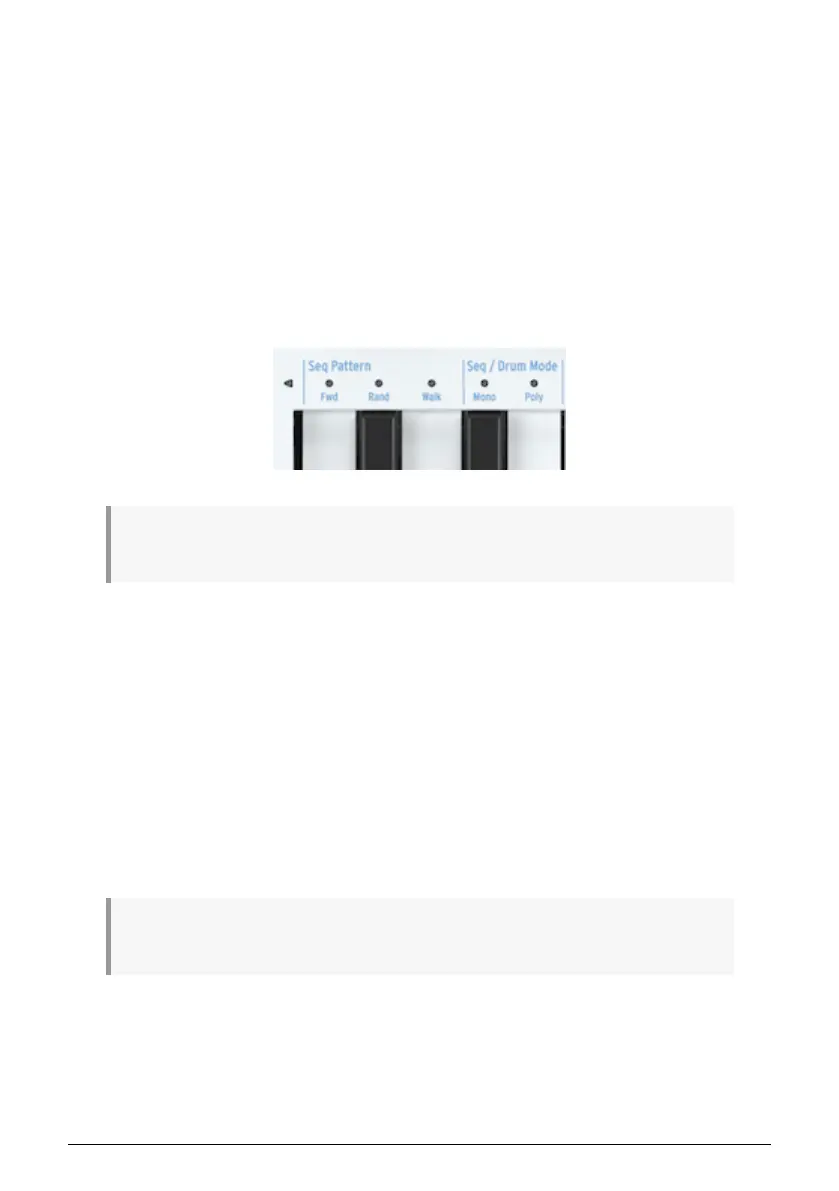
5.3.1.4. Seq Patterns (Directions)
How do you change the playing direction of the sequence? Hold down SHIFT and press one
of the Seq Pattern keys (C, C# or D in the lower octave).
A sequence that repeatedly runs from beginning to end tends to bore listeners quickly.
Fortunately, the Keystep Pro sequencers can step in three different ways: Fwd (forward),
Rand (random) and Walk.
• Forward is self-explanatory.
• In Random mode, the steps are played in ever-changing random order.
• In walk mode, it's as if the sequencer 'throws a dice' at the end of each step:
there's a 50% chance it will play the next step, a 25% chance it will play the
current step again and a 25% chance it will play the previous step.
♪: It's called Walk mode after the way monks would walk during medieval pilgrimages; two steps
forward, one step back. This is the walk of a rather uncertain monk.
One question remains: how do you know whether the sequence will play the last step when
you're in Random or Walk mode? This is sometimes important to know; for instance, when
at the end of a sequence you want to start another sequence with the Wait Load (Wait to
Load) function activated. It's the number of steps – defined by Lst Step – that determines
this.
5.3.1.5. Scales, Chords and the Sequencer
The KeyStep Pro gives you a lot of control over the tonality of your sequence. Once you've
programmed a sequence, you can change its root note and the scale it plays in.
To define a new root note for your sequence, hold down SHIFT and press the Root key (F in
the upper octave), then press a key in the lower octave of the keyboard. The LED above the
currently active root note will light up.
♪: You will only hear a pitch change when your sequence is already running in a scale other than
chromatic.
An alternative way to define a root note is to hold down SHIFT and press the User 1 or User
2 key (F# or G in the upper octave). You can assign a root note to one or both of these keys
in the same way as explained above. The advantage of this method is that in a performance
situation you can define two different root notes in advance and then select them on the fly
with SHIFT + User 1 or SHIFT + User 2.
60 Arturia - User Manual Keystep Pro - Making Tracks











 To Next Page