ASPION G-Log Manager – PC software / Creating and editing profiles
User manual – Version 3.2/11-19 Copyright © ASPION GmbH Page 25
The list view shows you all available profiles. If you have to select from a large number of available
profiles, you will quickly find the required profile using the search function.
Select an existing profile here. The profile details will immediately be displayed in the content area.
Now you can make changes, overwrite the profile or undo changes. You create a new profile with the
New button. If you want to delete a profile, you select the corresponding profile from the list and click
Delete.
You can exchange created profiles with the export/import function of other ASPION G-Log Manager
installations. How to:
Export your profiles with the Export all button and save the file (YYYY-MM-TT_Profiles.ZIP) locally.
Transfer this file to the computer of the other user on which the ASPION G-Log Manager is also
installed. Import the profiles with Import all. The existing exported profiles are added to the existing
installation.
6.2 Profile settings for ASPION G-Log 2
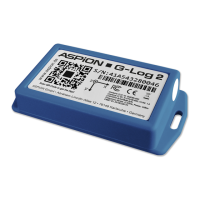
You will receive three default profiles with the ASPION G-Log 2 to make orientation easier: "G-Log 2 low",
"G-Log 2 medium" and "G-Log 2 high". Using the settings, you can define the battery lifespan and threshold
values for which an event is recorded if the values are above or below this defined threshold.
Select the Edit profiles function from the left area.


 To Next Page