ASPION G-Log Manager – PC software / Reading the sensor
User manual – Version 3.2/11-19 Copyright © ASPION GmbH Page 30
Display of app contents: no PIN is assigned per default, the ASPION G-Log App does not display any
events.
Enter a PIN (up to 4 digits, only numbers). Now, the events that were recorded are hidden for the user
when reading out the sensor with the ASPION G-Log App. Only if the user enters the PIN, the ASPION G-
Log App displays all events, see ASPION G-Log App for smartphones. All other functions of the ASPION
G-Log App are not affected.
Stopping the sensor with a PIN: Per default, no PIN is entered and the ASPION G-Log App cannot stop
the sensor.
Please note: This function is available for smartphones running on Android, but not for smartphones
running on iOS. iOS only supports reading via NFC Version 11 and later (last update: October 2019).
Enter a PIN (up to 4 digits, only numbers). Now, you can stop the recording of a sensor with the
smartphone app by entering this PIN, see ASPION G-Log App for Smartphones. You cannot continue the
recording. You can newly re-start a stopped sensor, see ASPION G-Log Manager - PC software, chapter
9, "Stopping the sensor".
8. Reading the sensor
You receive analyzed data by clicking the Read sensor function in the left area. Click the Read sensor
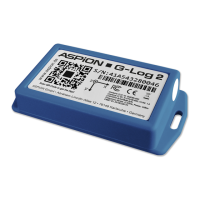
button. Follow the instructions of the program. Place the sensor on the card reader with the label facing up
so it can be read out.
Select the Read sensor function in the left area.


 To Next Page