22 ASUS DAV Center
Using the TV as a Monitor
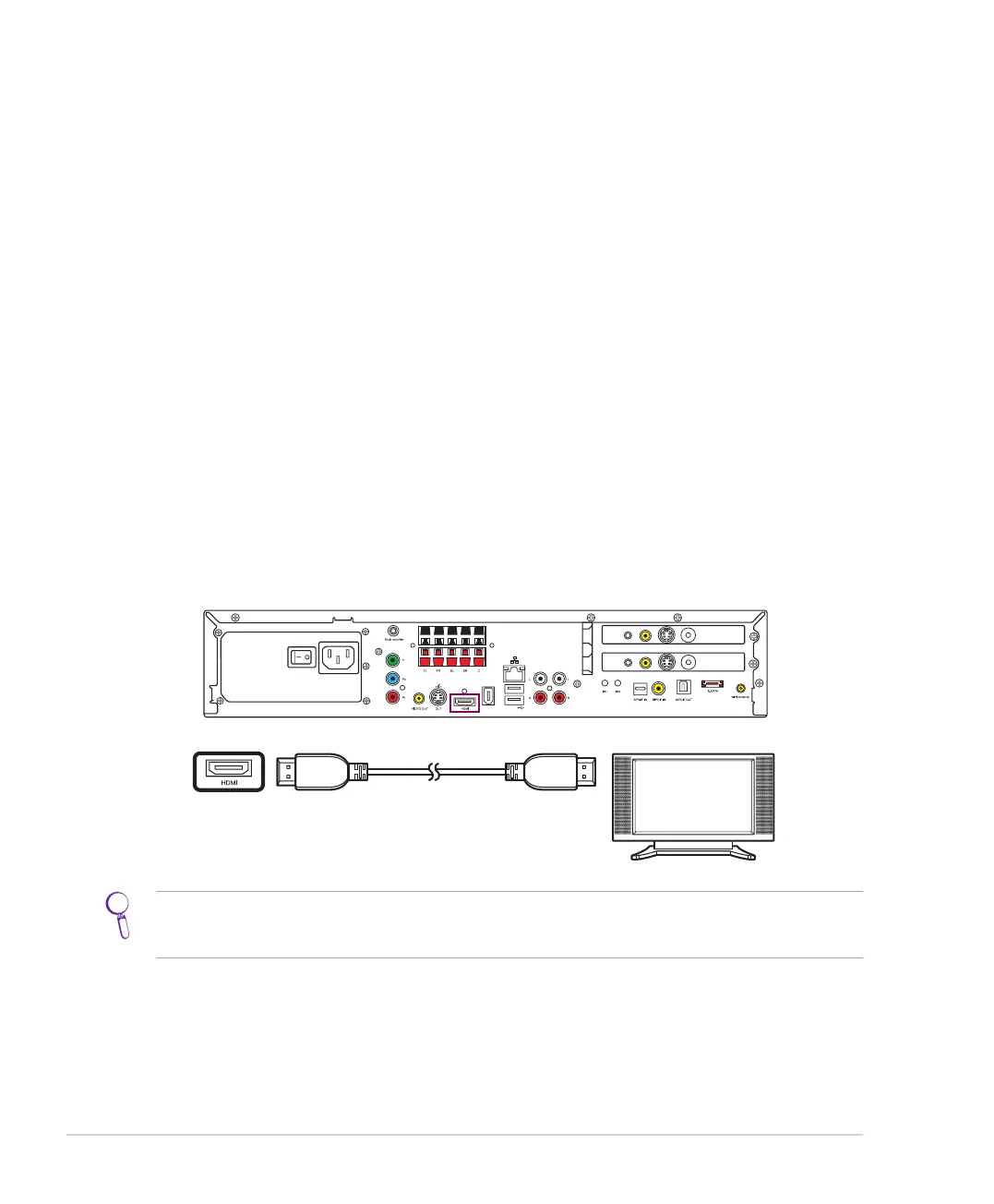
The TV Out capability of your DAV Center allows you to view pictures, watch DVDs, or play games on your TV.
Cables for connecting to a TV
You can connect your DAV Center to your TV with one of the following ways. The type of video cable you need
may vary depending on which kind of TV connector you are using.
• HDMI: recommended for its best quality
• Component video (YPbPr) with stereo audio
• S-video with stereo audio
• Video Out with stereo audio
• SCART
Connecting to a TV
HDMI connection (recommended)
1. Turn off your DAV Center.
2. Connect the HDMI cable to the HDMI connector on the TV and to the HDMI connector on the back of
your DAV Center.
/+++
;9(
/4
5;:
';*/5
)536
9</*
:</4
';*/5
)536
9</*
:</4
If your TV has a DVI connector instead, plug the HDMI cable into an HDMI to DVI converter (not provided), and
then connect it to your TV. Next, connect stereo audio cables to the Audio In jacks on the TV and to the Audio Out
jacks on the DAV Center rear panel.



 To Next Page