ASUS P5M2 Series
5-25
5.3.1 Creating a RAID 0 set (Stripe)
To create a RAID 0 set:
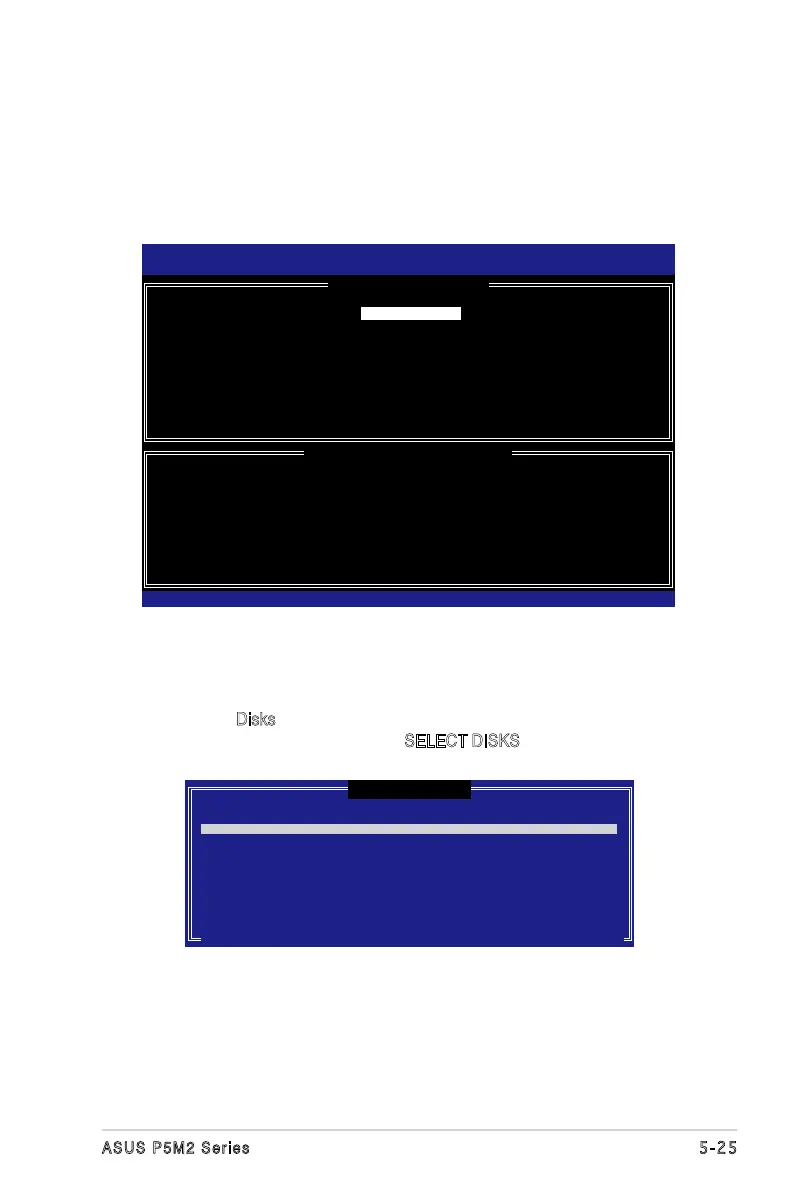
1. From the utility main menu, select
1. Create RAID Volume
, then press
<Enter>. This screen appears.
2. Enter a name for the RAID 0 set, then press <Enter>.
3. Highlight
RAID Level
, press the up/down arrow key to select
RAID 0 (Stripe)
, then press <Enter>.
4. Highlight the
Disks item, then press <Enter> to select the hard disk drives you
want to include in the RAID set. The SELECT DISKS screen appears.
5. Use the up/down arrow key to highlight a drive, then press <Space> to
select. A small triangle marks the selected drive. Press <Enter> after
completing your selection.
Intel(R)MatrixStorageManagerOptionROMv5.0.0.1032ICH7RwRAID5
Copyright(C)2003-05IntelCorporation.AllRightsReserved.
[ CREATE ARRAY MENU ]
[ DISK/VOLUME INFORMATION ]
Enter a string between 1 and 16 characters in length that can be used
to uniquely identify the RAID volume. This name is case sensitive and
cannot contain special characters.
Name:
RAID Level:
Disks:
Strip Size:
Capacity:
Volume0
RAID0(Stripe)
SelectDisks
128KB
0.0 GB
Create Volume
[ SELECT DISKS ]
[
↑↓
]-Previous/Next[SPACE]-Selects[ENTER]-SelectionComplete
Port Drive Model Serial # Size Status
0 XXXXXX XXXXXX XX.XGB N o n - R A I D D i s k
1 XXXXXX XXXXXX XX.XGB N o n - R A I D D i s k
2 XXXXXX XXXXXX XX.XGB Non-RAIDDisk
3 XXXXXX XXXXXX XX.XGB N o n - R A I D D i s k
Select2to4diskstouseincreatingthevolume.
[
↑↓
]-Select [ESC]-Exit[ENTER]-SelectMenu


 To Next Page