97
Taking photos
After launching the camera, your device is set to Camera mode by default. If set otherwise,
tap Menu > Change Mode > Camera Mode then tap Done.
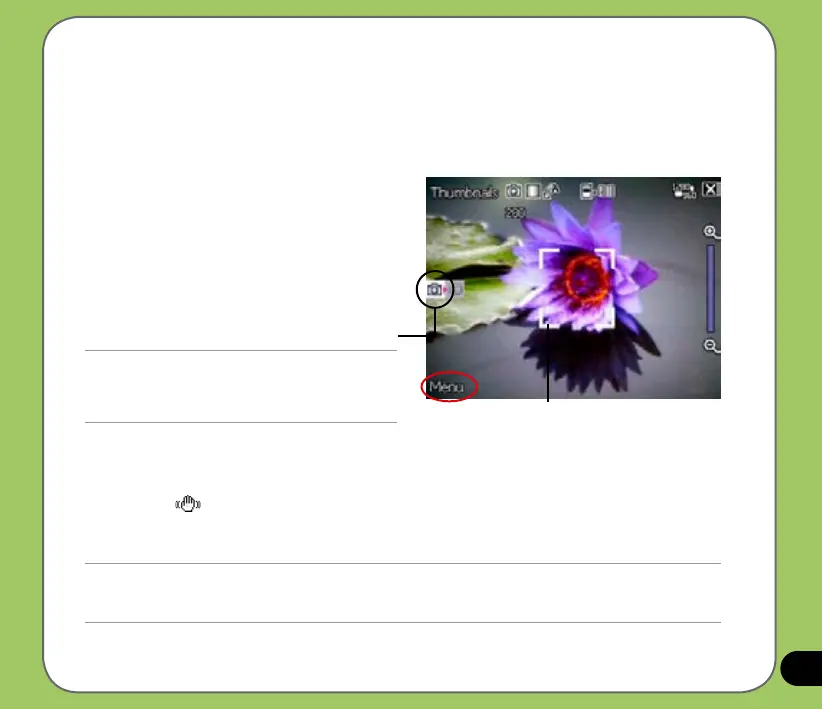
You can also set to camera mode by tapping the camera mode icon on the screen.
To take a photo:
1. Aim device to your subject then
half-press camera/shutter button to
auto-focus on subject.
While camera/shutter button is
half-pressed, you can see the
auto-focus frame on the center of the
screen. The frame turns green indicating
the auto-focus is nished.
IMPORTANT:
The auto-focus range is effective only from 8~80 cm,
if you want to skip this feature, press the navigation
button action button to take a picture.
2. Full-press the camera/shutter button or press the navigation button action button to
capture image.
When the icon appears, make sure the device is stable and not shaking.
3. Repeat steps 1 to 2 to take more photos.
NOTE:
The image is automatically saved to the default storage location and can be viewed using the Pictures and Videos
application.
Camera mode icon
Auto-focus frame
Auto-focus frame


 To Next Page