34
RT-N16 Chapter 4: Conguring via the web GUI
Assigning access rights
To assign access rights:
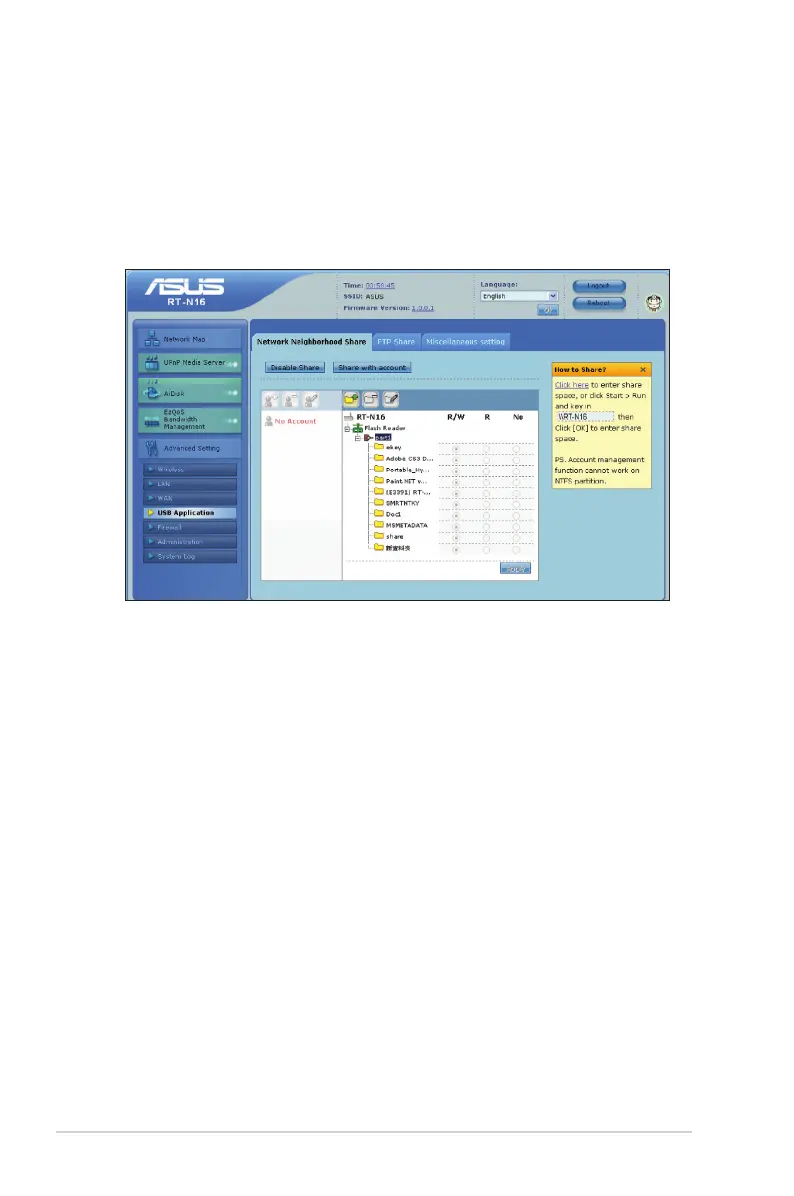
1. Click Advanced Setting > USB Application from the navigation menu at the
left side of your screen.
2. Select the account that you want to assign access rights to.
3. From the list of le folders, select the type of access rights that you want to
assign for specic le folders:
• R/W: Select this option to assign read/write access for a specic le folder.
• R: Select this option to assign read only access for a specic le folder.
• No: Select this option if you do not want to share a specic le folder.
4. Click Apply to apply the changes.
5. From the Miscellaneous setting tab, set the Work Group to WORKGROUP
to enable all computers within WORKGROUP to access the wireless router’s
USB storage device.
6. Launch My Network Place from a computer connected to the wireless router.
Click view work group computers, you can see the wireless router in the
Workgroup category. All les on the USB storage device are now shared to
computers in your network.



 To Next Page