ASUS TS100-E10-PI4
4-33
User Password
To set a user password:
1. Select the User Password item and press <Enter>.
2.FromtheCreateNewPasswordbox,keyinapassword,thenpress<Enter>.
3.Conrmthepasswordwhenprompted.
To change a user password:
1. Select the User Password item and press <Enter>.
2.FromtheEnterCurrentPasswordbox,keyinthecurrentpassword,thenpress<Enter>.
3.FromtheCreateNewPasswordbox,keyinanewpassword,thenpress<Enter>.
4.Conrmthepasswordwhenprompted.
To clear a user password:
1. Select the Clear User Password item and press <Enter>.
2.SelectYesfromtheWarningmessagewindowthenpress<Enter>.
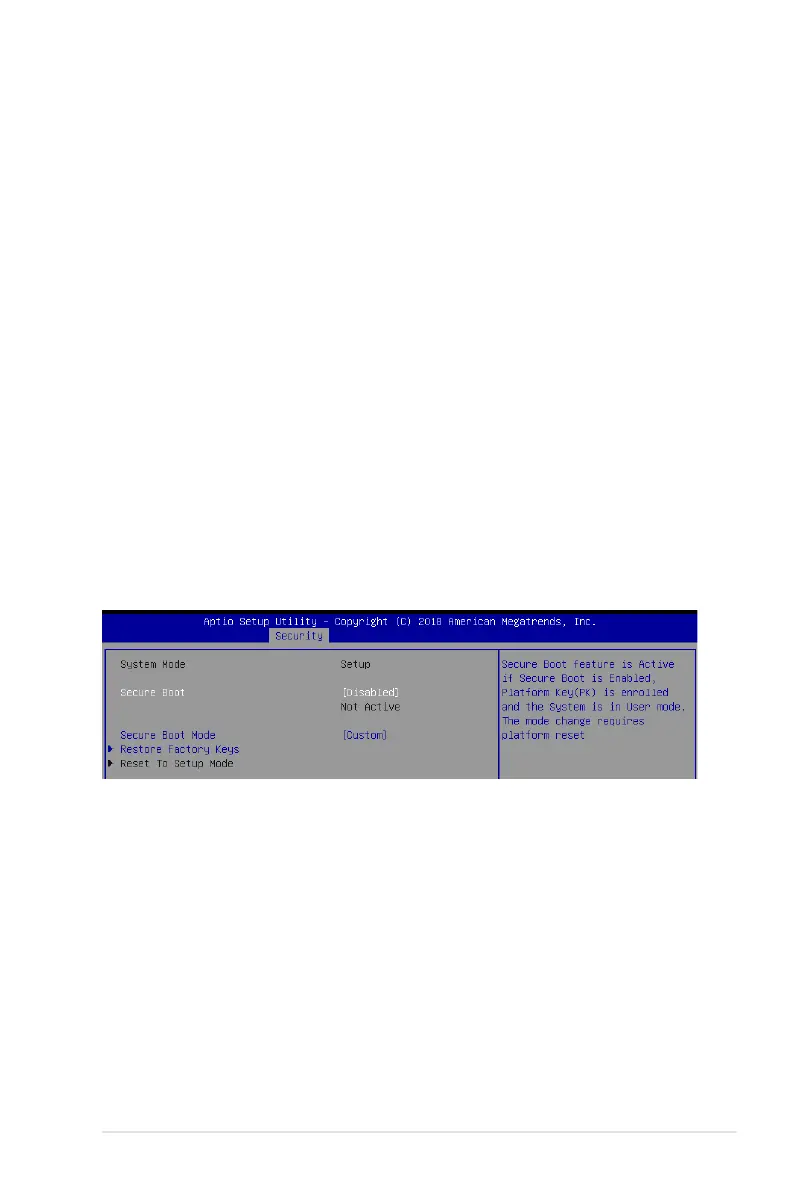
Secure Boot
This item allows you to customize the Secure Boot settings.
Secure Boot [Disabled]
Secure Boot can be enabled if the system is running in User mode with enrolled platform Key
(EPK) or if the CSM function is disabled.
Congurationoptions:[Disabled][Enabled]
Secure Boot Mode [Custom]
Allows you to set the Secure Boot selector.
Congurationoptions:[Custom][Standard]






 To Next Page