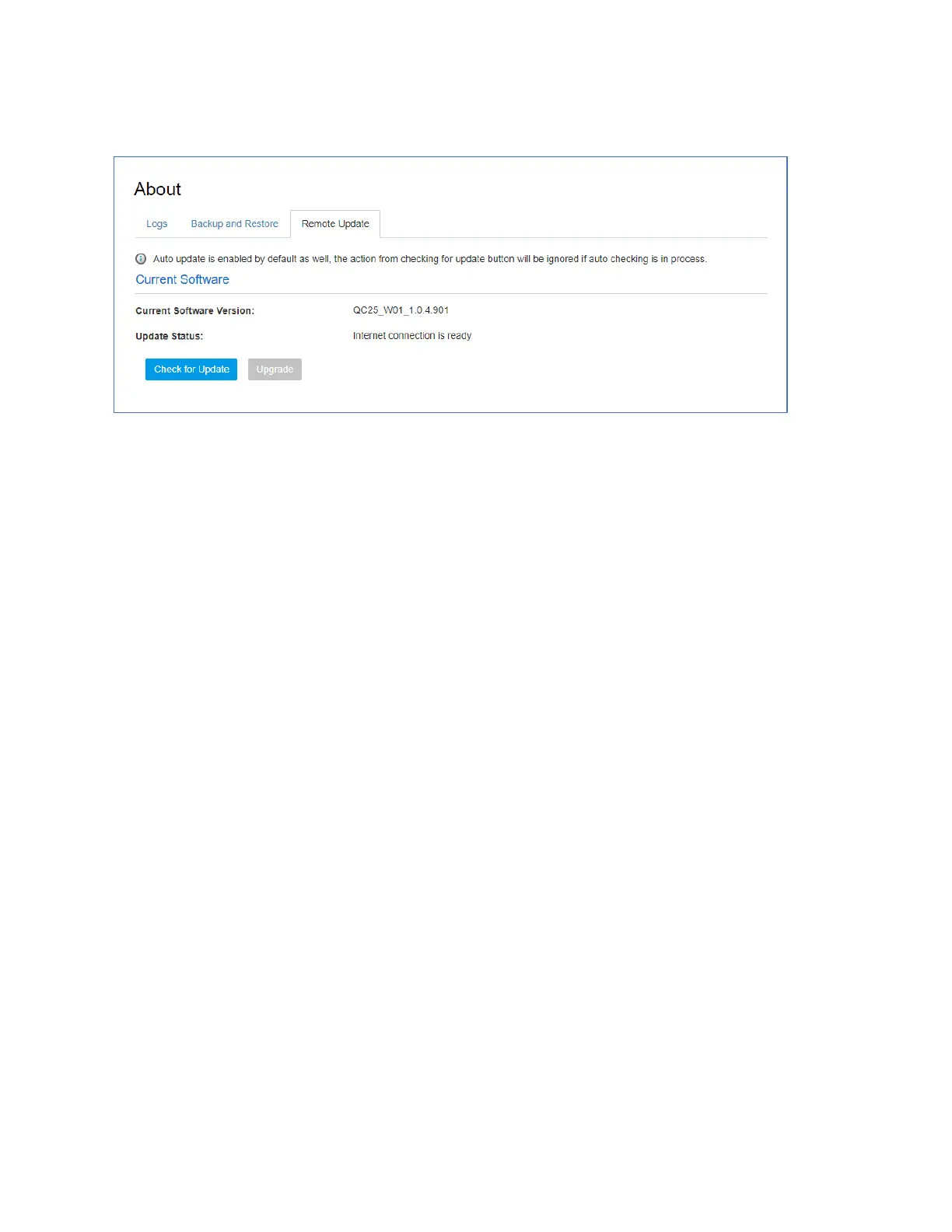
Remote Update
Prior to a software upgrade, please make sure the battery level is higher than 35%.
Loss of power during the upgrade could damage the device.
! Check for Update:
“Check for Update” button is only active (blue color) every 6 hours. When active, you can click the
“Check for Update” button to check for new software version. If a new version is detected, the
“Upgrade” button will become active (blue color).
! Upgrade:
If a software upgrade is available, click the active “Upgrade” button to launch the upgrade manually.
Once the upgrade is completed, the device will reboot and the new software version will display.
Question and Answer
The following tips can help solve some common problems encountered while using the W01 Arch.
Before you start
! Make sure you are using your W01 Arch in the correct geographic region (within the wireless
coverage area of your service provider).
! Ensure that your wireless coverage extends to your current location by using the interactive
wireless carrier’s coverage map tool.
! Ensure that you have an active service plan.
! Restarting your computer and your W01 Arch can resolve many issues.
IMPORTANT! Before contacting customer care, be sure to restart both your W01 Arch and any device
that is currently connected.


 To Next Page