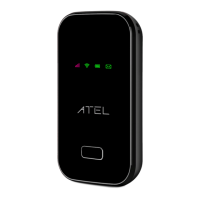
Power and LTE LED light white, WiFi and SMS LED light green during
F/W upgrading
Battery Management
Your W01 Arch is equipped with a replaceable and rechargeable battery. It works from the charged
battery alone, or when the device is plugged into a power source. Charge the battery with the charger
provided with your Hotspot. If you are logged on to your W01 Arch Online Portal, the battery charging
icon is displayed at the top right corner while the battery is charging.
Note: Please do not attempt to open or disassemble your Hotspot and the battery pack. Doing so may
cause damage that voids your warranty.
IMPORTANT! Please use only an approved charger to charge your Hotspot. Improper handling of the
charging port, as well as the use of an incompatible charger, may cause damage to your device and
void the warranty.
Accessing the Network
Work effectively outside the home or office with the reliable broadband speed that the LTE service
provides. You can connect to the internet at speeds fast enough to keep up-to-date on all your email
correspondence, download attachments, and access your corporate internet.
Using Your W01 Arch for the First Time
System Requirements
Your computer, tablet, or other wireless devices need Wi-Fi capability and Internet browser software
only. Your W01 Arch is compatible with most major operating systems and the latest versions of
browsers.
Installing the LTE Nano SIM Card
If not already inserted, follow the instructions below to install your LTE Nano SIM card.
! Remove the back cover of your device and take the battery out.
! Slide the SIM door open and insert your SIM. Make sure the SIM is placed properly before sliding
the door back up to close the SIM door as the image shows below.
! Properly install the battery and put the back cover on.


 To Next Page