
 Need help?
Do you have a question about the Atel Arch W01 and is the answer not in the manual?
Outlines necessary system specifications for using the W01 Arch, including Wi-Fi compatibility and browser versions.
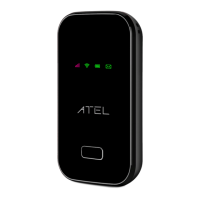
Details the physical parts of the W01 Arch, including buttons, ports, battery, and SIM card slot.
Details the power button, charging port, and reset pin hole for device operation and recovery.
Describes how to correctly insert the battery and the LTE Nano SIM card into the device.
Explains the meaning of various LED colors and blinking patterns for status indication.
Explains how to connect to the internet using the LTE service for fast uploads and downloads.
Lists the requirements for connecting devices, such as Wi-Fi capability and compatible browsers.
Provides step-by-step instructions for inserting the LTE Nano SIM card into the device.
Describes how to use the W01 Arch as a wireless hotspot to connect up to 15 Wi-Fi devices.
Explains the default security settings and how to change the mobile hotspot password.
Details how the device checks for and installs software updates automatically or manually.
Explains that the Online Device Management Portal provides access to all menu options for the W01 Arch.
Lists devices currently connected to the W01 Arch and allows blocking or unblocking them.
Allows changing the maximum number of Wi-Fi connections allowed to the W01 Arch.
Details the components of the estimated data usage display, including data used, days remaining, and cycle start date.
Explains how the Messages page displays SMS messages sent by the carrier and how to manage them.
Includes enabling/disabling Wi-Fi, setting the network name (SSID), and security options.
Covers 802.11 mode, channel selection, broadcast SSID visibility, privacy separation, and max connections.
Covers IP address, subnet mask, DHCP lease time, DHCP address range, and IP reservation.
Displays the device's unique MAC address assigned during manufacturing.
Allows devices on the network to discover each other and access services, potentially improving port forwarding.
Configures the device to enter a low-power sleep mode after a period of inactivity.
Covers settings related to the mobile network connection and SIM card.
Provides access to various firewall and network security configurations.
Manages cellular data usage and roaming settings to control internet access and charges.
Used to configure Access Point Names for connecting to the internet, allowing custom APNs.
Secures the SIM card with a PIN code, requiring entry upon device power-on to connect to the internet.
Manages SIM PIN lock status, allowing activation and providing information on remaining attempts.
Provides access to Firewall, MAC Filter, Port Filtering, and Port Forwarding configurations.
After turned on, VPN Passthrough allows connected devices to establish a VPN tunnel.
Enter the IP address of the connected device to become the DMZ destination. After enabling DMZ feature, all the applications of the connected device will be visited.
Controls Wi-Fi network access by allowing only specific MAC addresses, with no effect on Ethernet or USB devices.
Allows selection of predefined applications (e.g., Email, FTP, HTTP) to permit internet access.
Enables defining and enabling/disabling custom applications based on their outgoing ports.
Lists default applications (DNS, FTP, HTTP) for port forwarding to specific devices.
Allows defining custom applications for port forwarding using their incoming ports.
Details options for managing device logs, including turning them on, setting retention, clearing, and refreshing.
Saves the W01 Arch's settings and preferences to a computer.
Uploads a previously saved backup file to restore the device's settings.
Resets all device settings back to their original factory default values.
Manually checks for new software versions available for the W01 Arch.
Initiates the manual installation of a new software version once detected.
Provides initial checks and tips before troubleshooting, including geographic region and service plan confirmation.
Addresses unexpected power-offs, possibly due to battery depletion, and suggests charging or power reset.
Explains two methods for performing a power reset: using the power button or by removing and reinserting the battery.
Details the process of performing a device reset by using the reset pin hole and a paperclip.
Guides on how to perform a factory reset through the device's online management portal.
Addresses problems connecting to Wi-Fi after changing the password and accessing the management portal.
Offers solutions for forgotten passwords, suggesting a device reset via the reset pin hole.
Provides the FCC authorization ID and compliance conditions for the device under Part 15 of FCC Rules.
Warns against unauthorized modifications that could void the user's authority to operate the equipment.
Advises on minimum antenna separation distances to comply with RF exposure guidelines.
Emphasizes following rules and regulations, and safe usage in various environments like vehicles and aircraft.
Warns against using the device near healthcare facilities or medical life support equipment, especially pacemakers.
Advises caution in blasting areas and notes potential interference with hearing devices.
Provides information on the full ATEL USA Warranty Policy and how to access it online or contact support.
States the copyright and trademark information for the product and its manufacturer.
 General
| Standards | IEEE 802.11b/g/n |
|---|---|
| Frequency Band | 2.4 GHz |
| Wireless Speed | Up to 300 Mbps |
| Maximum Data Rate | 300 Mbps |
| Ports | 1 x 10/100 Mbps Ethernet Port |
| Security | WPA, WPA2, WEP |
| Operating Modes | Access Point, Repeater, Router |
| Power Supply | 5V DC |
| Operating Temperature | 0°C to 40°C |

 To Next Page