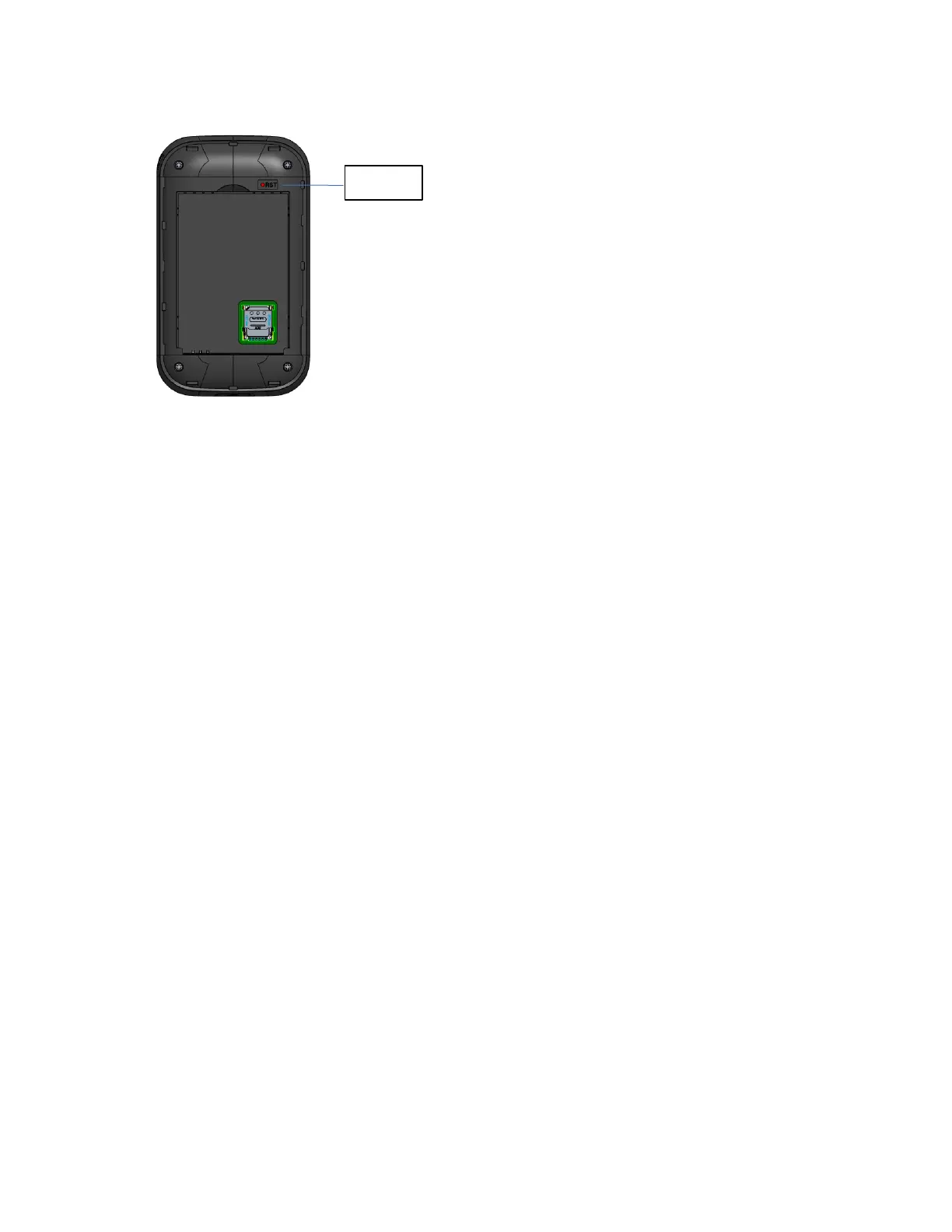
4. How do I perform a Factory Reset via the Online Device Management Portal?
Using the Mobile Hotspot Online Device Management Portal: Connect to your W01 Arch and then
open the Mobile Hotspot Online Portal (https://192.168.0.1, or, http://192.168.0.1). Select About >
Backup and Restore and Click Restore Factory Defaults.
5. I cannot connect to Wi-Fi after changing Wi-Fi password.
Your Wi-Fi devices save the previously used Wi-Fi names associated with the passwords used to
access the Wi-Fi name. When you change the Wi-Fi password only for your W01 Arch and keep the
same Wi-Fi Name, the devices try to connect to your W01 Arch using the Wi-Fi name and previous
Wi-Fi password saved, causing Wi-Fi authentication error.
6. I cannot access the https://192.168.0.1.
Ensure that a Wi-Fi connection is enabled on your device and that you have selected the correct Wi-
Fi name (SSID) for your W01 Arch connection. Also, make certain that you are entering the correct
full URL address as https://192.168.0.1. If this URL address does not work, try the IP address
http://192.168.0.1.
7. I cannot access the https://192.168.0.1.
Ensure that you are entering the correct password for the Device Management Online Portal. The
default password for the Online Portal is “admin” unless you have changed previously. If you have
forgotten your password, reset your device by following the Device Reset steps with the Reset pin
hole.


 To Next Page