22
Home Screen
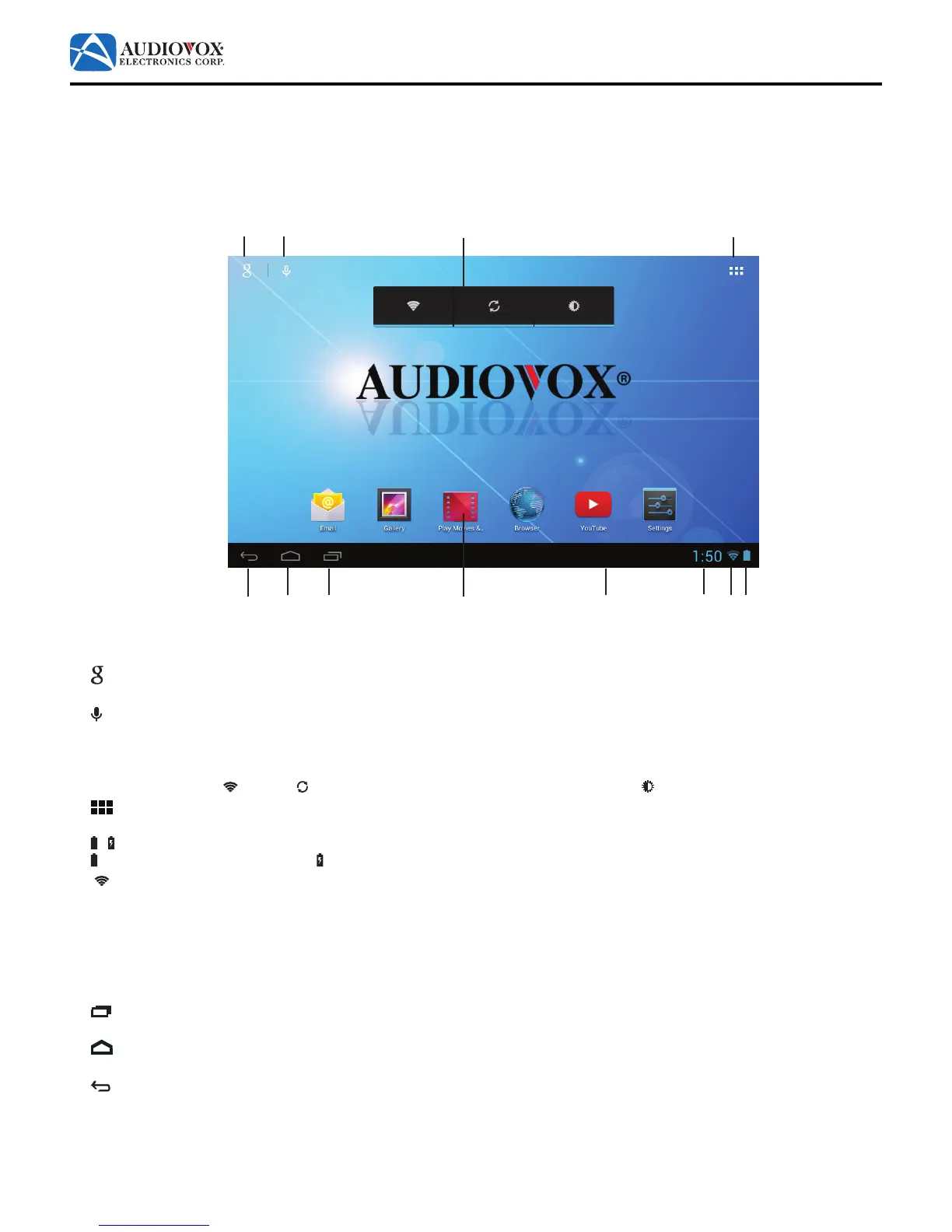
The Home screen is the starting point for using the tablet. The Home screen consists of a home panel, plus four additional
panels that extend beyond the display width to provide more space for adding shortcuts, widgets, and folders. Slide your
ngerhorizontallyacrossthescreentoscrolltotheleftorrightsidepanels.
On-screen objects can be manipulated by tapping, swiping, pinching, and reverse-pinching.
1.
Google
Tap to access the Google™ search function. The tablet must be connected to the Internet.
2. Microphone
Tap to activate the Google™ voice search function. The tablet must be connected to the Internet. Speak the desired
search criteria into the microphone.
3. Power Control Widget
On/oswitchesfor Wi-Fi
®
, backgroundsync(forsomeapps,likee-mail),and screen brightness.
4.
App Drawer Icon
Tap to open the App Drawer. The App Drawer displays all the apps and widgets that are installed on the tablet.
5. / Battery Charge Indicator
indicates the battery is charged. indicates the battery is charging.
6. Wi-Fi
®
Indicator
Displays Wi-Fi
®
signal strength.
7. Current Time Indicator
8. NoticationBar
Dragthebottombaruptochecknotications,status,andevents.
9. App Shortcut
Tap to open an app.
10. Recent Apps Icon
Tap to view recently opened apps.
11. Home Icon
Tap to go to the Home screen.
12. Back Icon
Tap to return to the previous page.
1 2
4
12
11
10
7
6 5
8
3
9



 To Next Page