34
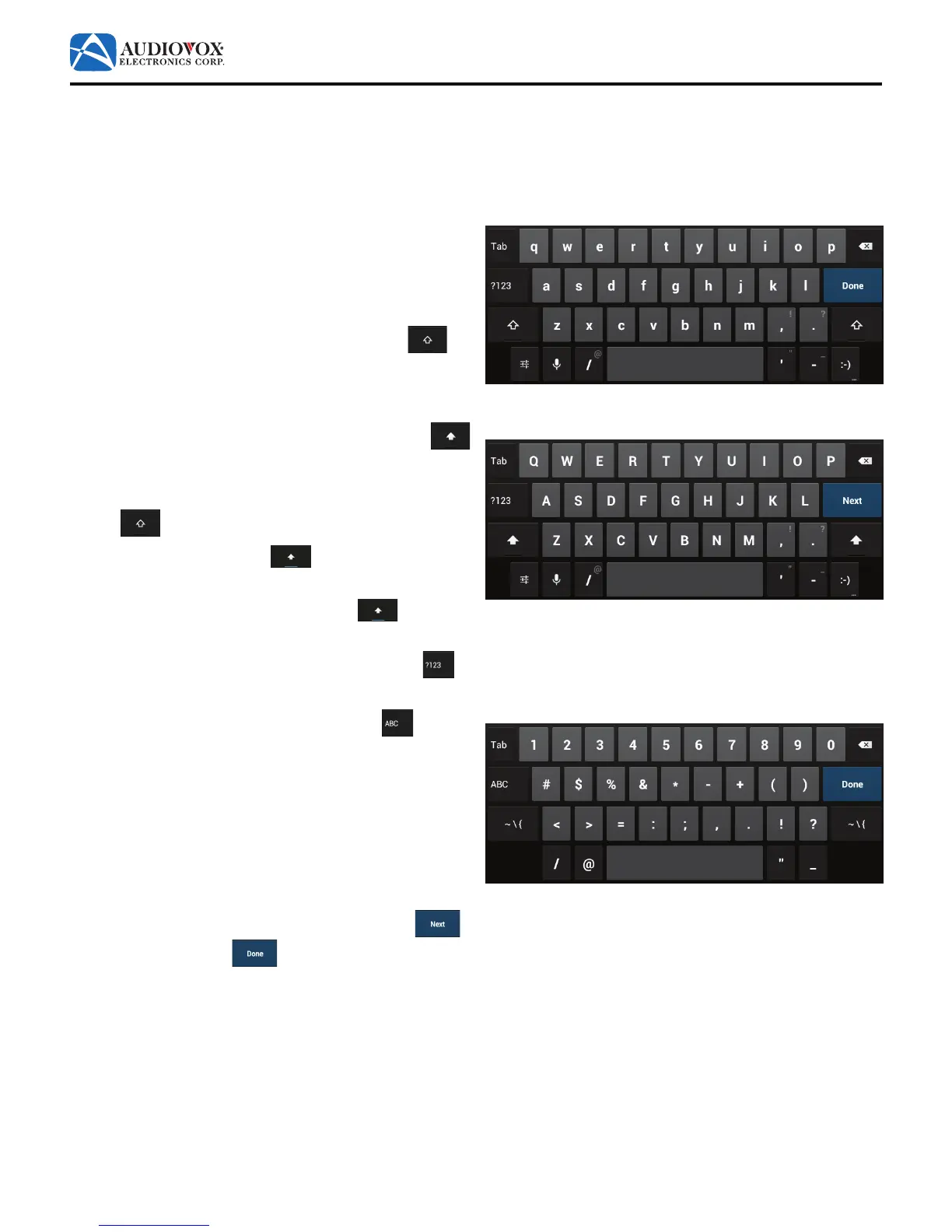
Using the On-Screen Keyboard
Yourtabletusesanon-screenkeyboard.Tapaeldwhereyouneedtoenterinformationandakeyboardappears.Useitin
the same way you would use a physical keyboard.
To enter information:
1. Tapaeldwhereyouneedtoenterinformation.A
keyboardappears.Atrst,thekeyboardshowslowercase
letters.
2. To show upper case letters, tap the Upper Case
key.
3. To return to lower case letters, tap the Lower Case
key.
4. ForCAPSLOCK(alluppercaseletters)tapandhold
the
key for two seconds.
The key will change to this .
5. To release CAPS LOCK, tap and hold the key for
two seconds.
6. To show numbers and other symbols, tap the ?123
key.
7. To return to lower case letters, tap the ABC
key.
8. Togotothenexteld(ifrequired),taptheNext
key, or tap the Done keyifnished.



 To Next Page