23
T752
Customizing the Home Screen
Apps and widgets can be added to the Home screen for quick access. Apps and widgets can also be removed or rearranged
allowing for personal customization of the Home screen.
The tablet comes pre-loaded with several useful apps and widgets. To download new apps or widgets, please refer to
“Downloading Apps From Google Play™” on page 30.
Adding Apps or Widgets
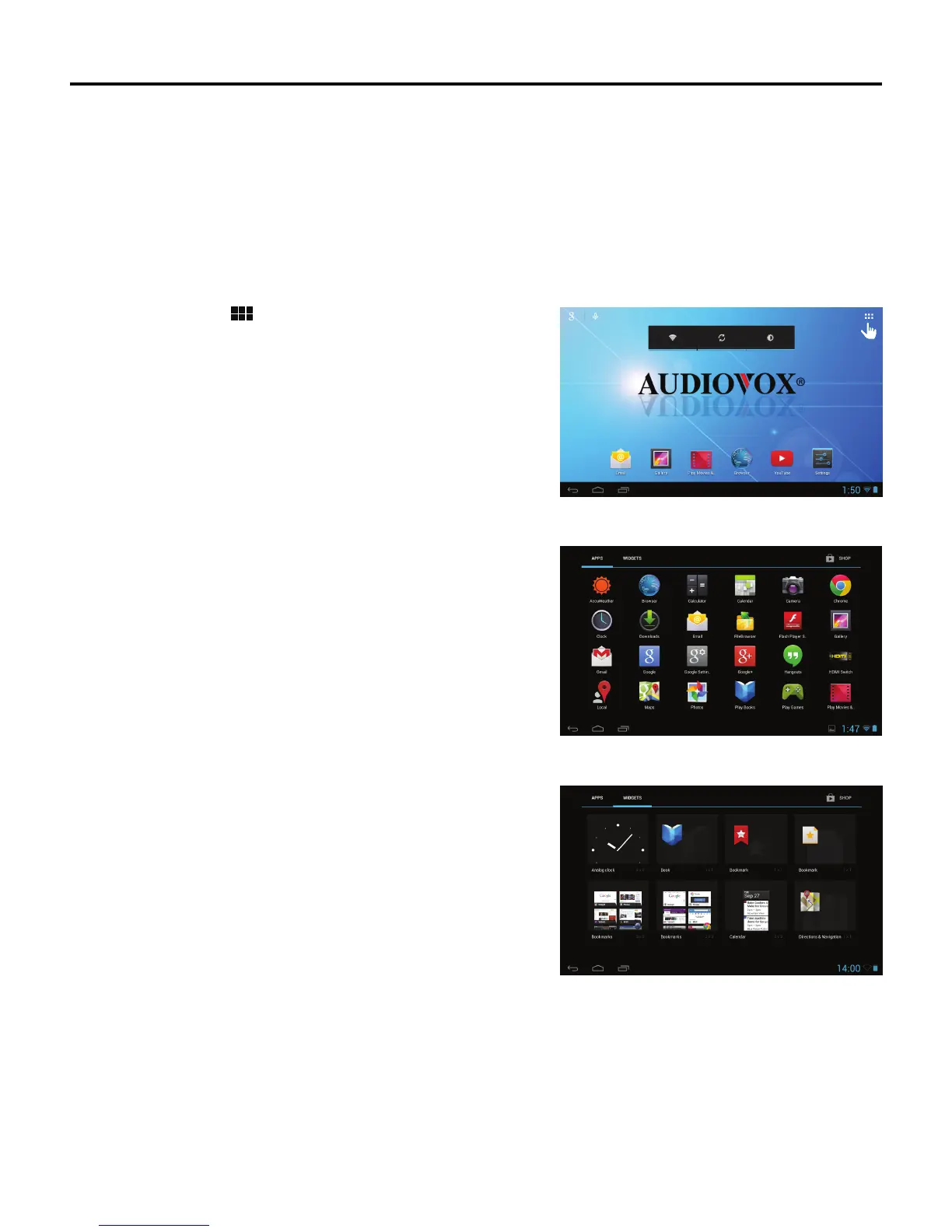
To add an app or widget to the Home screen:
1. Tap the App Drawer
icon.
2. The App Drawer appears.
To add an app to the Home screen, touch and hold an icon until the
icon appears on the Home screen.
To add a widget to the Home screen, tap the Widgets tab. Touch and
hold an icon until the icon appears on the Home screen.



 To Next Page