33
T752
10:00
10:00
A W
10:00
A W
10:00
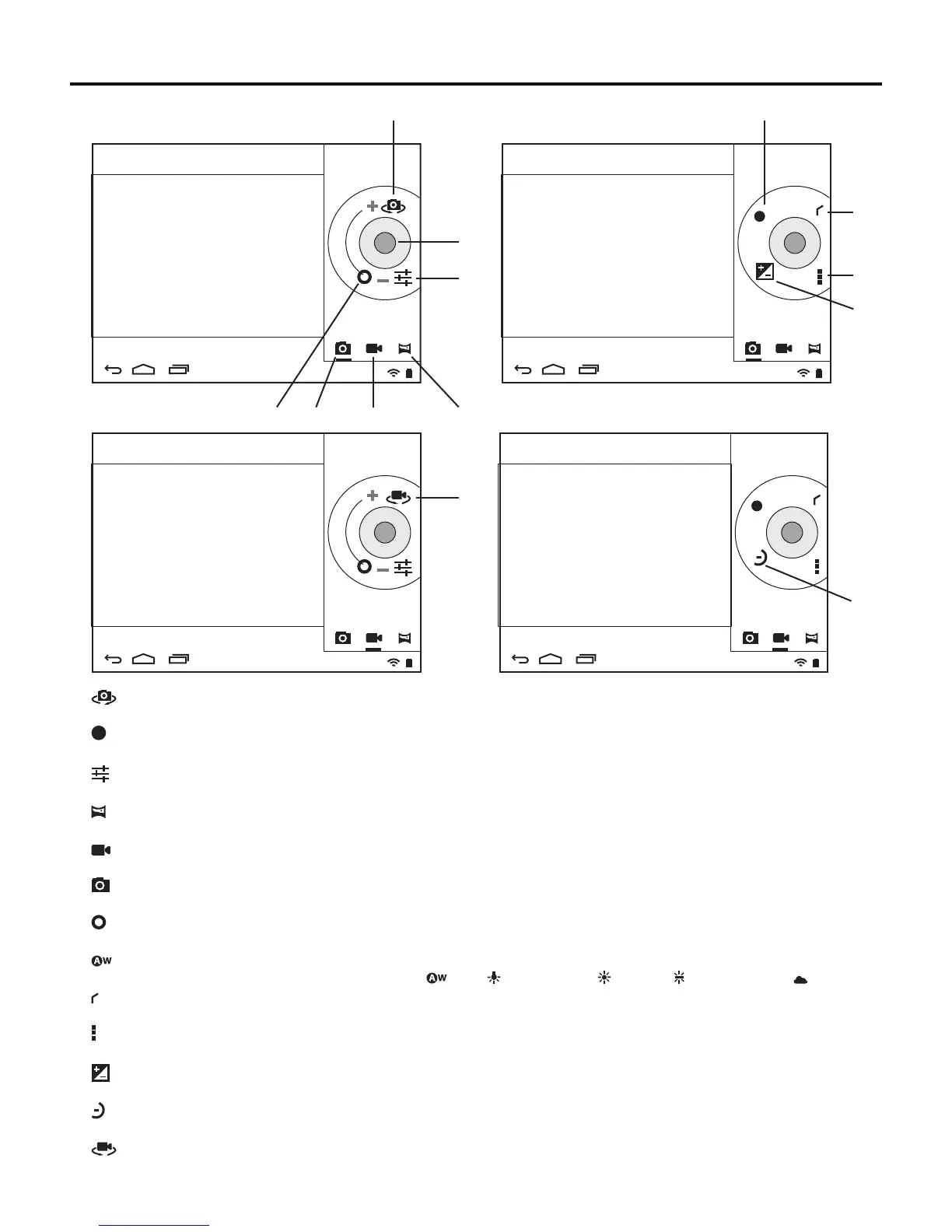
Camera Controls
1.
Switch Still Camera Icon
Tap to switch between the front and rear still camera.
2. Shutter Button.
Tap to take a photo or start/stop video recording.
3. Settings Icon
Tap to access the still and video camera exposure settings.
4. Panoramic Camera Icon
Tap to switch to the panoramic camera.
5. Video Camera Icon
Tap to switch to the video camera.
6. Still Camera Icon
Tap to switch to the still camera.
7. Zoom Control
Drag to zoom in or out.
8. White Balance Icon
Tap to select options according to the light source: auto, incandescent, daylight, ourescentand cloudy.
9. Return Icon
Tap to exit camera exposure settings.
10. Camera Action Bar
Tap to open Camera settings dialog box.
11. Exposure Icon
Tap to select the exposure. Options: -4 to +4.
12. Time Lapse Icon
Taptoselectatimelapseintervalforvideorecording.Options:Oto10seconds.
13. Switch Video Camera Icon
Tap to switch between the front and rear video camera.
1
3
4
12
10
8
7 5
9
6
11
13
2



 To Next Page