If there are product UPGRADES available online, proceed as follows:
- Save the previous setup (if you wish to consult it in OFFLINE mode);
- Start the bit Nove PC Software.
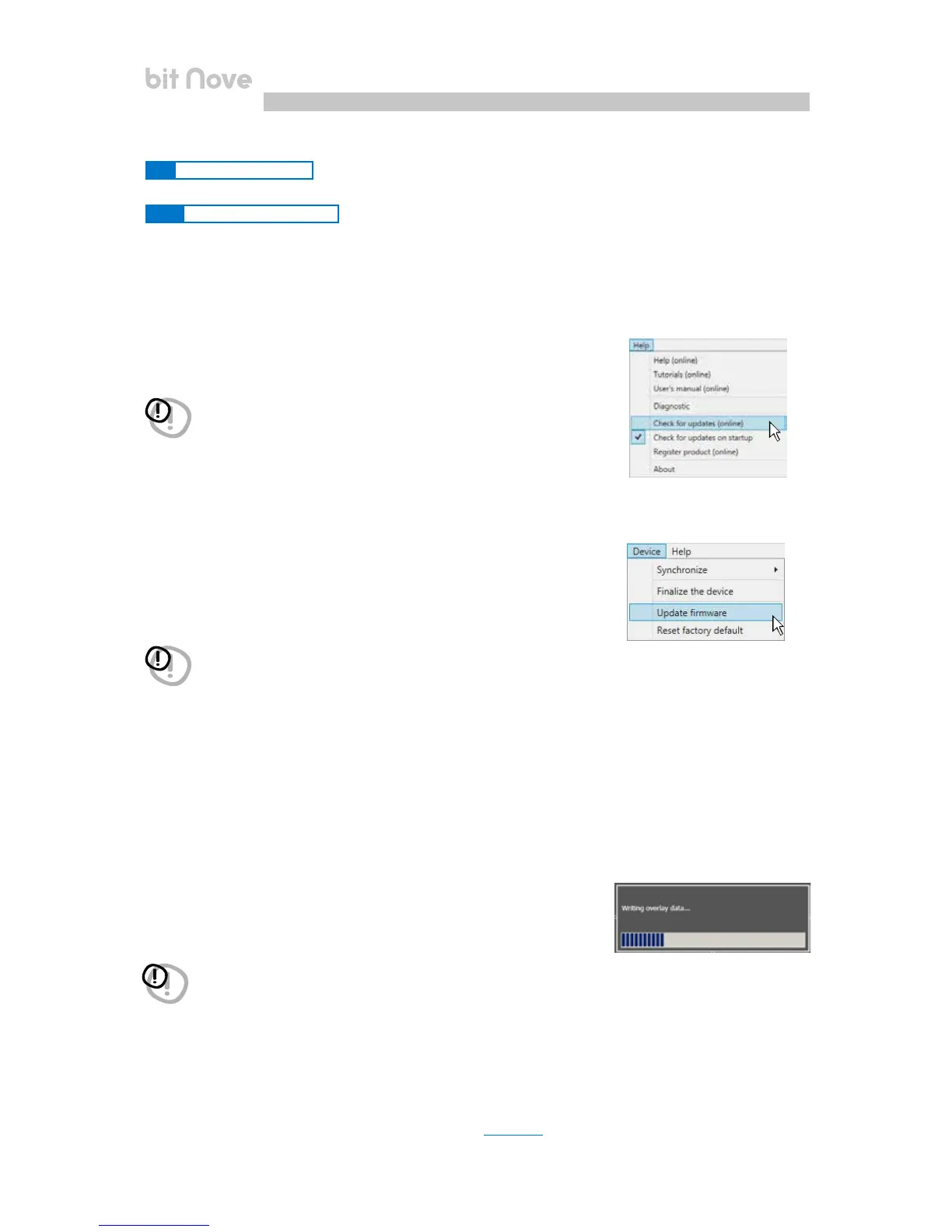
1. Access the "Help" menu in the PC management
software and choose "Check for Updates".
WARNING: the files must be manually downloaded from the website.
The software access method may be different from the following.
Refer to the instructions on the website.
WARNING: the bit Nove Firmware update procedure may be tricky. It is
essential to perform it under the best possible conditions. If the
operation is started and prematurely interrupted (e.g.: PC locked up,
loss of power to bit Nove, accidental disconnection of the USB
cable during update), you might need to contact our Customer
Service for further support as the bit Nove may need to be
reprogrammed.
3. Once the related page is open, click on the LINK for the product.
4. Identify the newest file whose name includes the
word Firmware followed by four numbers and click
on the specific symbol to start the download.
When requested, save the file to the PC.
5. Select "Update Firmware". The program will ask you to
select the file that was just saved from the Download Area or
that was previously saved in the PC.
2. When you select "Check for Updates", the internet browser in the PC will
open up and will automatically search for the URL: www.audisonbitdrive.eu.
6. Before starting the bit Nove update, the program warns you to:
- not disconnect bit Nove from the PC;
- not disconnect bit Nove from power;
- temporarily disable the PC automatic stand-by processes;
- temporarily disable the screen saver on the PC;
- close all running applications;
- temporarily disable the anti-virus and anti-spyware systems.
7. Once you have clicked on OK, the Firmware update procedure starts.
This process will last between 30 seconds and 1 minute; the progress bar
and the flashing logo on the bit Nove will show the updating process
status.
WARNING: during the update, the updating process of the progress bar may
stop for a few seconds. Do not interrupt the process in any way.
8.3 FIRMWARE UPGRADE
8.3.1 TARGET MODE UPDATE
8. When successfully completed, a notification window will appear. In order to be able to use the bit Nove again, you
must close the program on the PC and turn off the bit Nove.
9. Turn the bit Nove back on and restart the PC software. If the bit Nove firmware update was completed
correctly, the dialogue window will show:
- new bit Nove Firmware version.
10. Repeat the product calibration operations if necessary
(see sec. 7.2).
8


 To Next Page